Need help?
Do you have a question about the VTech RM5762 and is the answer not in the manual?
Connects the parent unit to your secured 2.4GHz Wi-Fi network by selecting it and entering the password.
Steps to prepare the camera and connect it to the parent unit after Wi-Fi setup.
Explains how to use the menu, adjust volume, zoom, and use the talk function.
Instructions for turning off the screen and accessing general parent unit settings.
Details how the parent unit prompts for and installs software and firmware updates.
Guides users to online resources for complete operation instructions and support.
Steps to download the app, create an account, and add cameras for remote viewing.
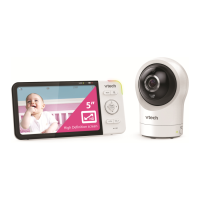
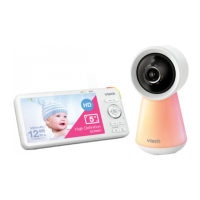
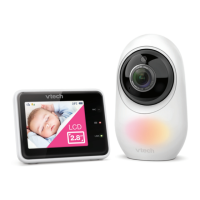
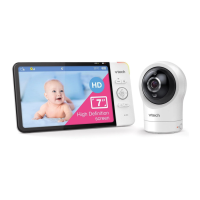
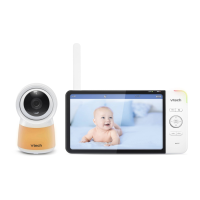
This document describes the VTech RM5762 Wi-Fi 1080p Pan & Tilt Video Monitor, a device designed to help users stay connected to their baby, whether at home or away. The monitor leverages Wi-Fi technology to stream live video and audio from an HD camera unit to a 5-inch color screen parent unit, ensuring a constant connection. Additionally, it offers remote monitoring capabilities through a smartphone or mobile tablet using the MyVTech Baby 1080p app.
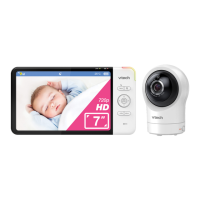
The VTech RM5762 is a comprehensive baby monitoring system. Its primary function is to provide real-time video and audio surveillance of a baby. The system consists of a camera unit, which captures video and audio, and a parent unit, which displays the feed. The camera unit features pan and tilt capabilities, allowing users to adjust the viewing angle remotely. The parent unit, equipped with a 5-inch color screen, provides a clear display of the camera feed.
A key feature of this monitor is its Wi-Fi connectivity. By connecting to the home's wireless network, the system enables users to monitor their baby from anywhere within the home where the Wi-Fi signal is accessible. Beyond local monitoring, the device extends its reach through the MyVTech Baby 1080p app. This app, compatible with Android 4.4 or later and iOS 8.0 or later, allows users to view and hear their baby from virtually anywhere in the world using a smartphone or mobile tablet. The app streams video in 1080p full HD, though concurrent viewing with the parent unit may reduce the resolution to 720p.
The system also includes audio monitoring, allowing users to hear their baby. The parent unit has adjustable speaker volume, controlling the loudness of the sound transmitted from the camera unit. A two-way talk feature enables parents to speak to their baby through the parent unit, with their voice being transmitted to the baby unit.
Initial Setup: The setup process begins with powering on the parent unit by pressing and holding the POWER button until the VTech logo appears. The next step involves setting up the Wi-Fi connection. Users need to select their preferred and secured 2.4GHz Wi-Fi network from a list and enter the password. It's crucial to choose a password-protected network for security.
Once the parent unit is connected to Wi-Fi, the system guides users through adding the camera. This involves connecting the power cord to the camera and switching it on, waiting for an orange LED to appear, and then pressing and holding the PAIR button on the camera until a beep is heard. The system then searches for and connects the camera via the same Wi-Fi network.
Basic Operation:
Remote Monitoring with MyVTech Baby 1080p App: To use the remote monitoring feature, users must download and install the free MyVTech Baby 1080p mobile app from the App Store or Google Play store. After installation, users need to create a camera account, preferably using common webmail services like Google Gmail. The account must be activated via an email link.
Once the account is set up, users follow on-screen instructions to add the camera to their account. This step requires the mobile device to be connected to the same 2.4GHz Wi-Fi network as the parent unit. Users will also need to enter a security key set for the camera with their parent unit. After these steps, users can start monitoring remotely. The app allows for pairing and accessing up to 10 camera units, with additional units only accessible via the mobile app.
Software and Firmware Updates: To ensure optimal performance, the VTech RM5762 monitor is designed to receive regular software and firmware updates. When new versions are available, the parent unit will automatically prompt users to update. This process typically involves pressing MENU when prompted, and the new software or firmware will be installed automatically. The parent unit will restart upon completion of the update. It's important to note that updates are only available when the parent unit is connected to AC power.
Online Manuals and FAQs: For comprehensive support and the latest information, users can access the online manual and FAQs. These resources are updated periodically. Users can navigate to the "About/Help" section in the parent unit's menu, then select "User manual" or "FAQ's." The online manual can be accessed via a smartphone or mobile device by visiting help.vtechphones.com/RM5762 or by scanning a provided QR code. Similarly, for the MyVTech Baby 1080p app, users can tap on the camera list in the app, then tap "Help" to refer to the online mobile app manual or scan a QR code.
This structured approach to features and maintenance ensures that users can effectively utilize and maintain their VTech RM5762 Wi-Fi 1080p Pan & Tilt Video Monitor for continuous and reliable baby monitoring.
 General
| Two-Way Communication | Yes |
|---|---|
| Two-Way Talk | Yes |
| Temperature Sensor | Yes |
| Sound Detection | Yes |
| Belt Clip | Yes |
| Low Battery Indicator | Yes |
| Out of Range Indicator | Yes |
| Night Light | Yes |
| Display | Color LCD |
| Night Vision | Yes |
| Range | 1000 feet |
| Lullabies | 5 |
| Sound Activation | Yes |
| Power Source | Rechargeable battery (parent unit), AC adapter (baby unit) |


 To Next Page