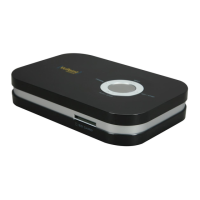
DVC-ST100-VP
User’s Manual
1. Getting to know your Video Converter
1.1 Features List
‧Convert your favorite analog composite videos to digital format.
‧Advanced recording format – MPEG-4 to double the total recording length.
‧Video playback supports MPEG-4 format.
‧Built-in SD card slot supports SD or SDHC memory card up to 32GB.
‧Recorded content can be directly played on MPEG-4 compatible player.
‧Approved by CE/FCC. EMC and Safety is guaranteed.
1.2 Functional parts:
Item Part function Operation description
1
Power (On/ Off)
Press this botton to turn ON the unit and stay in
PREVIEW mode in power off status. Press and
hold this botton to turn OFF.
2
Power indicator
(Green LED)
1. Power indicator is solid green when turned on.
2. Power indicator blinks green when playing a
video.
3
Next
Selects next file in playback mode.
4
Record indicator
(Red LED)
Record indicator blinks red while recording.
5
Record / Stop
Press once to get into preview mode and press
again to start / stop recording if video and audio
signal are connected.
6
PLAY / STOP
Press once to get into playback mode and press
again to start / stop playing saved videos.
7
SD card slot Insert SD card/SDHC card up to 32GB.
8
DC power jack DC power input
9
AV IN jack Video input (supports CVBS signal)
10
AV OUT jack Video output (outputs CVBS signal)
11
TV out mode
PAL: PAL format output (European countries);
NTSC: NTSC format output (North America area).
1
.3 Product Specification
ITEM DVC-ST100-VP
Function
AV recording, AV Playing
Video source PAL / NTSC
Record strai
ht from TV YES
TV-out PAL / NTSC
Out
ut file format ASF
MPEG-4 with
la
back
Recordin
Resolution 640x480
Recordin
Qualit
Normal
Video Recording Rate Up to 30fps@VGA with audio
Internal Nand flash Memor
16MB
External memory slot
SD card or SDHC card up to 32GB
Indicator LED Power / Recordin
/ Pla
in
status
DC Power Port YES
Video Line in Jack YES, Ø3.5mm Jack in
ut
TV-out Jack YES
Control key
4 Keys
(POWER, REC/STOP, PLAY/STOP, NEXT)
Dimension (LxWxH) 6.3” x 4.2” x 1.2”
Weight 9.3 oz.
Accessories AC/DC adapter, (2) AV cable, CD, User’s manual
2. Using the Video Converter
3
2.1 How to connect the Video Converter
1. Connect the video converter and TV with “AV CABLE 1”.
2. Connect the video converter and video output with ”AV CABLE 2”. (Video format is
CVBS)
3. Plug AC/DC adapter to an outlet and “DC IN” jack.
2.2 Inserting a memory card
1. Insert SD card or SDHC card into the SD card slot.
2. To remove the SD card, push the memory card and the card will slide out.
Note:
a) The speed and class of the SD card and SDHC card will determine how long it takes to
save your files while recording. For example, if you have a 4GB SDHC Class 2 memory, it
may take up to approximately 1 min 07 sec to save your file. If you have a 4GB SDHC
Class 4 or above memory card, it may take approximately 11 sec. to save your file. Faster
speed or different class memory cards will save your recorded file quicker than a slower
speed or class memory card. Saving times may vary depending on the memory card used.
b) Built-in SD card slot supports SD card and SDHC card up to 32GB.
2.3 Using the video converter with analog composite device
1. Press “ POWER” button to turn on the video converter.
Once the converter is on, the logo will appear first and the video that you wish to
record will show next on the television. Make sure your Beta/VHS/DVD player or
analog composite device is powered on as well as your television before you start
recording.
2. Press “
REC/STOP” button to start recording. The red record LED indicator will


 To Next Page
 General