
 Need help?
Do you have a question about the Wahoo TICKR and is the answer not in the manual?
Details compatibility for Apple devices like iPhone, iPad, and iPod.
Details compatibility for Android devices with Bluetooth 4.0 and specific OS version.
Instructions on attaching and wearing the heart rate monitor strap correctly.
Step-by-step guide for pairing the TICKR with the Wahoo Fitness app on iOS devices.
Step-by-step guide for pairing the TICKR with the Wahoo Fitness app on Android devices.
Instructions on how to start a workout session using the TICKR with an iOS device.
Steps to properly end a workout session and save data from the TICKR on iOS.
Instructions on how to start a workout session using the TICKR with an Android device.
Information on connecting the TICKR to other compatible third-party fitness applications.
Guide to using the Wahoo Utility app to diagnose connectivity problems on iOS.
Guide to using the Wahoo Utility app to diagnose connectivity problems on Android.
Instructions on how to safely replace the CR2032 battery in the Wahoo TICKR.
Information on how to contact customer support for assistance with the Wahoo TICKR.
Technical details including dimensions, weight, battery life, and water resistance.
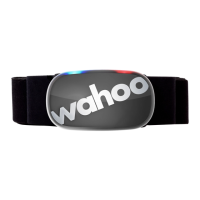
The Wahoo TICKR is a heart rate monitor designed to connect with your iOS or Android smartphone, tablet, or GPS watch. It utilizes both Bluetooth 4.0 and ANT+ technology to provide comprehensive fitness tracking. This device is capable of monitoring your heart rate, calculating calories burned, and tracking time, distance, and pace information during your workouts.
For iOS users, the TICKR is compatible with iPhone 4s and newer models, iPad 3rd generation and newer, iPad mini, iPad Air, and iPod 5th generation. Android users can connect the TICKR to devices running Android version 4.3 or newer that support the Bluetooth 4.0 protocol and allow third-party app access to the Bluetooth 4.0 (Smart) Radio. It's recommended that Android users download the Wahoo Fitness app from the Google Play Store to ensure compatibility before purchasing.
The TICKR comes with a heart rate monitor, an adjustable soft strap, a pre-installed CR 2032 battery, a Quick Start Guide, and an Important Product Info Guide.
To wear the TICKR, first snap the sensor into one side of the strap. Adjust the strap to fit comfortably around your chest, ensuring it's snug but not loose. To improve conductivity, moisten the contact point on the back of the device with saliva or electrode gel. Once positioned, wrap the strap around your chest and snap the other end into place.
Pairing the TICKR with the Wahoo Fitness app is a straightforward process. For iOS devices, download the Wahoo Fitness app from the App Store. Open the app and ensure Bluetooth is enabled. To wake up the TICKR, wear it on your chest; it activates when a heartbeat is detected. In the app, select "Sensors" in the bottom left corner, then "Add New Sensor." Choose your TICKR from the list of available sensors and select "Save Sensor" once connected. You can then choose the workout profiles (e.g., Running & Cycling) for which you want the TICKR to be active. Complete the pairing and workout selection by selecting "Done," and then "Done" again in the top left corner to exit the Sensors menu.
For Android devices, download the Wahoo Fitness app from the Google Play Store. Open the app and ensure Bluetooth is turned on. Wear the TICKR on your chest to wake it up. In the app, select "Saved Devices" in the top right corner, then the plus "+" icon to add a new sensor. Select your TICKR from the list and choose "Save Device" once connected. Select the desired workout profiles and confirm with "Ok." Use the Back button to return to the Home Screen.
Once paired, your TICKR is ready for use. To begin recording data, simply start a workout within one of the profiles you've paired it with. The Wahoo Fitness app will automatically remember this pairing for future sessions.
The TICKR Heart Rate Monitor features both blue and red LEDs to provide real-time feedback during the pairing process. These LEDs operate for approximately 30 seconds to conserve battery life. The red LED flashes with each detected heartbeat, while the blue LED indicates the connection state. The blue LED has three modes: a slow blink (about once per second) indicates the TICKR is awake but not paired, a 3x flash occurs the instant a connection is made, and a quick blink (about twice per second) signifies that the TICKR is paired to a device.
If a firmware update is available for your sensor, the Wahoo Fitness app will prompt you to perform the update. If you choose not to update immediately, it can be done later. Sensors with pending updates will be marked with a badge in the Saved Sensors menu.
To start a workout on iOS, ensure Bluetooth is on. Select your desired workout type using the slider and choose whether to enable Audio Announcements. Wear your TICKR to wake it up. Confirm that the TICKR is synced to your device; it will appear in the list of Linked Sensors with a signal strength indicator. Press the green "Start" button to begin, and your TICKR's data will be displayed. To end a workout, select the red "Pause" button, then the red "Stop" button. You'll have options to Discard, Save, or Return to Workout. If you finish, a summary will be displayed.
For Android users, ensure Bluetooth is on. Select your workout type using the slider. Use the Pencil icon to customize workout settings, such as the double-tap function for TICKR Run or Audio Announcements. Select the green "Play" button to open a new workout. Wear your TICKR to wake it up. Verify that the TICKR is synced to your device; it will appear in the Linked Sensors list with a signal strength indicator. Press the green "Start" button to begin your workout, and data from your TICKR will be displayed. Note that for Android, firmware updates require the free Wahoo Utility app from the Google Play Store.
The TICKR is compatible with various third-party apps. To connect to another app, open the desired app, navigate to its settings, and look for options like "connect to sensor." Each sensor must be connected separately for each app. Remember that Bluetooth devices can only pair with one app at a time, so close any background apps using the sensor before connecting to a new one.
If you encounter connectivity issues, you can use the Wahoo Utility app to test your hardware. For iOS, download the Wahoo Utility app from the App Store. Open it, ensure Bluetooth is on, and select "Test Bluetooth 4.0 Sensors." Then choose "BlueHR/TICKR." The app will attempt to connect and display sensor data and firmware version. Close the app to disconnect after testing. For Android, download the Wahoo Utility app from the Google Play Store. Open it, and "Discover Devices" will immediately search for your sensor. Ensure Bluetooth is on. Select "TICKR," and the app will connect, displaying sensor data and firmware. Close the app when finished. The Wahoo Utility app will also indicate if a firmware update is available with an "Upgrade Firmware" button.
To replace the Wahoo TICKR battery, use a coin to insert into the depression on the back casing and turn anti-clockwise to the "unlock" position. Replace the old CR2032 coin cell battery with a new one. Then, replace the back casing and use the coin to turn clockwise to tighten it to the "lock" position.
If you continue to experience issues, you can contact support for more information. Using the Settings > Info + Help > Send support email function within the Wahoo Fitness app will attach a log file to your query, which can help support better address your questions.
 General
| Connectivity | Bluetooth, ANT+ |
|---|---|
| Battery Life | Up to 500 hours |
| Water Rating | IPX7 |
| Weight | 48 g (1.7 oz) |
| Device Type | Heart Rate Monitor |
| Heart Rate Variability (HRV) Support | Yes |
| Heart Rate Tracking | Yes |
| Strap Material | Soft fabric |
| Battery Type | CR2032 |
| Compatibility | iOS, Android |

 To Next Page
