Wansview Cloud APP User Manual
Optional Storages
CHAPTER 6
6.1 Memory Card Storage
Applies to: All Wansview outdoor cameras with Micro SD card slot.
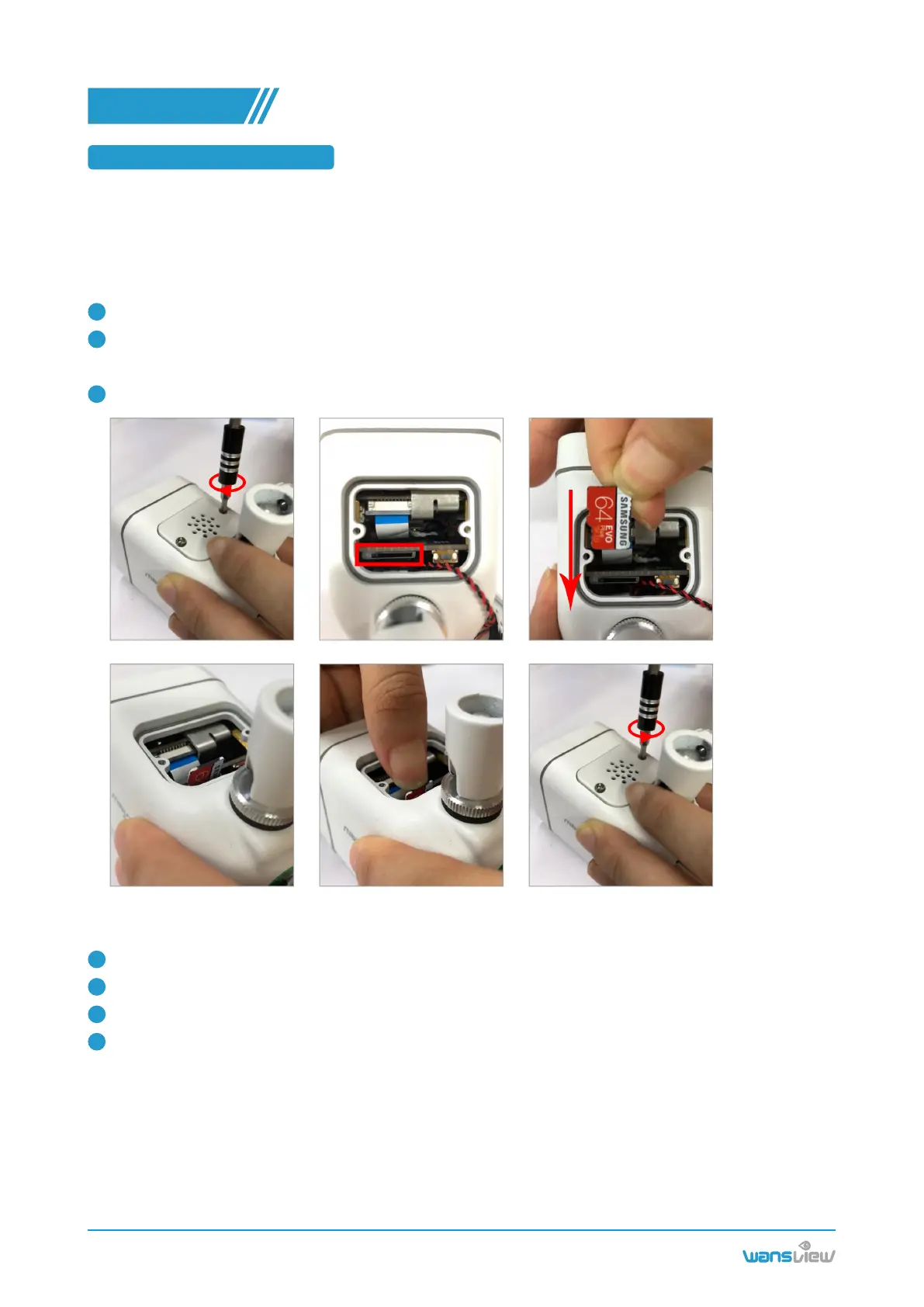
6.1.1 Install the micro SD card into camera
Note: Before install/uninstall the SD card, please power off the camera firstly, in case it will damage the SD
card. If SD card can’t be recognized by your camera successfully, please use the reader to format SD card
via FAT 32 on PC and then insert into the camera to try again.
Unscrew the screws to open the cover and find the micro SD card slot.
Insert the SD card face up into the slot, please use your fingernail to push the SD card until you hear a
click sound and the micro SD card will not pop out if the card is inserted in properly.
Screw the screws to close the cover tightly.
6.1.2 Set up SD card recording on Wansview Cloud APP
Make sure that the SD card is inserted into the camera correctly.
Tap the Settings button and set Motion Alarm and Memory Card Storage to "On".
Select the schedule to 24/7 to allow the camera detecting the motion all day.
Tap the Replay button to see the recording on the memory card.
1
2
3
1
2
3
4
www.wansview.com
18


 To Next Page