EasyManua.ls Logo

Wansview W7 - Download APP and Register Account; Download and Install APP; Register Account

Wansview W7
12 pages
Print Icon
To Next Page IconTo Next Page
To Previous Page IconTo Previous Page
Loading...
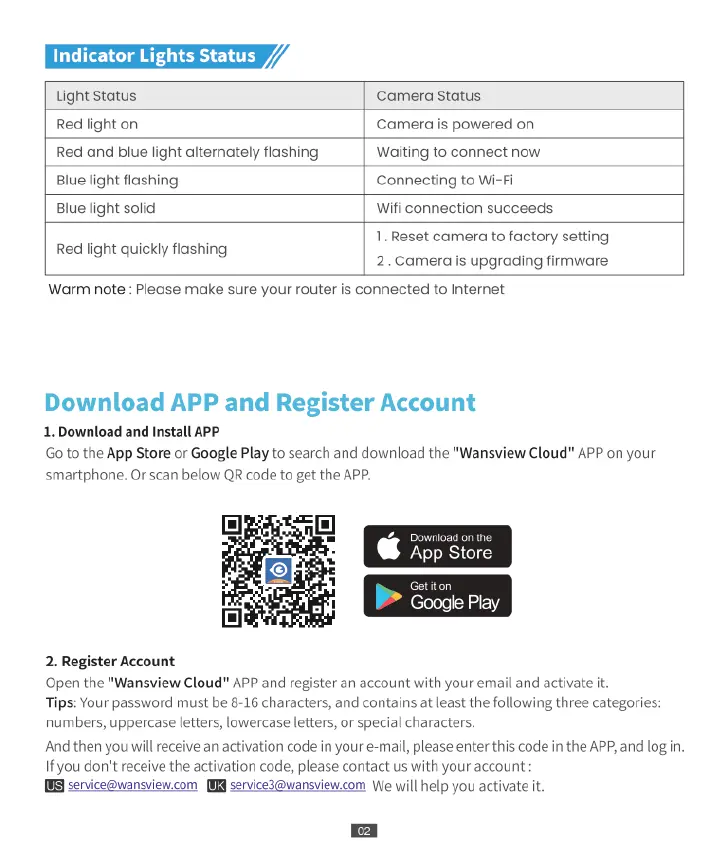
Indicator
Lights
Status
/4
Light
status
Camera
Status
Red
light
on
Camera
is
powered
on
Red
and
blue
light
alternately
flashing
Waiting
to
connect now
Blue
light
flashing
Connecting
to
Wi-Fi
Blue
light
solid
Wifi
connection
succeeds
Red
light
quickly
flashing
1.
Reset
camera
to
factory
setting
2.
Camera
is
upgrading
firmware
Warm
note
:
Please
make
sure
your
router
is
connected
to
Internet
Download
APP
and
Register
Account
1.
Download
and
Install
APP
Go
to
the
App
Store
or
Google
Play
to
search and
download
the
"Wansview
Cloud"
APP
on
your
smartphone.
Or
scan
below
QR
code
to
get
the
APP.
Dol
the
[
App
Store
oogle
Play
2.
Register
Account
Open
the
"Wansview
Cloud"
APP
and
register
an
account
with
your
email
and
activate
it
Tips:
Your
password
must
be
8-16
characters,
and
contains
at
least
the
following
three
categories:
numbers,
uppercase
letters,
lowercase
letters,
or
special
characters.
And
then
you
will
receive
an
activation
code
in
your
e-mail,
please
enter
this
code
in
the
APP,
and
log
in.
If
you
don't
receive
the
activation
code,
please
contact
us
with
your
account
:
[V
service@wansview.com
8
service3@wansview.com
We
will
help
you
activate
it

Related product manuals