EasyManua.ls Logo

Wansview W7 - Questions and Answers; Fail to Scan; Fail to Connect WiFi; Red Light Steady? Cant Reset Successfully?

Wansview W7
12 pages
Print Icon
To Next Page IconTo Next Page
To Previous Page IconTo Previous Page
Loading...
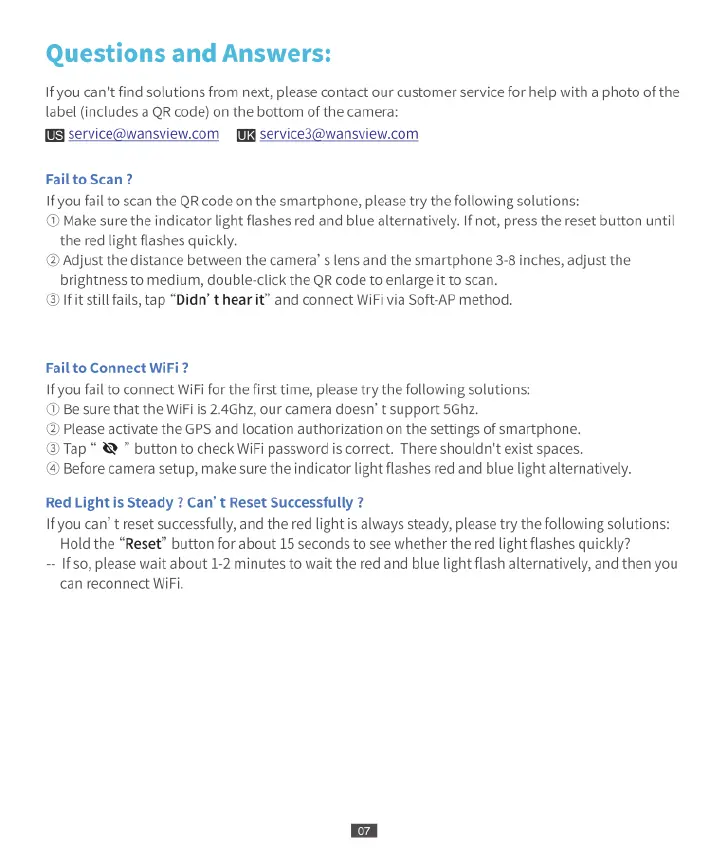
Questions
and
Answers:
If
you
can't
find
solutions
from
next,
please
contact
our
customer
service
for
help with
a
photo
of
the
label
(includes
a
QR
code)
on
the
bottom
of
the
camera
B
service@wansview.com
[
service3@wansview.com
Fail
to
Scan
?
If
you
fail
to
scan
the
QR
code
on
the
smartphone,
please
try
the
following
solutions:
D
Make
sure
the
indicator
light
flashes
red
and
blue
alternatively.
If
not,
press
the
reset
button
until
the
red
light
flashes
quickly.
@
Adjust
the
distance
between
the
camera’
s
lens
and
the
smartphone
3-8
inches,
adjust
the
brightness
to
medium,
double-click
the
QR
code
to
enlarge
it
to
scan.
fitstill
fails,
tap
“Didn’
t
hear
it”
and
connect
WiFi
via
Soft-AP
method.
Fail
to
Connect
WiFi
?
If
you
fail
to
connect
WiFi
for
the
first
time,
please
try
the
following
solutions:
@
Be
sure that
the
WiFi
is
2.4Ghz,
our
camera
doesn’
t
support
5Ghz.
(@
Please
activate
the
GPS
and
location
authorization
on
the
settings
of
smartphone.
3
Tap
&
button
to
check
WiFi
password
is
correct.
There
shouldn't
exist
spaces.
@
Before
camera
setup,
make
sure
the
indicator
light
flashes
red
and
blue
light
alternatively.
Red
Light
is
Steady
?
Can’
t
Reset
Successfully
?
Ifyou
can’
t
reset
successfully,
and
the
red
light
is
always
steady,
please
try
the
following
solutions:
Hold
the
“Reset”
button
for
about
15
seconds
to
see
whether
the
red
light
flashes
quickly?
~
I
so,
please
wait
about
1-2
minutes
to
wait
the
red
and
blue
light
flash
alternatively,
and then you
can
reconnect
WiFi

Related product manuals