Wasp Barcode Technologies: Bluetooth pairing a WWS550i barcode scanner on Windows XP Page 2 of 2
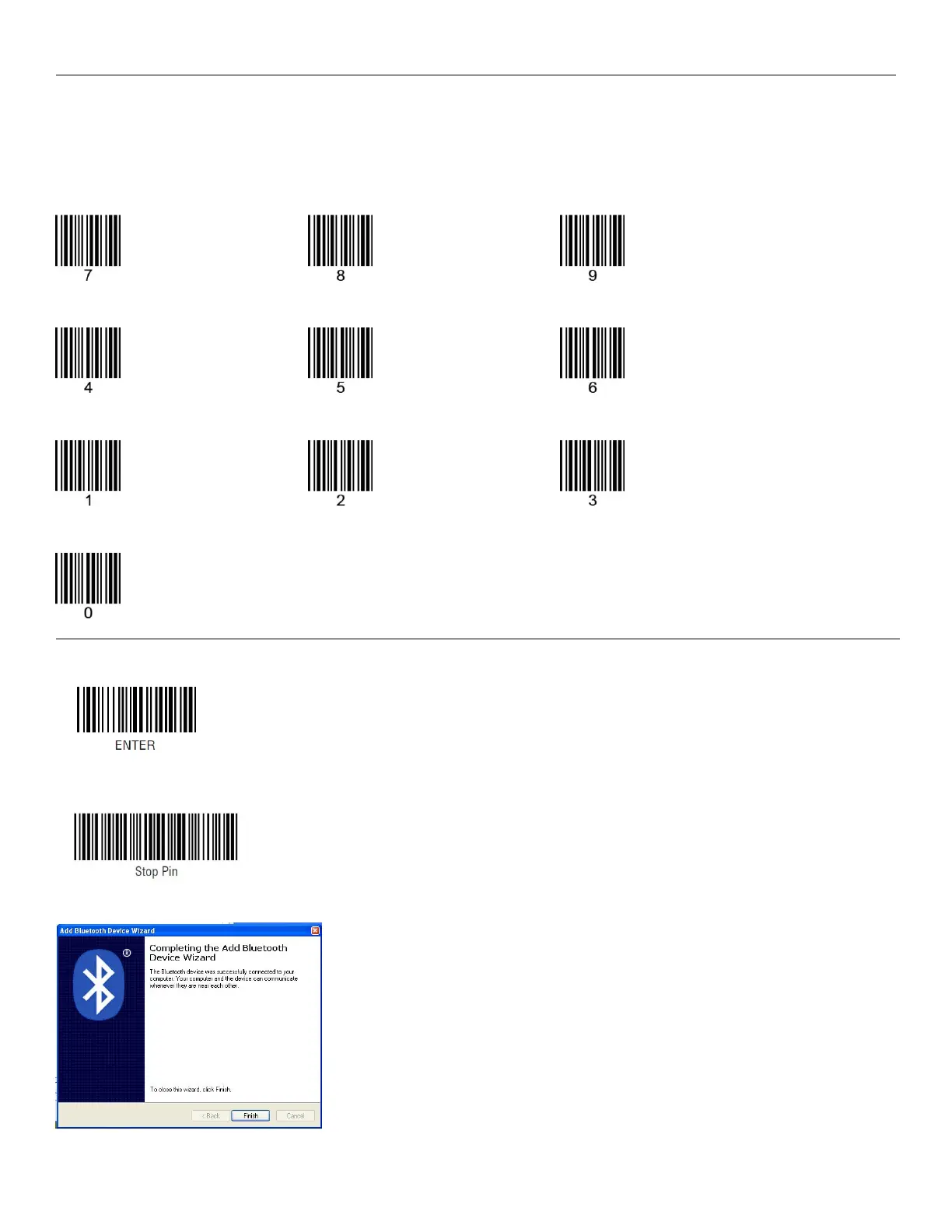
10. For each digit in the 8 digit code shown on your screen, scan the corresponding barcode below.
For example, if your code is 15492208, start by scanning the barcode for 1, then the barcode for 5, then the
barcode for 4, etc. until you have scanned all digits in the code, then continue to the next step.
11. Scan Enter
12. Scan Stop Pin
13. Click the Finish button.
If the device does not pair, click Back and repeat
steps 5 – 12. Do not omit Step 12. Scan Stop Pin,
even if you see a message on screen about
installing device drivers or that pairing is complete.
To test the connection, open Notepad, MS Word,
or some other application that accepts text input
from a keyboard, then scan a barcode. You can try
the Test Symbols in the scanner manual, or a UPC
barcode from a product. The application should
show the data from the barcode.



 To Previous Page