4 5
English
SET UP AN AP WITH WIFI CLOUD
Connect the AP
• Connect an Ethernet cable between your network and the
Ethernet (LAN1) interface on your AP.
• You must enable DHCP on the network where you connect the AP.
- Make sure that the AP has Internet connectivity and can communicate to WatchGuard
Wi-Fi Cloud services on these ports: HTTP TCP 80/443 and UDP 3851.
If you have a Firebox the WatchGuard Wi-Fi Cloud policy opens the necessary ports.
• If your network does not support Power over Ethernet (PoE+), connect the optional power adapter or
PoE+ injector (sold separately).
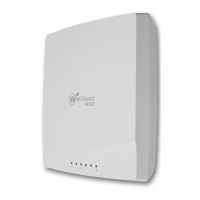
• After you power on the AP, wait a few minutes until the Power indicator and the Ethernet (LAN1) indi-
cator turn solid green. This shows the AP is online and can communicate with the WatchGuard Wi-Fi
Cloud.
Connect to the WatchGuard Wi-Fi Cloud
To connect to the WatchGuard Wi-Fi Cloud, log in to the WatchGuard Support Center or go to
https://login.watchguard.cloudwi.com
Congure your AP
1. From the WatchGuard Wi-Fi Cloud Dashboard, launch Go.
2. Add a new wireless network and type the SSID you want to use.
3. Select a security mode. We recommend WPA2 PSK.
4. Click Save to reset your AP with the new conguration.
5. Toggle on your new wireless network.
Verify AP Status
• From the WatchGuard Wi-Fi Cloud Dashboard, launch Manage.
• Select Monitoring > Managed Devices.
• Make sure your AP appears and the status is active.
It may take several minutes for the AP to display as active after the initial conguration.
For complete information about how to congure your AP with WatchGuard Wi-Fi Cloud,
see WatchGuard Wi-Fi Cloud Help at watchguard.com/help.
SET UP AN AP WITH A FIREBOX
Connect the AP
• Connect the AP to a Firebox trusted or optional interface with DHCP enabled.
For information about using a static IP address, see Fireware Help.
• If your network does not support Power over Ethernet (PoE+), connect the optional power adapter
or PoE+ injector (sold separately).
• Log in to Fireware Web UI and make sure the interface the AP connects to has DHCP
enabled.
Enable the Gateway Wireless Controller
• Select Network > Gateway Wireless Controller, then select the Enable Gateway
Wireless Controller check box.
• Type the AP Passphrase the Firebox will use for APs after they are paired.
Discover and pair the AP
• Click Refresh to start Access Point discovery.
• Select the discovered Access Point and click Pair.
• Congure radio settings for each radio. Click Save.
Congure an SSID for the AP
• Select the SSIDs tab. Click Add.
• In the Network Name text box, type a name for this wireless network.
• In the SSID settings, select the Security tab. Congure wireless security settings.
• In the SSID settings, select the Access Points tab. Select the Access Point radios.
• Click Save.
Verify AP status
• Select Dashboard > Gateway Wireless Controller, then select the Access Points tab.
• Make sure your known APs are trusted and the device status is Online.
For complete information about how to congure your AP with the Gateway Wireless Controller on your
Firebox, see Fireware Help at watchguard.com/help.
Getting Started with the WatchGuard
Wi-Fi Cloud Video Tutorial (10 minutes)
http://wgrd.tech/2cDXQRM
Use a mobile device
to verify that your new
wireless network is
broadcasting.
HINT:


 To Next Page