236 CHAPTER 28 CLICK 400
Firmware Version
Shows the version of firmware your device currently has installed. If
Click Supervisor detects a discrepancy between this version and the
most current version it currently has access to, you will be prompted
to upgrade when you connect to the device.
MAC ID
The MAC ID is the unique identifier of the MAC layer of the Click 400.
Table 27.3 – About Tab
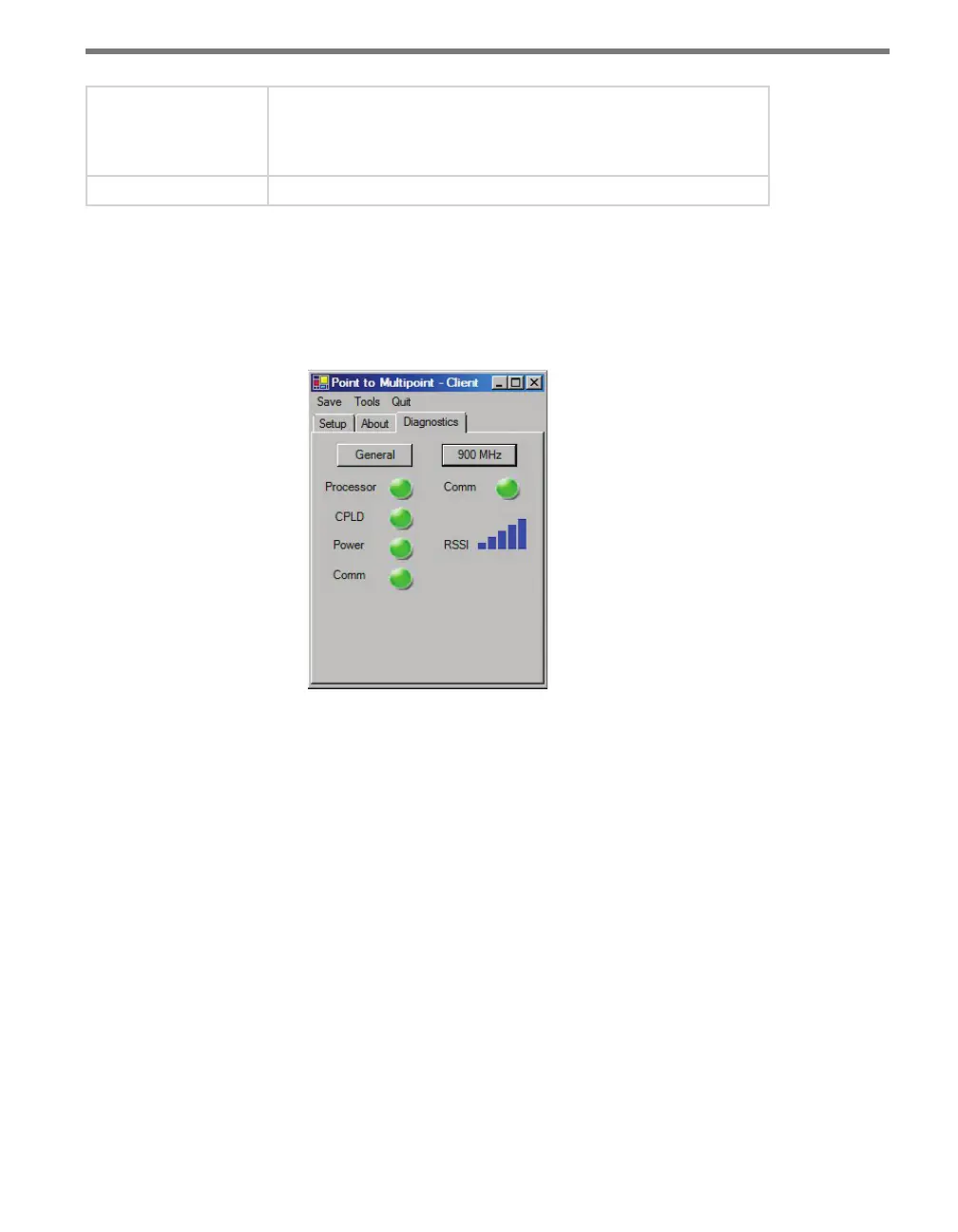
Under the Diagnostics tab, you can run diagnostics on your device (see Figure 27.6). Click
the General or 900 MHz buttons to run diagnostics on the items listed below each button.
If a problem is detected, the program will display a red square next to the item in question.
If no problems are detected, a green circle will appear.
Figure 27.6 – Diagnostics Tab
e RSSI display will show the relative RSSI strength of the radio, which is useful for detect-
ing a low signal. If a low RSSI strength is shown, the user can boost the transmit power of
the radio (if it isn’t already at 100%), check line of sight to determine if any obstacles are
blocking the signal or check the gain on the antenna and replace the antenna if needed.
Once you have nished, use the menu bar at the top of the screen to save your settings,
return to the Select Driver screen, and more.
e Save menu allows you to save your settings. Select Save to File to save your settings
to a le. Selecting this will open a directory box, allowing you to name your settings
le. is le will always be saved in the Wavetronix folder created when you installed
Click Supervisor, under Wavetronix > ClickHome > Drivers > 400 > User. You can also
select Save to Device to save your settings to your Click 400.



 To Next Page