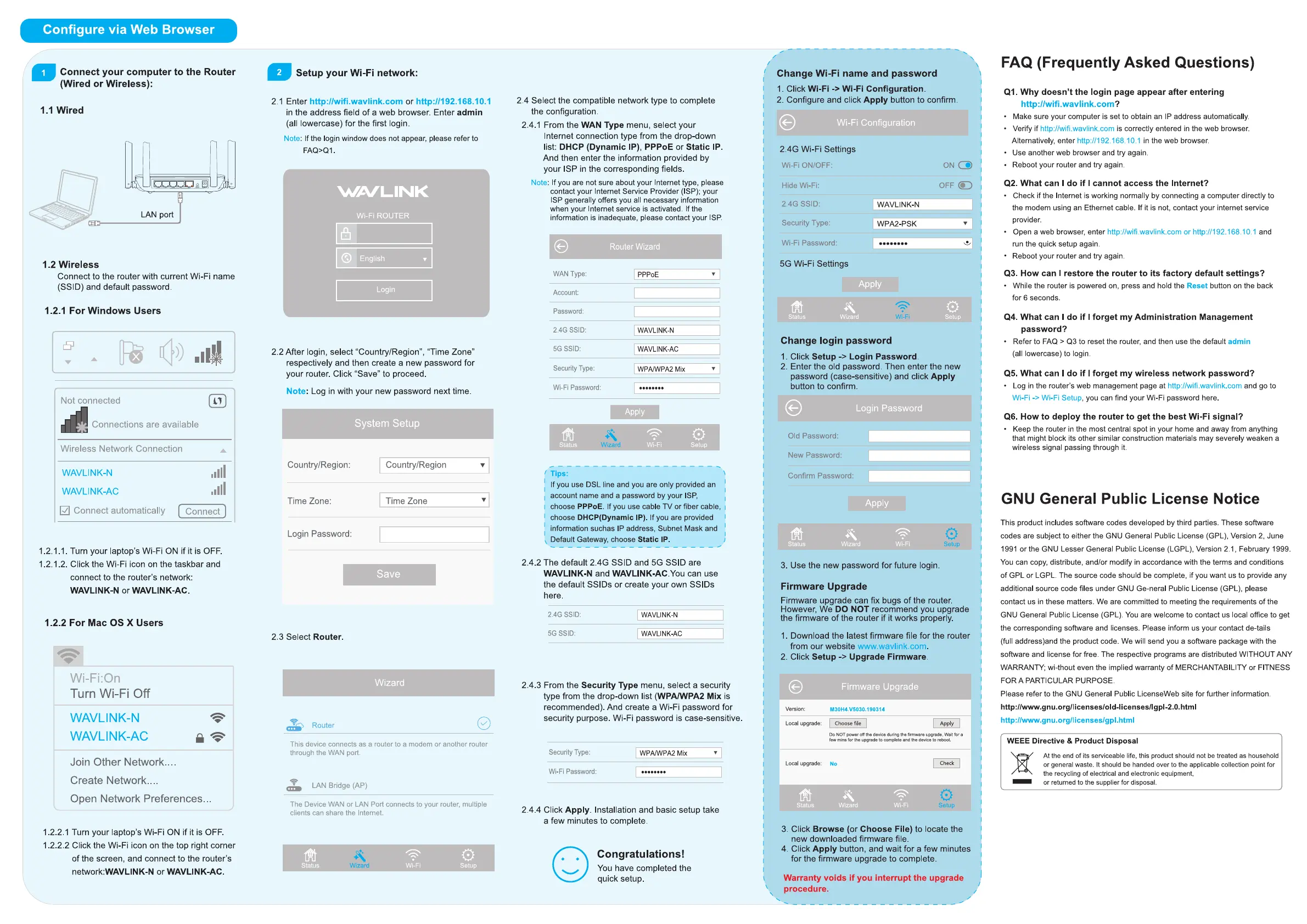
Configure via Web Browser
Connect your computer to the Router
(Wired or Wireless):
1.1 Wired
LAN port
1.2 Wireless
Connect to the router with current Wi-Fi name
(SSID) and default password
1.2.1 For Windows Users
Not connected
Connections are available
Setup your Wi-Fi network:
2.1 Enter
http://wifi.wavlink.com or http://192.168.10.1
in the address field of a web browser. Enter admin
(all lowercase) for the first login
Note:
If the login window does not appear, please refer to
FAQ>QI
WAUL-INK
Wi-Fi ROUTER
O English
Login
2.2 After login, select "Country/Region", "Time Zone"
respectively and then create a new password for
your router. Click "Save" to proceed
Note: Log in with your new password next time.
System Setup
2.4 Select the compatible network type to complete
the configuration.
2.4.1 From the WAN Type menu, select your
Internet connection type from the drop-down
list: DHCP (Dynamic PPPoE or Static 'P.
And then enter the information provided by
your ISP in the corresponding fields.
Note. If you are not sure about your Internet type, please
contact your Internet Service Provider (ISP); your
ISP generally offers you all necessary information
when your Internet service is activated. If the
information is inadequate, please contact your ISP.
Change Wi-Fi name and password
1. Click Wi-Fi Wi-Fi Configuration.
2. Configure and click Apply button to confirm.
Wi-Fi Configuration
2.4G Wi-Fi Settings
Wi-Fi ON/OFF:
Hide Wi-Fi:
2.4G SSD:
Security Type:
Wi-Fi Password:
5G Wi-Fi Settings
WAVLINK-N
WPA2 PSK
Apply
WAN Type:
Account:
Password:
2.4G SSD:
5G SSID:
SecurityType:
Wi-Fi Password:
Status
Tips:
Router Wizard
pppoE
WAVLINK-N
WAVLINK-AC
WPA/WPA2 Mix
Apply
Status Wizard
Setup
Wireless Network Connection
WAVLINK-N
WAVLINK-AC
[Z Connect automatically
Wizard Wi-Fi
Setup
Change login password
1. Click Setup -> Login Password.
2. Enter the old password. Then enter the new
password (case-sensitive) and click Apply
button to confirm.
Login Password
Old Password:
New Password:
Confirm Password:
Apply
Connect
Country/Region:
Time Zone:
Login Password:
2 3 Select Router.
Router
Country/Region
Time Zone
Save
Wizard
f you use DSL line and you are only provided an
account name and a password by your ISP,
choose PPPoE. If you use cable TV or fiber cable,
choose DHCP(Dynamic IP). If you are provided
information suchas IP address, Subnet Mask and
Default Gateway, choose Static IP
2 4 2 The default 2 4G SSID and 5G SSD are
WAVLINK-N and WAVLlNK-AC.You can use
the default SSIDs or create your own SSIDs
Status Wizard Wi-Fi
Setup
1 2.1 .1. Turn your laptop's Wi-Fi ON if it is OFF
1 2.1.2. Click the Wi-Fi icon on the taskbar and
connect to the router's network:
WAVLINK.N or WAVLINK.AC
1.2.2 For Mac OS X Users
Wi-Fi:On
Turn Wi-Fi Off
WAVLINK-N
WAVLINK-AC
Join Other Network.
Create Network..
Open Network Preferences...
1 2 2.1 Turn your laptop's Wi-Fi ON if it is OFF.
1 2 2.2 Click the Wi-Fi icon on the top right corner
of the screen, and connect to the router's
network:WAVLlNK-N or WAVLINK-AC.
here.
2 4G SSD:
5G SSD:
WAVLINK-N
WAVLINK-AC
3. Use the new password for future login
Firmware Upgrade
Firmware upgrade can fix bugs of the router.
However, We DO NOT recommend you upgrade
the firmware of the router if it works properly.
1 . Download the latest firmware file for the router
from our website www.wavlink.com
2. Click Setup -> Upgrade Firmware.
2 4 3 From the Security Type menu, select a security
type from the drop-down list (WPAIWPA2 Mix is
recommended). And create a Wi-Fi password for
security purpose. Wi-Fi password is case-sensitive.
Version:
Local upgrade:
Loca upgrade:
Status
Firmware Upgrade
Choose file
Apply
00 NOT power off the device during the firmware upgrade Wait for a
few mins for the upgrade to complete and the device to reboot
This device connects as a router to a modem or another router
through the WAN port.
LAN Bridge (A P)
The Device WAN or LAN Port connects to your router, multiple
clients can share the Internet.
Security Type:
Wi-Fi Password:
WPAIWPA2 Mix
No
Wizard
FAQ (Frequently Asked Questions)
QI. Why doesn't the login page appear after entering
http://wifi.wavlink.com?
• Make sure your computer is set to obtain an IP address automatically.
Verify if http://wifi.wavlink.com is correctly entered in the web browser.
Alternatively, enter http://192.168.10.1
in the web browser.
• Use another web browser and try again
• Reboot your router and try again
Q2. What can I do if I cannot access the Internet?
• Check if the Internet is working normally by connecting a computer directly to
the modem using an Ethernet cable. If it is not, contact your internet service
provider.
Open a web browser, enter http://wifi.wavlink.com or http://192.168.10.1 and
run the quick setup again
• Reboot your router and try again
Q3. How can I restore the router to its factory default settings?
• While the router is powered on, press and hold the Reset button on the back
for 6 seconds.
Q4. What can I do if I forget my Administration Management
password?
Refer to FAQ > Q3 to reset the router, and then use the default admin
(all lowercase) to login
Q5. What can I do if I forget my wireless network password?
Log in the router's web management page at http://wifi.wavlink.com and go to
Wi-Fi Wi-Fi setup , you can find your Wi-Fi password here.
Q6. How to deploy the router to get the best Wi-Fi signal?
• Keep the router in the most central spot in your home and away from anything
that might block its other similar construction materials may severely weaken a
wireless signal passing through it
GNU General Public License Notice
This product includes software codes developed by third parties. These software
codes are subject to either the GNU General Public License (GPL), Version 2, June
1991 or the GNU Lesser General Public License (LGPL), Version 2.1, February 1999.
You can copy, distribute, and/or modify in accordance with the terms and conditions
of GPL or LGPL. The source code should be complete, if you want us to provide any
additional source code files under GNU Ge-neral Public License (GPL), please
contact us in these matters. We are committed to meeting the requirements of the
GNU General Public License (GPL) You are welcome to contact us local office to get
the corresponding software and licenses. Please inform us your contact de-tails
(full address)and the product code. We will send you a software package with the
software and license for free. The respective programs are distributed WITHOUT ANY
WARRANTY; wi-thout even the implied warranty of MERCHANTABILITY or FITNESS
FOR A PARTICULAR PURPOSE
Please refer to the GNU General Public LicenseWeb site for further information
http://www.gnu.org/Iicenses/oId4icenses/IgpI-2.O.html
http://www.gnu.org/licenses/gpl.html
WEEE Directive & Product Disposal
At the end of its serviceable life, this product should not be treated as household
or general waste. It should be handed over to the applicable collection point for
the recycling of electrical and electronic equipment,
or returned to the supplier for disposal.
Wi-Fi
Check
Setup
Status Wizard Wi-Fi
Setup
2 4 4 Click Apply. Installation and basic setup take
a few minutes to complete.
Congratulations!
You have completed the
quick setup.
3. Click Browse (or Choose File) to locate the
new downloaded firmware file.
4. Click Apply button, and wait for a few minutes
for the firmware upgrade to complete.
Warranty voids if you interrupt the upgrade
procedure.


 To Previous Page
 Loading...