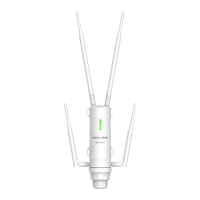
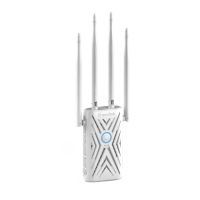
This document is a Quick Start Guide for the WAVLINK Wi-Fi 6 Extender/AP, model AERIAL D4X, designed to expand and enhance your wireless network.
Function Description:
The WAVLINK AERIAL D4X serves as a Wi-Fi 6 Extender and Access Point (AP), allowing users to extend the range of their existing Wi-Fi network or create a new wireless access point. It supports multiple operating modes, including Repeater Mode, Easymesh Agent Mode, LAN Bridge (AP Mode), and Router Mode, offering flexibility to suit various network setups.
Important Technical Specifications:
- Wi-Fi Standard: Wi-Fi 6
- Default 2.4G SSID: WAVLINK-AX_XXXX
- Default 5G SSID: WAVLINK-AX_5G_XXXX
- Default IP Address: 192.168.10.1
- Login URL: http://wifi.wavlink.com
- Default Login Password: admin
- Ports: Includes WPS button, Night light Auto/Off switch, WAN port, LAN/Backhaul port, Reset port, and Power button (Off/On).
- LED Indicators:
- Purple (Solid): Device is being activated.
- Red (Fast blinking - Repeater mode): Device is not connected to the upstream router.
- Red (Slow blinking - Repeater mode): Device is connected but doesn't have access to the Internet.
- Blue (Fast blinking): Pairing with the WPS of an upstream router.
- Blue (Slow blinking): Phone is pairing with WPS.
- Blue (Solid): Internet is connected and stable, or AP Mode is active.
Usage Features:
- Easy Setup: The device can be configured wirelessly or via a cable connection to a laptop.
- WPS Button: For quick and secure pairing with a router, hold the WPS button on your router for a few seconds, then press and hold the WPS button on the extender for 8 seconds. The pairing process takes approximately 2 minutes. For pairing with a phone, press and hold the WPS button for 2 to 6 seconds.
- Web UI Configuration: Access the web user interface by entering 192.168.10.1 or wifi.wavlink.com in a web browser. The default login password is "admin".
- Country/Region and Time Zone Selection: Users are prompted to select their country/region and time zone during the initial setup for optimal performance and to set a new login password for network security.
- Multiple Operating Modes:
- Repeater Mode (WISP Recommended): Extends the existing Wi-Fi signal. When using WISP, the extender's password should match the connected Wi-Fi password.
- Easymesh Agent Mode: Allows the device to build a mesh system if connected to a router that supports Easymesh. Configuration involves selecting "EasyMesh Agent Mode" and clicking "Start Pairing" in the web UI.
- LAN Bridge (AP Mode): Converts a wired network connection into a wireless access point. This is useful for providing Wi-Fi coverage in areas with only wired Ethernet access.
- Router Mode: Configures the device to function as a primary router, providing network services like DHCP. Users can choose WAN types such as PPPoE (for DSL), DHCP (Dynamic IP for cable/fiber), or Static IP (for specific IP information).
- Wi-Fi Password Management: Users can change their Wi-Fi password through the "Wireless" section of the web UI.
- LED Control: The night light feature can be turned off or set to auto/off via the "Setup" > "LED Control" section in the web UI, or by using the physical LED button, to prevent disturbance during sleep.
Maintenance Features:
- Firmware Upgrade: The device supports firmware upgrades to fix bugs, introduce new features, and improve overall performance and security.
- Method I (Manual Download): Download the latest firmware from www.wavlink.com (SUPPORT -> Firmware), extract it, log into the web UI (Advanced -> Firmware Update), click to locate the file, then "Upload" and "Apply".
- Method II (Online Check): Log into the web UI (Advanced -> Firmware Update), click "Check New Version" to find the latest version, then click "Download and Upgrade".
- Important Note: After a firmware update, it is recommended to reset the device and clear the browser cache. Incorrect firmware upgrades can damage the device and void the warranty, so users are advised to seek technical support if unsure.
- Reset Button: Press and hold the reset button for 6 seconds until the LED light turns solid pink (or purple) to restore factory default settings.
- Troubleshooting (FAQ):
- LAN Port Issues in Repeater Mode: If one LAN port is connected to the upstream router and the other LAN port doesn't work with a laptop/PC, switch to "LAN Bridge (AP mode)".
- Web UI Access Issues: If unable to access the web UI via 192.168.10.1 or wifi.wavlink.com, check the IP address assigned by the upstream router and restart the process.
- Mode Selection Guidance: AP mode converts wired to wireless, while repeater mode enhances existing wireless coverage.
- Technical Support: For further assistance, users can visit the official website www.wavlink.com or contact support@wavlink.com.
- GNU General Public License Notice: The product includes software codes developed by third parties under GPL (Version 2, June 1991) or LGPL (Version 2.1, February 1999). Users can copy, distribute, and modify the software in accordance with these licenses. Source code is available upon request.
- WEEE Directive & Product Disposal: The device should not be disposed of as household waste at the end of its life. It should be handed over to an applicable collection point for recycling electrical and electronic equipment or returned to the supplier.
- Federal Communications Commission (FCC) Interference Statement: The device complies with FCC rules for Class B digital devices. Users are advised on measures to correct potential interference, such as reorienting antennas, increasing separation from other equipment, or consulting a technician.

 Need help?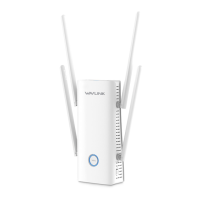

 To Next Page
 General