EasyManua.ls Logo

Wavlink WL-WN523N2 - User Manual

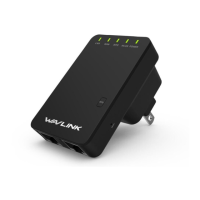
Wavlink WL-WN523N2
2 pages
Print Icon
To Next Page IconTo Next Page
Loading...
Introduction
3
LED Indicators
POWER
LAN/WAN
WPS
ON: The Device is powered on
OFF: The Device is not receiving electrical power.
ON:
The Ethernet port is connected.
OFF: The Ethernet port is disconnected.
Flashing: Transferring data to/from a network device
Slow Flashing: The Device is trying to connect to your PC or Phone
Fast Flashing: The Device is connecting to your AP/Router
WPS Button:
Press and hold for 2 seconds, the Device is trying to connect to your PC or Phone
Press and hold for 6 seconds to connect to your Wi-Fi AP/Router (for Repeater Mode)
Reset Button: Press and hold for 3 seconds to Reset the Device.
1. Launch a web browser and type http://ap.setup
in the address field. Enter admin (all lowercase)
to login.
2. Click “Wizard”.
OPTION ONE
Wi-Fi Repeater Mode
Using a Web Browser
Power ON
1
1. Plug the Device into an electrical outlet near your
Wi-Fi router.
2. Wait until the POWER LED is on and solid green.
If the login window does not pop up, please
refer to the FAQ > Q1.
4. Verify your wireless settings and click "Connect".
For Windows User For Mac OS X User
1. Disconnect the Ethernet (Wired) connection
from your laptop (if any).
2. Turn your laptop’s Wi-Fi ON if it is OFF.
3. Click the Wi-Fi icon on the top right corner
of the screen, and connect to the Device’s
network: WAVLINK-N.
Not connected
Connections are available
Wireless Network Connection
WAVLINK-N
Connect
Connect automatically
Connect to the Device
2
Configure
3
1.
Disconnect the Ethernet (Wired) connection
from your laptop (if any).
2. Turn your laptop’s Wi-Fi ON if it is OFF.
3. Click the Wi-Fi icon on the taskbar and connect
to the Device’s network: WAVLINK-N.
Wi-Fi:On
Turn Wi-Fi Off
WAVLINK-N
Join Other Network....
Create Network....
Open Network Preferences...
Relocate4
1. Plug the Device into an electrical outlet about halfway between your router(Host Wi-Fi) and the Wi-Fi dead zone. The location you
choose must be within the range of your existing host Wi-Fi.
2. If the signal is weak, relocate it closer to the router to achieve a good (or better) signal quality.
Tips: Use your phone to find the ideal location for the Device.
If your phone’s Wi-Fi signal(received from your router) is higher
than 3 levels, it is the ideal spot to install the Device. If not, we
suggest you to move closer to your router for better Wi-Fi signal.
Wi-Fi Range Extender
English
login
This Device
Repeater
Router
Speed
0 KB/S
0 KB/S
1 Disconnet
Clients Internet
Device Information
WAN Type Repeater
192.168.10.1
192.168.10.1
0.0.0.0
0.0.0.0
82:3F:5D:09:EA:62
Wi-Fi SSID
Channel
Connect to
Status
Up Time
Firmware
Wireless-N
11
NONE
Disconnect
00h:10m
M78N_V3130.1121
Device IP
Gateway
DNS1
DNS2
WAN MAC
Wi-Fi Setup
3. Select a Wi-Fi SSID of your router (Host Wi-Fi) and enter
the password. Either keep the same SSID as your host
Wi-Fi or create a new name for the extended network.
Repeater Wizard
Status Wizard Wi-Fi Setup
Connect
Connect to:
Wi-Fi Password:
Repeater SSID:
Wavlink_530
Wavlink_530
********
Wavlink_Extend
Wireless-562
Wireless-N
Wireless-112
Wireless-MO
Select a Wi-Fi Manually enter
Host Wi-Fi Name
Extended Network Name
Host Wi-Fi Password
Status
Wizard
Host Wi-Fi
Default Parameters
- Default IP: 192.168.10.1 - URL: http://ap.setup
- Login Password: admin
- Wi-Fi SSID: Wireless-N
Hardware Overview
1
3
2
WPS Button
Reset Button
WAN/LAN Port
LAN Port
LAN LED
WAN/LAN LED
WPS LED
Wi-Fi LED
Power LED
2
3
4
5
6
7
8
1
9
4
5
9
8
7
6
The Device is mainly used for providing free Wi-Fi service in big area such as
actory, community, street or etc. The Device can take an existing 802.11n
wireless signal, repeat and extend it to a longer range where it is too far away
for the router or access point to reach. The device supports 2.4G wireless
network connection, and it can supports 2.4G transmission speeds of up to
300Mbps. It has two internal antennas which provide even better wireless
performance, transmission rates. Stability technology automatically avoids
channel conflicts using its channel selection feature.
- Wi-Fi key: no
WAVLINK (@WavlinkOfficial)
WAVLINK SUPPORT (@WavlinkTechSupport)
WL-WN523N2
WL-WN523N2x2
QUICK START GUIDE
300Mbps Wi-Fi Range Extender

Question and Answer IconNeed help?

Do you have a question about the Wavlink WL-WN523N2 and is the answer not in the manual?

Summary

Hardware Overview

LED Indicators

Explains status lights for Power, WAN/LAN, and WPS.

Default Parameters

Lists default IP, URL, login credentials, and Wi-Fi settings.

OPTION ONE Wi-Fi Repeater Mode (Web Browser)

Power ON

Instructions for powering on the device.

Connect to the Device

Steps to connect the device to your computer via Wi-Fi.

Configure

Wizard steps to set up the Wi-Fi repeater mode.

Relocate

Guidance on optimal placement for signal strength.

OPTION TWO Wi-Fi Repeater Mode (WPS)

Power ON

Instructions for powering on the device for WPS setup.

Connect

Steps to initiate WPS connection between device and router.

Relocate

Guidance on optimal placement for signal strength.

Management via Web Browser

Wireless Basic Configuration

Customize wireless network name and settings.

Change Login Password

Steps to change the default administrator password.

Firmware Upgrade

Instructions and precautions for updating the device firmware.

Overview

The WAVLINK 300Mbps Wi-Fi Range Extender is a versatile device designed to extend the reach of an existing 802.11n wireless signal, providing free Wi-Fi service in larger areas such as factories, communities, or streets. It acts as a repeater, taking an existing Wi-Fi signal and extending it to areas where the router or access point might not otherwise reach. The device supports 2.4G wireless network connections with transmission speeds of up to 300Mbps. It features two internal antennas for enhanced wireless performance and stable transmission rates. Its channel selection feature automatically avoids channel conflicts, contributing to overall stability.

Important Technical Specifications:

  • Wireless Standard: 802.11n
  • Frequency Band: 2.4 GHz
  • Data Rate: Up to 300 Mbps
  • Antennas: Two internal antennas
  • Default IP: 192.168.10.1
  • Login Password: admin
  • Default Wi-Fi SSID: Wireless-N
  • Default Wi-Fi Key: No
  • URL for Setup: http://ap.setup

Hardware Overview:

The device features several key components and indicators:

  • WPS Button: Used for quick, secure connections.
  • Reset Button: For restoring the device to factory default settings.
  • WAN/LAN Port: A single port that can function as either a WAN or LAN port depending on the operating mode.
  • LAN Port: An additional port for wired connections.
  • LED Indicators:
    • POWER LED:
      • ON: Device is powered on.
      • OFF: Device is not receiving electrical power.
    • LAN/WAN LED:
      • ON: Ethernet port is connected.
      • OFF: Ethernet port is disconnected.
      • Flashing: Transferring data to/from a network device.
    • WPS LED:
      • Slow Flashing: Device is trying to connect to a PC or Phone.
      • Fast Flashing: Device is connecting to an AP/Router.
    • Wi-Fi LED: Indicates wireless activity.

Usage Features:

The WAVLINK Wi-Fi Range Extender offers two primary modes of operation: Wi-Fi Repeater Mode using a Web Browser and Wi-Fi Repeater Mode using WPS (Wi-Fi Protected Setup).

Option One: Wi-Fi Repeater Mode (Using a Web Browser)

  1. Power ON:

    • Plug the device into an electrical outlet near your Wi-Fi router.
    • Wait until the POWER LED is on and solid green.
  2. Connect to the Device:

    • For Windows User: Disconnect any existing Ethernet (wired) connection from your laptop. Turn your laptop's Wi-Fi ON. Click the Wi-Fi icon on the taskbar and connect to the device's network: WAVLINK-N.
    • For Mac OS X User: Disconnect any existing Ethernet (wired) connection from your laptop. Turn your laptop's Wi-Fi ON. Click the Wi-Fi icon on the top right corner of the screen and connect to the device's network: WAVLINK-N.
  3. Configure:

    • Launch a web browser and type http://ap.setup in the address field. Log in using admin (all lowercase) as the password.
    • Click "Wizard" to begin the setup process.
    • Select the Wi-Fi SSID of your router (Host Wi-Fi) and enter its password. You can choose to keep the same SSID as your host Wi-Fi or create a new name for the extended network.
    • Verify your wireless settings and click "Connect".
  4. Relocate:

    • Plug the device into an electrical outlet about halfway between your router (Host Wi-Fi) and the Wi-Fi dead zone. The chosen location must be within the range of your existing host Wi-Fi.
    • If the signal is weak, relocate it closer to the router to achieve a good (or better) signal quality.
    • Tip: Use your phone to find the ideal location. If your phone's Wi-Fi signal (received from your router) is higher than 3 levels, it's an ideal spot. Otherwise, move closer to your router for a better Wi-Fi signal.

Option Two: Wi-Fi Repeater Mode (Using WPS - Wi-Fi Protected Setup)

  1. Power ON:

    • Plug the device into an electrical outlet near your Wi-Fi router.
    • Wait until the POWER LED is on and solid green.
  2. Connect:

    • Press the WPS button on the device for 6 seconds.
    • Within two minutes, press the WPS button on your router.
    • The device will reboot; wait a few minutes.
    • After reboot, the device's SSID (Wi-Fi name) will be your router's SSID with "EXT" appended. The device's password will be the same as your router's password. To use the extended network, connect to the SSID with "EXT" and enter your router's password.
    • Note: Some ISP gateways disable the WPS function by default. If WPS connection fails, use Option One. Refer to your router manufacturer's user guide for more information on WPS.
  3. Relocate:

    • Plug the device into an electrical outlet about halfway between your router (Host Wi-Fi) and the Wi-Fi dead zone. The chosen location must be within the range of your existing host Wi-Fi.
    • If the signal is weak, relocate it closer to the router to achieve a good (or better) signal quality.
    • Tip: Use your phone to find the ideal location. If your phone's Wi-Fi signal (received from your router) is higher than 3 levels, it's an ideal spot. Otherwise, move closer to your router for a better Wi-Fi signal.

Management via Web Browser:

  • Wireless Basic Configuration:
    • Click "Wi-Fi" to customize the wireless network for the device.
  • Change Login Password:
    • The default password is "admin". It is strongly recommended to change it.
    • Visit http://ap.setup and log in with the default password "admin".
    • Click "Setup->Login Password".
    • Enter the old password, then the new password, and click "Apply".
    • Use the new password for future login attempts.
  • Firmware Upgrade:
    • Firmware upgrades can fix bugs, but it is not recommended to upgrade if the device is working normally.
    • Download the latest firmware file from www.wavlink.com.
    • Click "Setup->Upgrade Firmware".
    • Click "Browse" to locate the downloaded firmware file.
    • Click "Apply" and wait a few minutes for the upgrade to complete.
    • Important: Warranty voids if the upgrade procedure is interrupted. Never close the web browser or physically disconnect your computer from the device during the upgrade. Interruption will cause the firmware upgrade to fail, and you may need to return the device to the dealer for help.

Maintenance Features:

  • Reset Button: Press and hold the Reset button for 3 seconds to restore the device to its factory default settings. This can be useful for troubleshooting or if you forget your login password.
  • Firmware Upgrades: While not recommended if the device is working normally, firmware upgrades can address bugs and improve performance. Always download firmware from the official WAVLINK website and follow the upgrade instructions carefully to avoid voiding the warranty.
  • Troubleshooting: The manual provides a FAQ section for common issues, such as the login page not appearing or the LED not changing to solid after configuration. It also advises checking the Wi-Fi password if configuration fails and resetting the device if necessary.
  • WEEE Directive & Product Disposal: At the end of its serviceable life, the product should not be treated as household or general waste. It should be handed over to the applicable collection point for the recycling of electrical and electronic equipment, or returned to the supplier for disposal.

For more detailed information and support, users can visit www.wavlink.com.

Wavlink WL-WN523N2 Specifications

General IconGeneral
BrandWavlink
ModelWL-WN523N2
CategoryExtender
LanguageEnglish

Related product manuals