Android Apple iOS
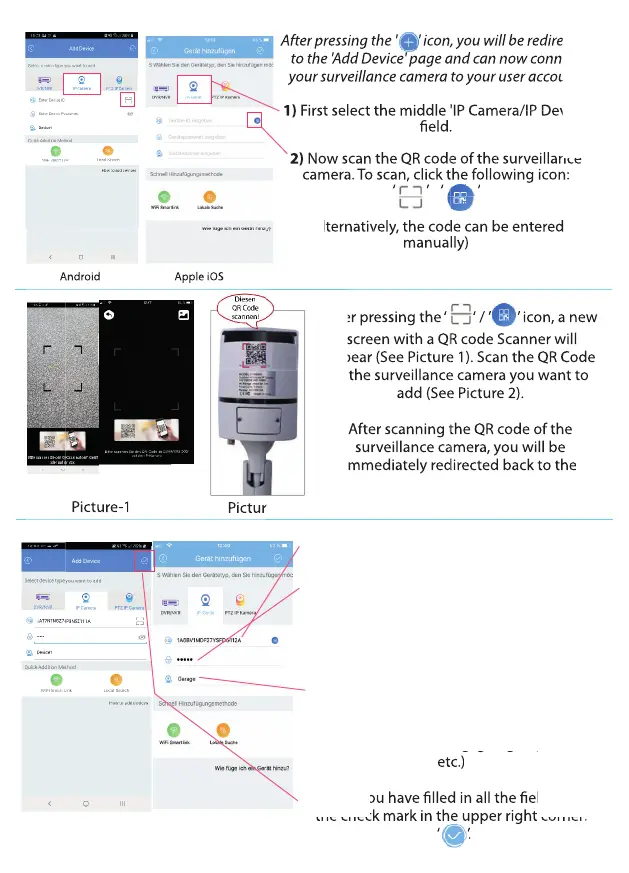
After pressing the ' ' icon, you will be redirected
to the 'Add Device' page and can now connect
your surveillance camera to your user account:
1) First select the middle 'IP Camera/IP Device'
eld.
2) Now scan the QR code of the surveillance
camera. To scan, click the following icon:
‘ ’ ‘ ’
(Alternatively, the code can be entered
manually)
After pressing the ‘ ‘ / ’ ’ icon, a new
screen with a QR code Scanner will
appear (See Picture 1). Scan the QR Code
of the surveillance camera you want to
add (See Picture 2).
After scanning the QR code of the
surveillance camera, you will be
immediately redirected back to the
'Add Device' screen.
After pressing the ' ' icon, you will be redirected
to the 'Add Device' page and can now connect
your surveillance camera to your user account:
First select the middle 'IP Camera/IP Device'
Now scan the QR code of the surveillance
Now scan the QR code of the surveillance
camera. To scan, click the following icon:
Picture-1
Picture-2
First select the middle 'IP Camera/IP Device'
Now scan the QR code of the surveillance
(Alternatively, the code can be entered
First select the middle 'IP Camera/IP Device'
Now scan the QR code of the surveillance
camera. To scan, click the following icon:
First select the middle 'IP Camera/IP Device'
Now scan the QR code of the surveillance
Now scan the QR code of the surveillance
Now scan the QR code of the surveillance
camera. To scan, click the following icon:
(Alternatively, the code can be entered
After pressing the ‘ ‘ / ’ ’ icon, a new
After pressing the ‘ ‘ / ’ ’ icon, a new
screen with a QR code Scanner will
screen with a QR code Scanner will
appear (See Picture 1). Scan the QR Code
appear (See Picture 1). Scan the QR Code
of the surveillance camera you want to
of the surveillance camera you want to
After scanning the QR code of the
After scanning the QR code of the
surveillance camera, you will be
surveillance camera, you will be
immediately redirected back to the
immediately redirected back to the
Now scan the QR code of the surveillance
camera. To scan, click the following icon:
(Alternatively, the code can be entered
Now scan the QR code of the surveillance
camera. To scan, click the following icon:
(Alternatively, the code can be entered
Now scan the QR code of the surveillance
camera. To scan, click the following icon:
(Alternatively, the code can be entered
(Alternatively, the code can be entered
Now scan the QR code of the surveillance
Now scan the QR code of the surveillance
camera. To scan, click the following icon:
camera. To scan, click the following icon:
Android Apple iOS
1) The scanned device ID of the surveillance
camera is now displayed in the eld 'Device ID'.
2) Now enter the preset device password of
the surveillance camera in the eld 'Enter
device password'. (Preset Password: admin)
Note: The device password will be re-set by you after you
have successfully connected the surveillance camera.
3) You must now name the surveillance
camera using the 'Enter device name' eld. We
recommend the name of the location of the
surveillance camera (e.g. garage / garden /
etc.)
4) After you have lled in all the elds, press
the check mark in the upper right corner:
‘ ’.
Android Apple iOS
surveillance camera (e.g. garage / garden /
After you have lled in all the elds, press
the check mark in the upper right corner:
the check mark in the upper right corner:
the check mark in the upper right corner:
the check mark in the upper right corner:
8


 To Next Page
 Loading...