Help! My surveillance camera doesn't connect.
If your surveillance camera does not connect properly to your app or is displayed as
' ', please follow the steps below:
- Make sure your 5Ghz Wi-Fi is disabled in the router settings.
- Go back to the device list and reopen the live video. Sometimes there are connection
malfunctions that can be xed by reloading the live video.
- If the surveillance camera does not connect even after reloading, reset the
surveillance camera to the factory settings and reconnect it. (See page 12)
If your surveillance camera does not connect properly to your app or is displayed as
' ', please follow the steps below:
- Make sure your 5Ghz Wi-Fi is disabled in the router settings.
- Go back to the device list and reopen the live video. Sometimes there are connection
malfunctions that can be xed by reloading the live video.
WiFi Connection - Surveillance Camera
If your surveillance camera does not connect properly to your app or is displayed as
- Go back to the device list and reopen the live video. Sometimes there are connection
- If the surveillance camera does not connect even after reloading, reset the
surveillance camera to the factory settings and reconnect it. (See page 12)
WiFi Connection - Surveillance Camera
WiFi Connection - Surveillance Camera
Now that you've connected the surveillance
camera to your app and Internet (LAN), you
can start the WiFi setup.
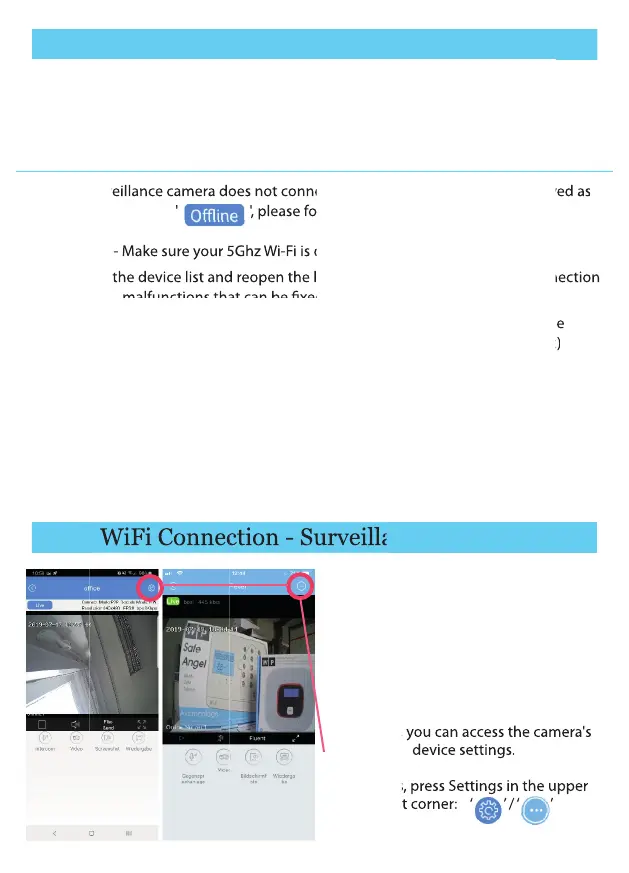
To connect the surveillance camera to
your WiFi, you must rst access the live
video of your surveillance camera. To do
this, select your surveillance camera in the
device list. Once the live video is
displayed, you can access the camera's
device settings.
To do this, press Settings in the upper
right corner: ‘ ’ / ‘ ’
Your surveillance camera doesn't connect to your WiFi or app account? Don't
worry, we will be happy to help you. Follow the steps below or contact us to
arrange an individual consultation:
info@weberprotect.com
displayed, you can access the camera's
To do this, press Settings in the upper
displayed, you can access the camera's
To do this, press Settings in the upper
displayed, you can access the camera's
To do this, press Settings in the upper
10


 To Next Page
 Loading...