Android
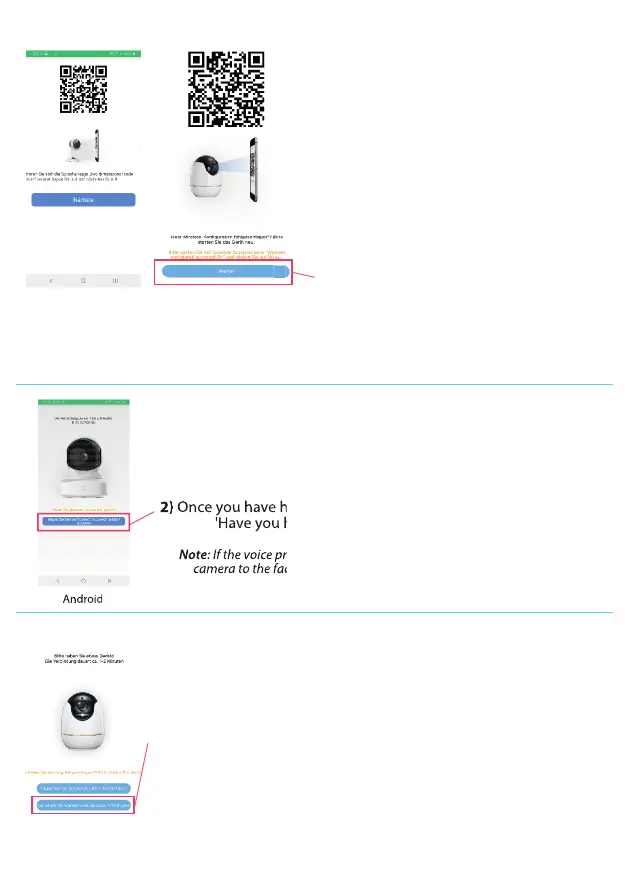
As soon as you are redirected to the next
screen, the following message sounds:
'Please turn the two dimensional code
towards the camera lens and wait for the
scan'
1) You must now hold the QR code
displayed on your screen in front of your
surveillance camera so that it can scan the
QR code.
2) As soon as the surveillance camera has
successfully scanned the QR code, the
following voice message sounds: 'Wireless
Conguration Succeed'
3) Press 'Next / Continue' as soon as you
have heard the voice prompt.
Note: The scanning process may take 1-2 minutes. Please keep your smartphone or tablet
approximately 10 cm away from the surveillance camera and wait for the scan. If the surveillance
camera does not recognize the QR code, move your smartphone or tablet slightly forward or
backward. Make sure you hold the QR code right in front of the camera lens.
After you have heard the voice prompt and pressed 'Next', you will be
redirected to the next screen.
1) After a short time, another voice message will sound: 'Wireless
Connection Succeed'
2) Once you have heard the voice prompt, click the blue button:
'Have you heard device connect succeed? Scan'
Android
Note: If the voice prompt does not sound, please reset the surveillance
camera to the factory setting and restart the connection process.
Once you have heard the voice prompt, click the blue button:
Once you have heard the voice prompt, click the blue button:
'Have you heard device connect succeed? Scan'
'Have you heard device connect succeed? Scan'
If the voice prompt does not sound, please reset the surveillance
If the voice prompt does not sound, please reset the surveillance
camera to the factory setting and restart the connection process.
camera to the factory setting and restart the connection process.
Apple
Apple
For Android devices
For Apple devices
After you have heard the above voice prompt and clicked 'Next', you
will be redirected to the next screen.
1) After a short time, another voice message will sound: 'Wireless
Connection Succeed'
2) Once you have heard this voice prompt, you have two options.
You can add the surveillance camera either via QR Code Scan or
Local Search. We recommend that you scan the QR code. To do this,
click 'Add device by scanning the QR code'.
Please go directly to the section 'Registration of the security camera' on
the next page ->
17


 To Next Page
 Loading...