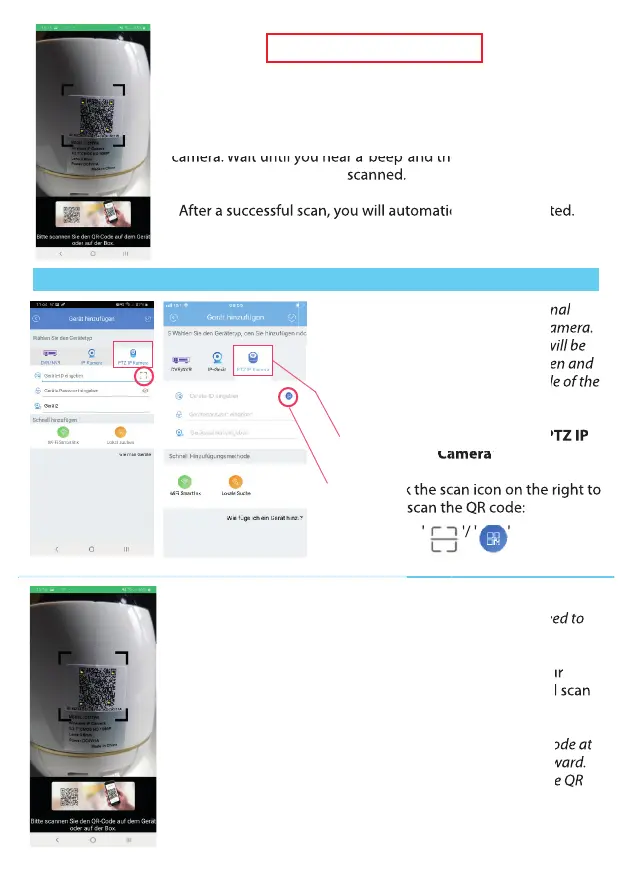
In the next step, you will be redirected to the QR Code Scanner.
You now need to scan the QR code of your surveillance camera.
Point the QR Code Scanner at the QR Code of the surveillance
camera. Wait until you hear a ‘beep’ and the QR code has been
scanned.
After a successful scan, you will automatically be redirected.
camera. Wait until you hear a ‘beep’ and the QR code has been
Only for Android devices
camera. Wait until you hear a ‘beep’ and the QR code has been
After a successful scan, you will automatically be redirected.
camera. Wait until you hear a ‘beep’ and the QR code has been
After a successful scan, you will automatically be redirected.
You have now arrived at the nal
registration of your surveillance camera.
Whether Android or Apple, you will be
redirected to the 'Add Device' screen and
will now have to rescan the QR code of the
surveillance camera.
1) First, click on the right eld 'PTZ IP
Camera'
2) Now click the scan icon on the right to
scan the QR code:
' '/ ' '
2) Now click the scan icon on the right to
2) Now click the scan icon on the right to
Android
Apple
You will be redirected to the QR Code Scanner. You now need to
scan the QR code on your surveillance camera.
Hold the QR Code Scanner above the QR code of your
surveillance camera. Wait for the beep and the successful scan
of the QR code.
Note: If your QR Code Scanner does not recognize the QR Code at
rst, move the QR Code Scanner slightly forward and backward.
Make sure you hold the QR Code Scanner just in front of the QR
code of the surveillance camera.
Hold the QR Code Scanner above the QR code of your
surveillance camera. Wait for the beep and the successful scan
If your QR Code Scanner does not recognize the QR Code at
rst, move the QR Code Scanner slightly forward and backward.
rst, move the QR Code Scanner slightly forward and backward.
Make sure you hold the QR Code Scanner just in front of the QR
camera. Wait until you hear a ‘beep’ and the QR code has been
After a successful scan, you will automatically be redirected.
You have now arrived at the nal
registration of your surveillance camera.
Whether Android or Apple, you will be
redirected to the 'Add Device' screen and
will now have to rescan the QR code of the
2) Now click the scan icon on the right to
You will be redirected to the QR Code Scanner. You now need to
You will be redirected to the QR Code Scanner. You now need to
will now have to rescan the QR code of the
2) Now click the scan icon on the right to
2) Now click the scan icon on the right to
You will be redirected to the QR Code Scanner. You now need to
You will be redirected to the QR Code Scanner. You now need to
Registration of the surveillance camera
18


 To Next Page
 Loading...