EasyManua.ls Logo

Western Digital My Net - User Manual

Western Digital My Net
88 pages
Print Icon
To Next Page IconTo Next Page
Loading...
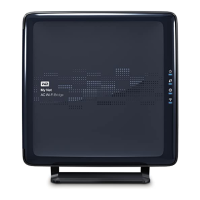
My Net
AC Wi-Fi Bridge
User Manual

Other manuals for Western Digital My Net

Questions and Answers

  • R
    Robert JohnsonAug 12, 2025
    What to do if computers are unable to access the Internet via Western Digital My Net Extender?
    • T
      Terri WilliamsonAug 13, 2025
      To troubleshoot internet access issues with your Western Digital Extender, ensure the extender is powered on with a solid, non-flashing power LED. Verify all cable connections are secure. Power cycle your modem/router, extender, and computer. Confirm your computer is connected to the extender, either physically or wirelessly. Check the signal strength LEDs; if they are unlit, the extender might be out of range or not connected to the router. Ensure clients have the correct network name and password settings. If using wireless range extender mode, disconnect any cable connecting the extender to the router.
  • B
    Brian BrownAug 16, 2025
    How to fix Western Digital My Net if the power LED does not illuminate?
    • S
      Sheryl WilliamsonAug 16, 2025
      If the power LED on your Western Digital Extender doesn't light up, try the following: First, push the power button on the extender to ensure it's powered on. Next, check that the power cord is correctly connected to the extender. Then, verify the electrical outlet is working by plugging in another device. Finally, ensure you're using the AC adapter that came with the extender.
  • T
    Tracy GomezAug 20, 2025
    Why devices cannot see the Western Digital Extender?
    • R
      Richard MartinAug 20, 2025
      If devices cannot detect your Western Digital Extender, first, make sure the extender is powered on. Next, check the frequency selection switch to see which frequency the extender is using. Finally, ensure that your device is operating at the same frequency. For instance, a smartphone that only supports 2.4 GHz won't detect the extender if it's in 5 GHz mode.
  • L
    Lisa WongAug 25, 2025
    What to do if all front panel LEDs flash continuously on Western Digital My Net Extender?
    • A
      Angelica LucasAug 25, 2025
      If all front panel LEDs on your Western Digital Extender are flashing continuously, try relocating it to a place with better ventilation. If that doesn't work, turn off the extender and let it cool down for 15 to 20 minutes before turning it back on.
  • T
    Tony YangAug 28, 2025
    What to do if Western Digital My Net Extender cannot connect to the router?
    • B
      Briana ValenzuelaAug 28, 2025
      If your Western Digital Extender cannot connect to the router, ensure the extender is powered on. Check the frequency selection switch to determine the operating frequency. Verify that the router supports this frequency. If using WPS, confirm the router supports WPS. If WPS fails, use the manual connection method. If all else fails, reset the extender and try again.
  • A
    Ashley LopezSep 1, 2025
    What to do if Western Digital My Net computers are unable to access the Internet?
    • M
      Michael FrazierSep 1, 2025
      If computers can't access the Internet, ensure that the Western Digital Extender is powered on with a solid, non-flashing power LED. Check the cable connections between the modem, extender, and computer, ensuring the modem connects to the extender's Internet port and the computer connects to a LAN port on the extender. Power cycle the modem, extender, and computer.
  • C
    Caitlin RamosSep 4, 2025
    Why is my Western Digital My Net Extender power LED not illuminating?
    • M
      Mary EatonSep 4, 2025
      If the power LED on your Western Digital Extender doesn't light up, make sure the power cord is properly connected to the extender and that the electrical outlet is working, by plugging in another device. Also, verify that you are using the AC adapter that came with the extender.
  • D
    Donna TuckerSep 8, 2025
    What to do if a port number LED does not illuminate on Western Digital Extender?
    • C
      Chelsea SharpSep 8, 2025
      If a port number LED on the Western Digital Extender doesn't illuminate, verify that the connected device is powered on. Ensure that the Ethernet cables are securely connected to the ports on both the device and the extender. Try replacing the Ethernet cable between the extender and the electronic device with another cable to ensure it is working properly.

Summary

WD Service and Support

Accessing Online Support

Information on how to access online support resources like downloads, registration, knowledge base, and community forums.

Contacting WD Technical Support

Lists telephone numbers for technical support across different regions and essential contact information.

Important User Information

Important Safety Instructions

Essential safety precautions for the proper installation, use, and servicing of the device to prevent hazards.

Recording Product Information

Guidance on recording serial and model numbers for technical support purposes and future reference.

Registering Your Product

Instructions on how to register the product online for warranty benefits and important updates.

Product Overview

Introduction to My Net Bridge

A brief introduction to the My Net™ AC Wi-Fi Bridge and its primary function of providing wireless connectivity.

Key Features

Highlights the outstanding features and capabilities of the My Net AC Wi-Fi Bridge.

Package Contents

Lists all the items included in the product package for the user.

Device Components

Details the physical components, ports, and indicators on the My Net AC Wi-Fi Bridge.

Getting Started

Setup with WPS Router

Step-by-step guide for setting up the bridge using WPS with a compatible router.

Manual Bridge Setup

Instructions for manually configuring the bridge when WPS is not an option or fails.

Configuring Basic Settings

Accessing the Dashboard

How to access and log into the bridge's dashboard after initial setup.

Wireless Settings Configuration

Steps to configure network name, security, and frequency for the wireless connection.

Adding Wireless Devices

Procedure for connecting additional wireless devices to the bridge.

Configuring Advanced Settings

Change Administrator Password

Guide to changing the default administrator password for enhanced security.

Resetting and Rebooting

Instructions on how to reset the bridge to factory defaults or simply reboot it.

Firmware Update Procedure

Steps to check for and install firmware updates for the bridge.

Setting up the Bridge in AP Mode

AP Mode Configuration

Instructions for configuring the device to operate as an Access Point (AP).

Troubleshooting

Common Issues and Solutions

Common problems and their solutions, including LED status and network connectivity issues.

Regulatory and Warranty Information

Regulatory Compliance

FCC and Industry Canada compliance statements and RF exposure information.

Regional Warranty Details

Details the limited warranty terms and conditions for different geographic regions.

Appendix: Technical Specifications

Device Specifications

Detailed technical specifications for the My Net AC Wi-Fi Bridge, including wireless standards, ports, and power.

Western Digital My Net Specifications

General IconGeneral
BrandWestern Digital
Maximum Data Rate300 Mbps
Ethernet Ports1 x 10/100 Mbps
WPS SupportYes
SecurityWEP, WPA, WPA2
Product TypeWireless Range Extender
Wireless Standards802.11n
Frequency Band2.4 GHz
Antennas2 x Internal
LED IndicatorsEthernet

Related product manuals