EasyManua.ls Logo

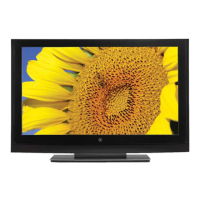
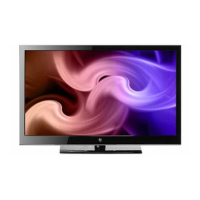
Westinghouse TX-42F810G - User Manual

Westinghouse TX-42F810G
61 pages
Print Icon
To Next Page IconTo Next Page
Loading...

Questions and Answers

  • T
    Tammy AlexanderAug 19, 2025
    What to do if Westinghouse LCD TV remote control does not work?
    • J
      Julia AlexanderSep 12, 2025
      If your Westinghouse LCD TV remote control isn't working, make sure you press only one button at a time. Ensure the batteries are correctly inserted. If the batteries are drained, replace them with new ones.
  • D
    Derrick StoneAug 21, 2025
    How to troubleshoot no power on Westinghouse TX-42F810G LCD TV?
    • A
      Abigail OnealAug 21, 2025
      If your Westinghouse LCD TV has no power, first ensure the power indicator is illuminated blue. Check that the power cord is securely connected to the AC-in jack and plugged into a working AC outlet. To verify the outlet's functionality, try plugging in another electrical device.
  • T
    thompsonjohnAug 23, 2025
    Why is there no sound on my Westinghouse TX-42F810G LCD TV?
    • K
      Kimberly RobinsonAug 23, 2025
      If there's no sound on your Westinghouse LCD TV, ensure the audio input cable is properly connected to the correct terminal and that the correct input mode is enabled. Also, the volume may be muted, so press the Vol+ key to turn it on. You can also adjust the Bass, Treble, and Balance settings in the Audio menu. If using TV speakers, ensure the TV Speakers option is set to On in the Audio menu. If using an external audio device, make sure the TV Speakers option is set to Off in the Audio menu.
  • J
    Jason TaylorAug 26, 2025
    What to do if my Westinghouse LCD TV has no picture?
    • G
      Gregory WilsonAug 26, 2025
      If your Westinghouse LCD TV shows no picture, ensure the video input cable is properly connected to the correct terminal, and the correct input mode is enabled. Verify that the antenna is properly connected and the preferred channel is enabled in the channel list. You may also need to adjust the display settings.
  • J
    Jamie LopezAug 28, 2025
    Why is the picture cut off on my Westinghouse TX-42F810G LCD TV?
    • K
      Kevin FletcherAug 28, 2025
      If the picture on your Westinghouse LCD TV is cut off or appears in a sidebar screen, you can adjust the aspect ratio by pressing the corresponding button on your remote.
  • M
    Mary LeeAug 30, 2025
    How to improve poor image quality on Westinghouse TX-42F810G LCD TV?
    • J
      John HortonAug 30, 2025
      If you are experiencing poor image quality (cutoff picture, snowy images) on your Westinghouse LCD TV, check your antenna connection. If necessary, rotate the antenna and wait up to ten seconds for a signal. Reduce signal splitters and excessively long cables. Replace poor antenna cables and/or connectors to improve signal quality. You can also adjust the Aspect ratio and the Noise Reduction setting in the Picture menu. In HDMI mode, ensure the external device is compatible with the LCD TV.
  • G
    Gregory ReyesSep 1, 2025
    Why are the colors wrong on my Westinghouse TX-42F810G?
    • H
      hughesrodneySep 1, 2025
      If you see wrong, abnormal, or missing colors on your Westinghouse LCD TV, check the video cable to ensure it's securely connected. Also, adjust the Hue, Saturation, and Color Temperature settings in the Picture menu. You can also connect the TV to another computer and check if the problem is with the computer screen.
  • A
    Alexandra VelasquezSep 3, 2025
    What to do if no picture appears when VGA cable is connected to Westinghouse LCD TV?
    • A
      amy43Sep 3, 2025
      If you see no picture or a 'No Signal' message when a VGA cable is connected to your Westinghouse LCD TV, ensure the VGA cable is properly connected to the TV's VGA port. Decrease the video resolution setting on your computer and try again. Adjust the display settings as well.
  • S
    Savannah PorterSep 5, 2025
    How to fix Westinghouse LCD TV when it has no power?
    • D
      dcookSep 5, 2025
      If your Westinghouse LCD TV has no power, first, ensure the power indicator is illuminated blue. Then, verify the power cord is securely connected to the AC-in jack and plugged into a working AC outlet. Test the outlet with another device to confirm it's supplying the correct voltage.
  • B
    Barbara StanleySep 7, 2025
    Why is there no picture on my Westinghouse LCD TV?
    • S
      Stephen HuffmanSep 7, 2025
      If you are not getting a picture on your Westinghouse LCD TV, ensure the video input cable is correctly connected to the appropriate terminal, and the correct input mode is selected. Also, confirm the antenna is properly connected and the correct channel is enabled in the channel list by pressing Channels/Channel List. You may also need to adjust the display settings.

Summary

Digital Television Transition Notice

Important Information

General Warnings

Key warnings to reduce the risk of fire or electric shock.

FCC Compliance Statement

Details the equipment's compliance with FCC rules for digital devices.

Important Safety Instructions

Essential safety instructions for operating and maintaining the LCD TV.

Warnings and Precautions

Comprehensive list of warnings and precautions for safe operation and handling.

Antenna Installation Safety

Safety guidelines for installing outdoor antennas, including grounding.

Lightning Protection

Recommendations for protecting the TV during lightning storms.

Power Line Safety

Warnings about locating antennas away from overhead power lines.

Control Panel

Control Panel Overview

Description and function of each button on the TV's control panel.

Terminals

Terminal Connections

Details and functions of all input/output terminals on the TV.

Remote Control

Remote Control Functions

Explanation of each button on the remote control and its function.

Remote Control Operation

Installing Remote Control Batteries

Step-by-step guide on how to insert batteries into the remote control.

Antenna Connection

Outdoor Antenna Connection

Diagram and instructions for connecting an outdoor antenna.

External Device Connections

External Device Connection Types

Details on connecting various external audio-video devices to the TV.

Power Connection

Connecting AC Power

Instructions for connecting the LCD TV to the AC power outlet.

Initial Setup Procedure

Steps for initial setup using the SetupWizard upon first power-on.

Basic Operations

Turning Power On and Off

How to turn the LCD TV power on and off using the control panel or remote.

Setup Menus

Picture Settings

Options for configuring display quality: Brightness, Contrast, Saturation, etc.

Troubleshooting

Troubleshooting: No Power

Corrective actions for when the TV does not power on.

Troubleshooting: No Picture (VGA)

Resolving 'No Signal' messages when using a VGA cable connection.

Troubleshooting: No Sound

Steps to resolve issues when there is no audio output from the TV.

Troubleshooting: Power Off

Solutions for the TV unexpectedly turning off.

Troubleshooting: Poor Image Quality

Improving image quality issues like cutoff pictures or snowy images.

Troubleshooting: Remote Control Issues

Steps to resolve problems with the remote control not functioning.

Troubleshooting: Color Issues

Resolving problems with incorrect, abnormal, or missing colors on the display.

Troubleshooting: No Picture

Actions to take when no picture is displayed on the screen.

Westinghouse TX-42F810G Specifications

General IconGeneral
Screen Size42 inches
Resolution1920 x 1080
Display TypeLCD
HDMI Ports3
USB Ports1
Refresh Rate60 Hz
Contrast Ratio5000:1
Aspect Ratio16:9
Built-in Wi-FiNo
Smart TVNo

Related product manuals