EasyManua.ls Logo

Whistler WS1095 - User Manual

Whistler WS1095
72 pages
Print Icon
To Next Page IconTo Next Page
Loading...
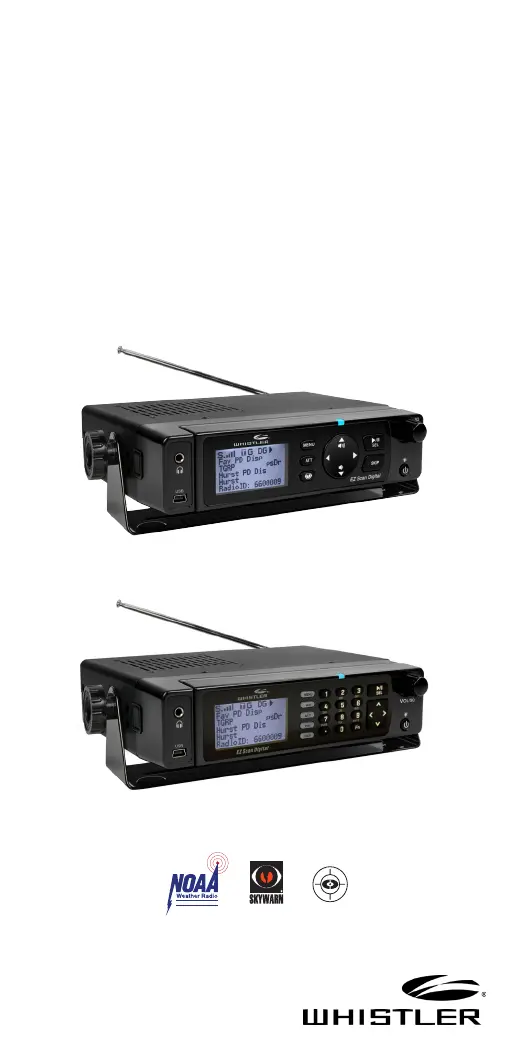
WS1095/WS1098
User Guide
All Hazards
NOAA’s National Weather Service
®
DIGITAL TRUNKING
DESKTOP/MOBILE
EZ DIGITAL
SCANNER

Table of Contents

Other manuals for Whistler WS1095

Questions and Answers

  • S
    Sheila YoungAug 6, 2025
    What to do if my Whistler Radio does not recognize the SD Card?
    • D
      Dylan PriceAug 6, 2025
      If your Whistler Radio isn't recognizing the SD card, there are a few potential reasons. First, the SD card might not be properly formatted. Use the PC Application to reformat it, ensuring that if you use Windows, the card format is FAT or FAT32 with 32kB clusters, and all three boxes are checked. Another possibility is that the SD card isn't fully inserted. Press the SD card into the slot until you hear a click, ensuring it's completely in place. If neither of these solutions works, the SD card itself may be defective, and you should replace it with a new one.
  • K
    Kathleen KelleyAug 10, 2025
    What to do if my Whistler Radio shows 'Init SD Card'?
    • C
      Cassandra GreenAug 10, 2025
      If your Whistler Radio displays 'Init SD Card' when you turn it on, it typically indicates an issue with the SD card. First, ensure that the SD card is properly formatted by using the PC Application to reformat it. If the issue persists, the SD card may not be fully inserted. Push the SD card into the slot until you hear a click, ensuring it's fully seated.
  • J
    Jose SullivanAug 14, 2025
    How to fix SD Card error messages on my Whistler Radio?
    • S
      samuelreynoldsAug 14, 2025
      SD Card errors on your Whistler Radio can arise from various issues. Start by ensuring the SD card is fully inserted and locked in the slot. If errors persist, try these steps: * Reformat the SD card using the PC Application's "Prepare SD Card for use" option. * If reformatting doesn't resolve the issue, consider replacing the SD card. Specific errors like a full SD card may require reducing the configuration size, removing unnecessary audio recordings, or switching to a higher capacity SD card. For write-protected errors, re-insert the card, reformat using the PC Application, or replace the card if needed. If the error persists after these steps, contact Support and provide error code information.
  • J
    Jacob SnyderAug 19, 2025
    Why is my Whistler Radio on but not scanning?
    • J
      Justin ChavezAug 19, 2025
      If your Whistler Radio is on but not scanning, the squelch may not be adjusted correctly. Try turning the squelch control clockwise.
  • P
    Patricia ColonAug 25, 2025
    Why does my Whistler Radio show 'Scanning not available'?
    • W
      wardjasonAug 25, 2025
      If your Whistler Radio displays 'Scanning not available', and you're using the mobile wiring harness, the battery voltage may be too low. To prevent data corruption, all functions that write data to the SD card, including scanning, are disabled when the voltage is insufficient. Check the battery voltage to resolve this issue.
  • B
    Brittany StarkAug 28, 2025
    What to do if my Whistler Radio does not function?
    • C
      Christine ReeseAug 28, 2025
      If your Whistler Radio isn't functioning, first ensure it's receiving power from an appropriate power source. If it is, remove the power, hold the power button for one minute, then release it and reconnect to the power source.
  • A
    Amy JensenNov 1, 2025
    Why is my Whistler Radio reception poor?
    • A
      Ariel NormanNov 1, 2025
      Poor reception on your Whistler Radio can stem from several factors. It could be due to weak signals from distant stations; in this case, reposition the radio for better reception, keeping in mind that 2-way radio reception is line-of-sight. An outdoor antenna can significantly improve reception, especially with the first 30 feet of elevation. Alternatively, the attenuator might be affecting weak signals, so test performance with and without it to find the best setting. Strong signal overload from a nearby transmitter can also cause this, so again, check the attenuator settings. Inspect the antenna and its connectors for any looseness or defects. Finally, ensure that you've selected the correct modulation mode for the system you're monitoring, using the PC Application if necessary to chang...

Summary

Introduction

Object Oriented Scanning Explained

Explains the concept of Object Oriented Scanning and its benefits for hobbyists.

Features

Package Contents

Scanning Legally

FCC Statement

Setup

Antenna Installation

Instructions for connecting and positioning the scanner's antenna for optimal reception.

Audio Output Connections

Listening Safely Guidelines

Getting Familiar with Your Scanner

Remote Head Management

Understanding the Keypad

Rotary Encoder Operation

Desktop Operation

Mobile Operation

Powering On the Scanner

Procedure for powering the WS1095/WS1098 scanner on and off.

Setting Bandplan and Clock

Program Methods Overview

Setting Location

Power-On Password Setup

Understanding the Display

psDr Indicators Explained

Display Icons Defined

EZ Scan Library

Maximum SD Card Size

Specifies the supported capacity for SD cards used with the scanner.

Installing EZ Scan Software

Library Updates

Preferred Programming from Library

Backup V-Scanner Data

Updating the Library (EZ Scan)

Library Structure

EZ Scan Library Notes

Manual Conventional Frequency Programming

Standard Text Entry Method

Creating Your First Objects

Object Edit Parameters

Details on essential parameters for creating and editing new conventional channel objects.

Essential Trunking Talkgroup Parameters

Setting up a Trunking System (TSYS) Object

Adding a New Trunk System

Adding First Talk Group to Trunk System

Talkgroup Object (TGRP)

Editing Objects Manually

Alert LED Settings

LED Configuration Examples

Provides various examples of LED settings for different alert types and departments.

Recording and Playback

Using IF Output

Internal Clock;Calendar

Monitoring and Scanning

Scanner Operation Modes

How to monitor specific frequencies, scan lists, and manage object lockouts.

Skip and Priority Settings

Scanlist and Scan Sets

Searching Modes

Spectrum Sweeper Operation

Step-by-step guide for using the Spectrum Sweeper search function.

Service and Limit Search Procedures

Instructions for performing Service Searches and Limit Searches, and saving found frequencies.

Search Settings

Saving Squelch Codes

Weather Monitoring

SAME Location and Event Codes

Steps to create SAME entries for specific locations to receive weather alerts.

Activating SAME Standby Mode

Activating Weather Priority

Skywarn Operations

Using V-Scanner Storage

Configuration Settings

Expert Settings

Advanced configuration options including skip, blink time, and display preferences.

Advanced Digital Settings

Settings for digital modes, AGC, band plans, and encryption handling.

EZ Scan Software Updates

Updating the PC Library

Maintenance

Birdie Frequencies

Troubleshooting and Error Messages

SD Card Error Messages

Lists and explains various error codes related to SD card issues and their corrective actions.

Library Copyright Notice

Specifications

Frequency Coverage

Consumer Warranty

Service Under Warranty

Service Out-of-Warranty

Customer Service Contact

Corporate Headquarters

Customer Return Center

Whistler WS1095 Specifications

General IconGeneral
PC ConnectivityUSB
Memory Banks10
Display TypeLCD
PC ProgrammableYes
Close Call RF CaptureYes
Priority ScanYes
Weather AlertYes
Frequency Range25-1300 MHz
ModesAnalog
DisplayLCD
Trunking Systems SupportedMotorola, EDACS, LTR
Power SourceAC adapter or 4 AA batteries
Battery TypeAA

Related product manuals