EasyManua.ls Logo

Whistler WS1098 - User Manual

Whistler WS1098
72 pages
Print Icon
To Next Page IconTo Next Page
Loading...
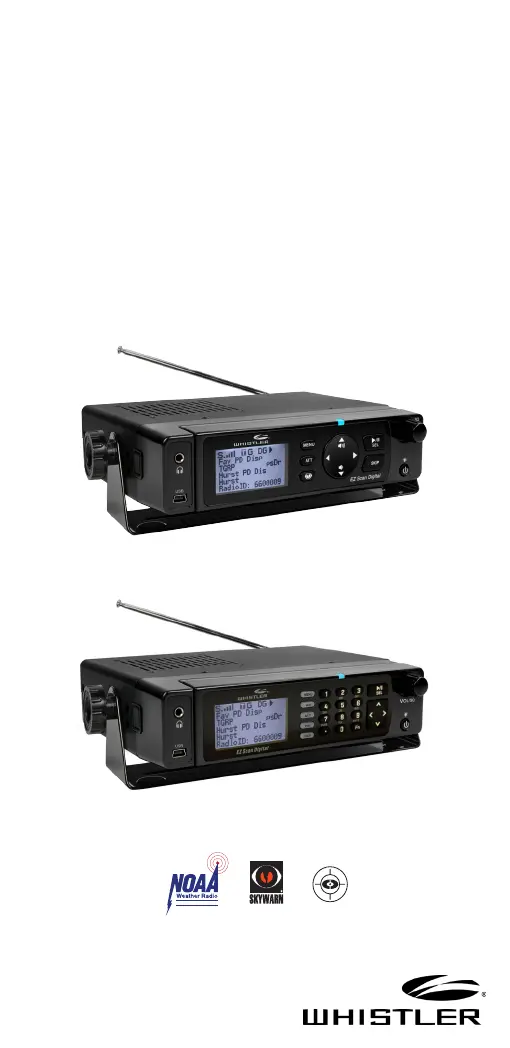
WS1095/WS1098
User Guide
All Hazards
NOAA’s National Weather Service
®
DIGITAL TRUNKING
DESKTOP/MOBILE
EZ DIGITAL
SCANNER

Table of Contents

Questions and Answers

  • D
    Daniel SteeleAug 9, 2025
    What to do if my Whistler Radio does not recognize the SD Card?
    • A
      Andrea GarciaAug 9, 2025
      If your Whistler Radio isn't recognizing the SD card, there are a few potential reasons. First, the SD card might not be properly formatted. Use the PC Application to reformat it, ensuring that if you use Windows, the card format is FAT or FAT32 with 32kB clusters, and all three boxes are checked. Another possibility is that the SD card isn't fully inserted. Press the SD card into the slot until you hear a click, ensuring it's completely in place. If neither of these solutions works, the SD card itself may be defective, and you should replace it with a new one.
  • T
    Thomas JonesAug 14, 2025
    What to do if my Whistler Radio shows 'Init SD Card'?
    • K
      Kathryn Flynn DVMAug 14, 2025
      If your Whistler Radio displays 'Init SD Card' when you turn it on, it typically indicates an issue with the SD card. First, ensure that the SD card is properly formatted by using the PC Application to reformat it. If the issue persists, the SD card may not be fully inserted. Push the SD card into the slot until you hear a click, ensuring it's fully seated.
  • K
    Kimberly BenitezAug 18, 2025
    How to fix SD Card error messages on my Whistler Radio?
    • E
      edwardsimpsonAug 18, 2025
      SD Card errors on your Whistler Radio can arise from various issues. Start by ensuring the SD card is fully inserted and locked in the slot. If errors persist, try these steps: * Reformat the SD card using the PC Application's "Prepare SD Card for use" option. * If reformatting doesn't resolve the issue, consider replacing the SD card. Specific errors like a full SD card may require reducing the configuration size, removing unnecessary audio recordings, or switching to a higher capacity SD card. For write-protected errors, re-insert the card, reformat using the PC Application, or replace the card if needed. If the error persists after these steps, contact Support and provide error code information.
  • M
    Manuel RichardsonAug 23, 2025
    Why is my Whistler Radio on but not scanning?
    • C
      Chelsea McdonaldAug 23, 2025
      If your Whistler Radio is on but not scanning, the squelch may not be adjusted correctly. Try turning the squelch control clockwise.
  • R
    roy05Aug 27, 2025
    Why does my Whistler Radio show 'Scanning not available'?
    • U
      ucarterAug 27, 2025
      If your Whistler Radio displays 'Scanning not available', and you're using the mobile wiring harness, the battery voltage may be too low. To prevent data corruption, all functions that write data to the SD card, including scanning, are disabled when the voltage is insufficient. Check the battery voltage to resolve this issue.
  • L
    Lori SmithAug 31, 2025
    What to do if my Whistler Radio does not function?
    • C
      curtis49Aug 31, 2025
      If your Whistler Radio isn't functioning, first ensure it's receiving power from an appropriate power source. If it is, remove the power, hold the power button for one minute, then release it and reconnect to the power source.
  • R
    Renee DavisNov 4, 2025
    Why is my Whistler Radio reception poor?
    • D
      David ChanNov 5, 2025
      Poor reception on your Whistler Radio can stem from several factors. It could be due to weak signals from distant stations; in this case, reposition the radio for better reception, keeping in mind that 2-way radio reception is line-of-sight. An outdoor antenna can significantly improve reception, especially with the first 30 feet of elevation. Alternatively, the attenuator might be affecting weak signals, so test performance with and without it to find the best setting. Strong signal overload from a nearby transmitter can also cause this, so again, check the attenuator settings. Inspect the antenna and its connectors for any looseness or defects. Finally, ensure that you've selected the correct modulation mode for the system you're monitoring, using the PC Application if necessary to chang...

Summary

Introduction to Object Oriented Scanning

What is Object Oriented Scanning?

Explains the concept of object-oriented scanning and its benefits for users.

Scanner Features and Package Contents

Key Features of the WS1095;WS1098

Lists the main functional capabilities and technical specifications of the scanner.

Legal and Regulatory Information

Scanning Legally

Details legal considerations and restrictions for operating a scanner.

Scanner Setup and Connections

Antenna Connection

Instructions for connecting the included and external antennas.

Understanding the Keypad and Controls

Powering On the Scanner

Setting Location for Scanning

Scanner Settings and Display

EZ Scan Library Management

EZ Scan Library Overview

Information about the included RadioReference database and software.

EZ Scan Software and Library Updates

Installing EZ Scan Software

Steps for installing the EZ Scan software on a computer.

Preferred Programming from Library

Library Structure and Manual Programming

Manual Programming - Enter Conventional Frequency

Step-by-step guide to manually programming conventional frequencies.

Standard Text Entry Method

Creating Your First New Objects

Trunking System Programming

Essential Trunking Talkgroup Parameters

Key parameters required for programming trunking talkgroup objects.

Setting up a Trunking System (TSYS) Object

Guide to creating a Trunking System (TSYS) object.

Adding a New Trunk System

Adding Talk Groups to a Trunk System

Talkgroup Object (TGRP) Details

Editing Objects Manually

Alert LED Settings and Patterns

Alert LED Customization

How to customize the Alert LED with colors and flash patterns.

Recording and Playback Features

Scanner Clock and Monitoring

Monitoring and Scanning Functions

Explains basic functions for monitoring and scanning transmissions.

Scanlist and Scan Set Management

Frequency Searching Modes

Search Settings and Saving Frequencies

Saving Found CTCSS, DCS or NAC CODES

How to save identified squelch codes with channels.

Weather Monitoring and Alerts

Scanner Storage and Configuration

Updating Scanner Software and Library

Updating the Scanner with EZ Scan Software

Steps to update scanner firmware using EZ Scan software.

DSP Firmware Updates

Procedure for updating the scanner's Digital Signal Processor firmware.

Scanner Maintenance and Troubleshooting

Troubleshooting;Error Messages

Guidance for diagnosing and resolving common scanner issues and errors.

Scanner Specifications

Warranty and Service Information

Service Under Warranty

Procedure for returning the unit for repair or replacement under warranty.

Whistler WS1098 Specifications

General IconGeneral
TypeDigital Scanner
Banks10
Memory Banks10
PC ConnectivityUSB
DisplayLCD
GPSYes
Modulation ModesAM, FM, P25
Power6V DC
Frequency Range25-512 MHz

Related product manuals