EasyManua.ls Logo

Wiko T50 - User Manual

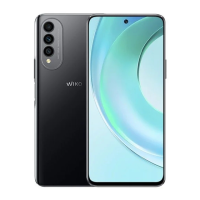
Wiko T50
25 pages
Print Icon
To Next Page IconTo Next Page
Loading...
1
Contents
Get Started ......................................................... 2
Install SIM Card .................................................. 2
Charge Mobile Phone .........................................3
PC-Phone File Transfer....................................... 4
Keys and Parts .....................................................5
Lock and Unlock the Screen ................................ 7
Notification Panel ............................................... 8
Arranging and Rearranging Widgets and Icons .... 9
Adding Folders on your Screen .......................... 10
Adjusting Brightness ......................................... 11
Changing your Wallpaper .................................. 12
Make a Call ....................................................... 13
Call Log ............................................................. 14
Reject a Call by Sending a Busy Message ........... 15
Add a Contact ................................................... 15
Messaging .........................................................16
Receiving a New Message ................................ 16
Editing SMS and MMS ...................................... 16
Message conversations .................................... 17
Browse the Web ................................................18
Enjoy Music ...................................................... 19
Download Applications on Google Play ............. 20
Manage Applications ........................................ 21
Safety information ............................................ 22
Question and Answer IconNeed help?

Do you have a question about the Wiko T50 and is the answer not in the manual?

Summary

Get Started

Install SIM Card

Guide to inserting the SIM card correctly into the phone.

Charge Mobile Phone

PC-Phone File Transfer

Keys and Parts

Lock and Unlock the Screen

Make a Call

Add a Contact

Messaging

Browse the Web

Download Applications on Google Play

Manage Applications

Safety Information

Overview

This device is a mobile phone designed to offer a comprehensive user experience, encompassing communication, entertainment, and utility features. It is powered by a rechargeable battery and supports various applications and media formats.

Function Description

The mobile phone serves as a versatile communication tool, allowing users to make and receive calls, send and receive text messages (SMS) and multimedia messages (MMS). It supports multiple network bands, including GSM, UMTS, and FDD, ensuring broad connectivity. Beyond basic communication, the device offers a range of advanced functionalities. It features a camera and video recorder for capturing visual content, as well as a music and sound recorder for audio. Users can browse the internet using the integrated browser, which is optimized for a rich online experience. The device also supports the installation of various applications and games through Google Play, enhancing its utility and entertainment value. File transfer between the phone and a PC is facilitated via USB, allowing for easy management of personal data.

Usage Features

The device is designed for intuitive use, with several features aimed at enhancing user interaction.

  • Getting Started: To begin using the phone, users must first install a SIM card and ensure the device is charged. The SIM card is inserted into a dedicated slot after switching off the phone. Charging is done via a USB connection, with the phone automatically charging when connected to a PC.
  • Keys and Parts: The phone includes several physical keys and parts for navigation and control. A headset port allows for connecting earphones for music or radio listening. The receiver is used to hear the other party during calls. A front camera enables taking pictures facing the screen, while a back camera is used for general photography, supported by a flashlight for low-light conditions. Volume Up/Down keys adjust ringer, call, and media volumes. The Power Key switches the phone on/off and opens the phone options menu when pressed and held. A USB jack connects the charger or USB data cable for data exchange.
  • Screen Lock and Unlock: The device can be locked by pressing the power button to enter Sleep mode. To wake up and unlock, the power button is pressed again, followed by swiping the screen upward.
  • Notification Panel: The status bar displays notification icons for new messages, calendar events, alarms, and ongoing settings like call forwarding or current call status. The Notification Panel can be accessed by sliding a finger downward from the status bar. Users can scroll to view more notifications and close the panel by sliding a finger upward from the bottom bar or by pressing the BACK or Home buttons.
  • Widgets and Icons: The Home screen can be customized by arranging and rearranging widgets and icons. Users can press and hold an item to move it, drag it to a new location, or move it to another Home screen panel. A "remove" icon appears at the top of the screen for deleting items.
  • Folders: Folders can be created on the Home screen to group related applications and shortcuts, helping to keep the screen organized. To add an item to a folder, users drag and drop an application icon or widget onto another. Folders can be renamed by tapping them and entering a new name. Deleting a folder is done by dragging all applications out of it, which automatically removes the empty folder.
  • Brightness Adjustment: Screen brightness can be adjusted by dragging the notification panel down or by navigating to Settings > Display > Brightness level and using the slider. Lowering brightness is recommended to prolong battery life.
  • Wallpaper Customization: The Home screen wallpaper can be personalized with a favorite photo. This is done by pressing and holding an empty space on the screen, which brings up an optional context menu to select and confirm a new wallpaper. Alternatively, users can access Settings > Wallpaper for the same function.
  • Making Calls: To make a call, users select the phone icon on the start screen and enter the desired phone number.
  • Call Log: The Phone interface includes a "Recents" section where users can access the Call Log. From here, calls can be made, new contacts created, and messages sent.
  • Rejecting Calls with Messages: When an incoming call is inconvenient to accept, users can reject it by sending a busy message. Tapping the message icon displays several pre-defined busy messages that can be sent.
  • Adding Contacts: Contacts can be added by tapping the contact icon, entering the Contacts application, and then tapping the "+" icon to add a new contact to the phone.
  • Messaging: To compose a new message, users enter the Messaging application and touch a text field to open the keyboard.
    • Receiving Messages: New message icons appear in the status bar. Users can open the message by pressing and holding the status bar, sliding it down to open the Notifications panel, or by directly accessing the Messaging application.
    • Editing SMS and MMS: While composing a new text message, users can select text for cutting or copying. The device supports selecting all contexts, translating, copying, cutting, and sharing text. Multimedia messages (MMS) can include videos, pictures, audio, and location data. SMS can be converted to MMS by adding multimedia content.
    • Message Conversations: Text and multimedia messages are grouped into conversations or message threads, allowing users to view exchanged messages with a contact in a chat-like format.
  • Web Browsing: The device includes a browser accessible from the start screen. Users can click the URL bar to search or enter a website address. An active data or Wi-Fi connection is required for internet access.
  • Music Playback: Music files copied to the device are stored locally. YouTube Music can be used to access and play music, which is organized into albums, songs, and artists. Users can also create new playlists.
  • Application Management: Applications can be managed through Settings > Apps. Users can view app information, force-stop, or uninstall apps. To install apps from unknown sources, the "Allow from this source" option must be enabled in settings.
  • Downloading Applications: Applications can be downloaded from Google Play. Users need a Google account to access the Google Play Store.

Maintenance Features

The device requires certain maintenance practices to ensure its longevity and safe operation.

  • Battery Care: The phone is powered by a rechargeable battery. Users are advised to recharge the battery when a low power notification appears to prevent shortening its lifespan. Batteries must be used with caution; users should not attempt to disassemble them or destroy batteries and chargers. Only WIKO-approved batteries and chargers supplied in the box should be used. Damaged batteries or chargers should never be used. Batteries should be kept away from electronic objects and not exposed to extreme temperatures (below 0°C or above 45°C). Recharging is recommended at room temperature (between 5°C and 25°C). Incorrect battery use or replacement can lead to fire, explosion, or other risks. Used batteries should be disposed of according to instructions.
  • Environmental Considerations: The phone should be recharged in a well-ventilated area. It should not be used in environments with excessively high or low temperatures, direct sunlight, or wet conditions. The suitable operating temperature range for the phone is -10°C to +40°C, with a maximum charging temperature of +40°C.
  • Connectivity: The GSM mobile phone should only be connected to a USB Interface of version 2.0 or higher. Connection to "power USB" is prohibited. The socket-outlet for charging should be near the equipment and easily accessible.
  • Liquid Contact: The device should not be exposed to liquid or touched with wet hands, as water damage may be irreparable.
  • Accessory Use: Only WIKO-approved in-box accessories should be used. Unauthorized accessories may damage the phone or pose a safety risk.
  • Disassembly: Users should not attempt to dismantle the device due to the risk of electric shock.
  • Safety Information: Users are advised to read the safety information carefully. This includes warnings about hearing loss (avoiding high volume levels for prolonged periods), emergency calls (not relying solely on the mobile phone for critical emergencies), and usage restrictions in certain locations (aircraft, hospitals, service stations). Special care should be taken with children due to small parts. Driving safety guidelines emphasize respecting local laws regarding mobile phone use while driving, as it can be a distraction. Users should consult a doctor and the device manufacturer if the mobile phone interferes with medical devices like pacemakers, maintaining a minimum distance of 15cm.

Wiko T50 Specifications

General IconGeneral
Display Size6.6 inches
Resolution1080 x 2400 pixels
RAM6 GB
Internal Storage128 GB
Front Camera16 MP
Battery Capacity4000 mAh
Operating SystemAndroid 11
CPUOcta-core (2x2.0 GHz Cortex-A75 & 6x1.8 GHz Cortex-A55)
GPUMali-G52 MC2
Display TypeIPS LCD
RAM (alternative)6 GB
Rear Camera (alternative)64 MP + 8 MP + 2 MP
Front Camera (alternative)16 MP
Battery Capacity (alternative)4000 mAh
Operating System (alternative)Android 11
SIMDual SIM (Nano-SIM, dual stand-by)
Processor (alternative)MediaTek Helio G85
ColorsMidnight Black
ProcessorMediaTek Helio G85
Rear Camera64 MP (wide) + 8 MP (ultrawide) + 2 MP (macro)

Related product manuals