LED INDICATORS
Status LED
Headset status LED
Base Station pairing LED
• Successful connection - long blue blinks
• Pairing - fast blue and red blinks
CHECK THE BATTERY LEVEL
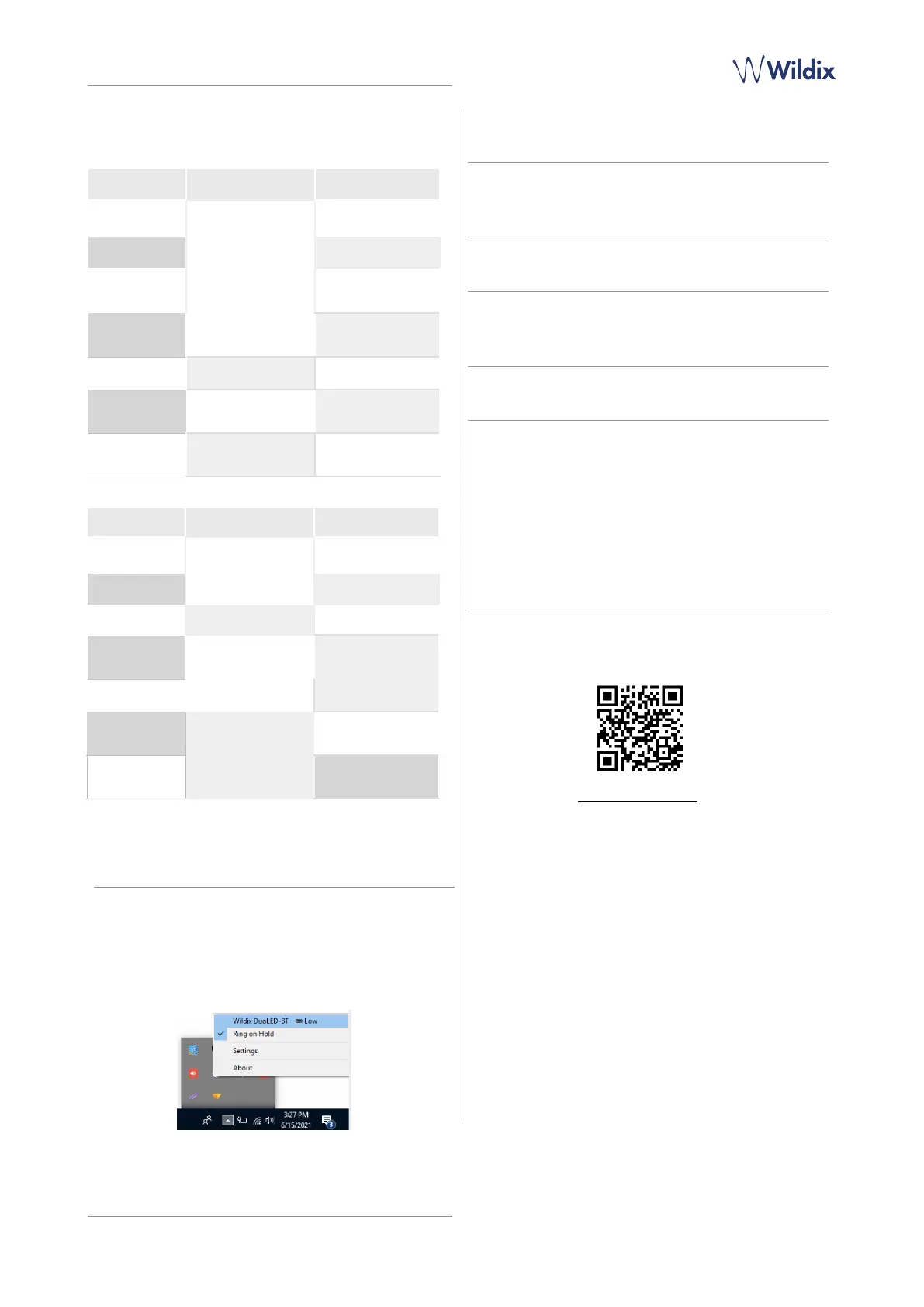
On Windows you can check the battery level using WIService
tray:!
• Go to Quick Launch Toolbar -> right-click on!Wildix
Integration Service!icon and check the level of battery
(Low, Medium, High):
ANSWER A CALL
Press Multi-function button to answer a call.
ADJUST VOLUME DURING A CALL/ RINGER VOLUME
Press Volume Up to increase the volume.
Press Volume Down to decrease the volume.
MUTE A MIC
Press Mute button during a call to put a call on hold / resume.
PUT ON PAUSE/ RESUME A CALL
Press!Multi-function!button for 2 seconds!during a call to put
a call on hold / resume.
END A CALL
Press Multi-function button to finish a call.
PAIR DUOLED-BT AND BASE STATION (OPTIONAL)
The Headset and the Base Station are paired by default. If you
accidentally unpair them, proceed with the following steps:
1. Press Pairing button on the Base Station
2. Make sure the Headset is powered off. Press and hold the
Multi-function button for 3 seconds until you hear “Power
on”. Keep pressing for 3 seconds more until you hear
“Pairing”
3. If pairing is successful, the voice prompt announces
“Paired… Your headset is connected”


 To Previous Page
 Loading...