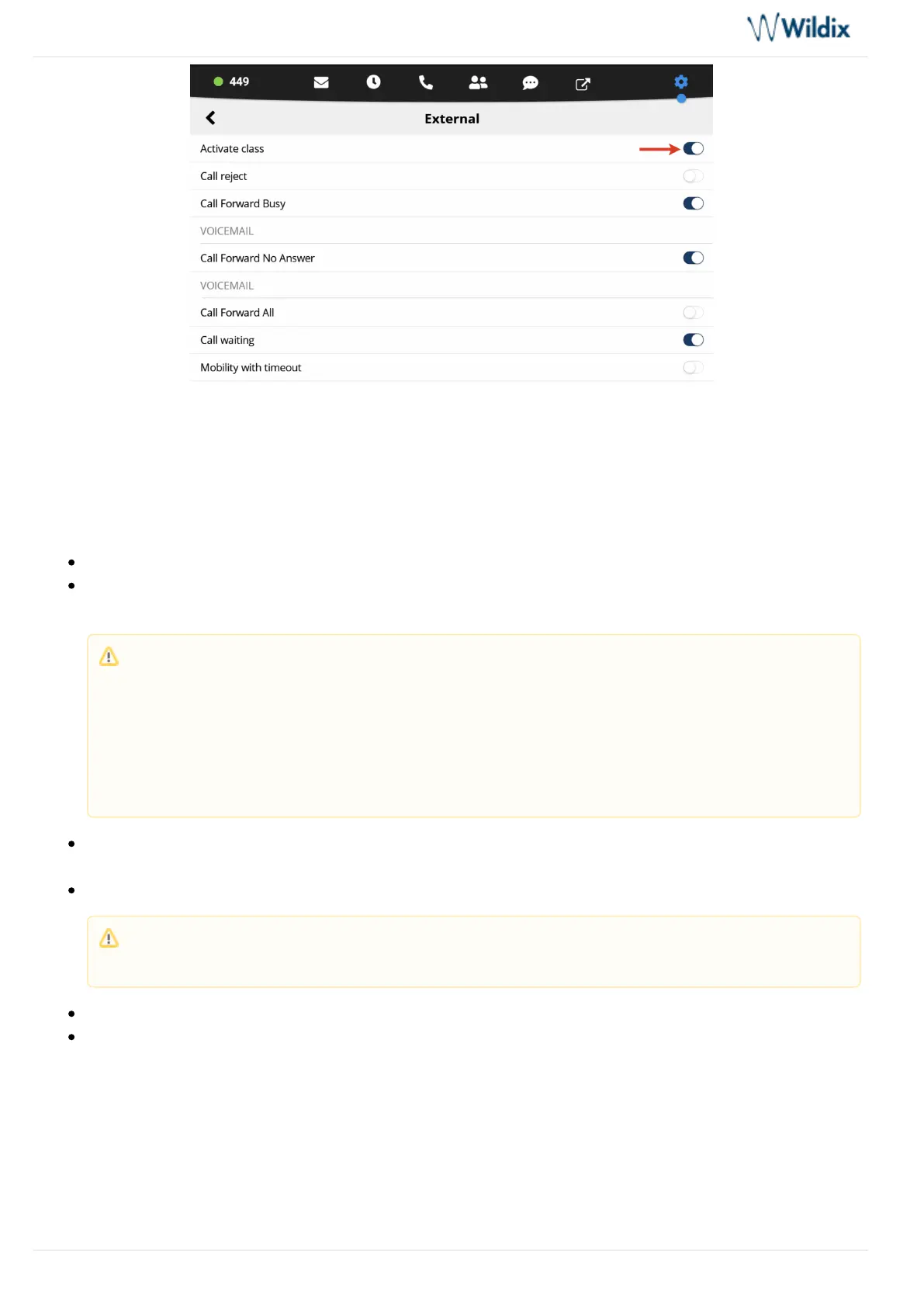
Tap the Switch to activate the class, then you can change other settings.
Advanced Settings and Phone upgrades
Advanced:
Update source: allows installing “beta” versions (changelog and upgrade instructions: )Wildix website
Check for Updates: tap to search for new versions; in case the new version is available, follow the
instructions on the screen to upgrade
Ringtone: select the ringtone playback mode in case headset is connected: Headset / Speaker /
Headset+Speaker (ringtone is played one time to headset and then to speaker)
Initiate video calls (On / Off): when On, video is automatically started upon starting an audio call
Audible DTMF (On / Off)
Automatic upgrades (On / Off); when Off, an additional option Notify of new versions – On/Off is displayed
Note: The possibility to deploy a local upgrade server for SuperVision starting from version 2.9.95
and WMS 4.01
In cases when the phone cannot get firmware from firmwares.wildix.com server (for example,
connection to the server is blocked from the phone; PBX doesn't have access to the server), you
can deploy a local upgrade server and indicate it in WMS -> -> Settings Tools and utilities Upgrade
-> . Please contact Wildix Support for details.Custom firmware server
Note: Starting from WMS 3.85.35510, you can receive video from doorphones, even when the
option is disabled.


 To Next Page