Swift 2 X User Manual | English
26
2. Touch the Apps Tray .
3. Swipe down to find the app you want.
4. Touch & hold the app until the Home screen appears, slide it into place, and lift your finger.
5. To move an app to another page touch and hold then drag it towards the right or left edge of the screen
to access the desired screen then lift-up your finger and the app is placed.
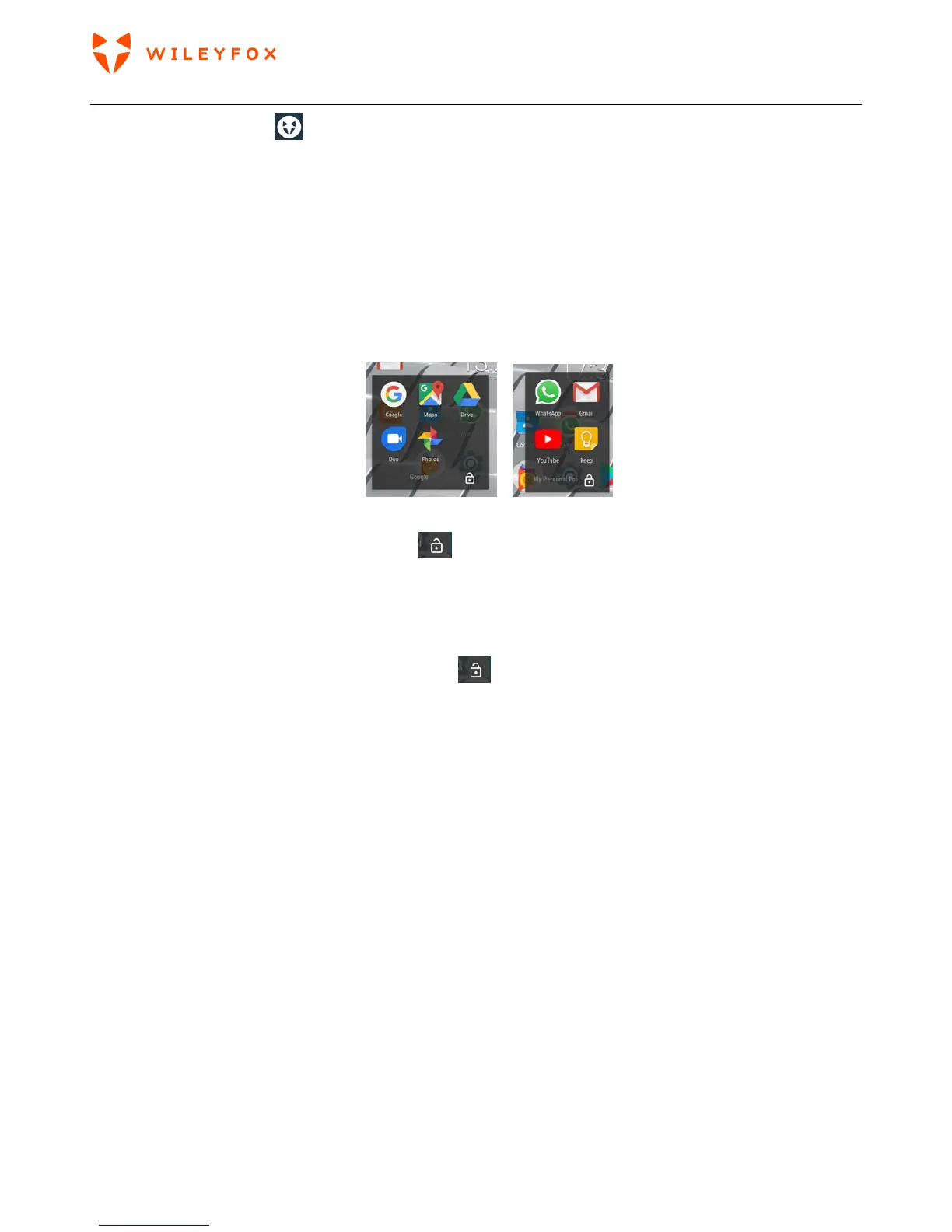
6. You can also group your apps and lock the group if you allow other people to use it but would like to
keep some apps private. Follow the steps: Hold and drag one app towards another and position it on
top of the second app, they will merge into a group.
7. Lock your folders – touch the locker icon
and you will see a screen where you must select a
pattern and swipe across selected points and touch Continue. Then you will be asked to swipe again
the same pattern and touch Confirm. Congratulations, your folder is locked. To access it you will be
asked to swipe your pattern. To cancel the Folder Lock option, you must access your locked folder and
when it is open you must touch the locker icon
then and you will be asked to swipe your pattern
and locker option will be cancelled. (Refer to images on the next page)
Note: The example is in the shape of letter Z, please do not use it Make sure you create your own pattern
and it is easy for you to remember. You can also unlock folder with a fingerprint if you have set one already.


 To Next Page