£
①¦«¬¬¬¬
¬
② :«
¬¬¬¬
«
¦
«
®
¯¯¯¯¯¯¦©¡
O WiMjUS
support@wimius.com
(DOperatethroughtheremotecontrol:Press" @and thenpress or " AV " to
choose the right source, then presse "0K" to confirm.
Operate through the projector button: press "S" on the machine to call up the input
source selection menu, press Y' or " A V "to select the required signal input
channel, and then press "0K" to confirm.
Note: The port USB2 is designed only for iPhone'sScreen Mirroring of cable connection,
it doesn't support Android devices.
Connecting with Smartphones and iPad
Wireless Connection
RS: The fluency of screen mirroring with wireless connection will be affected by the
network environment. A bandwidth of 100Mbit or more is recommended when using
screen mirroring. Make sure your mobile device is closed to the projector when using
wireless connection. A distance within 1 meter is recommended.
For IOS System
Method I: Setting with cellular data
1.Turn on the projector, select " " as the input source on the projector for the
connection at first. It will enter the interface of Screen Mirroring for IOS system.
2. Go to the settings of your IOS mobile device and connect it to the Wi-Fi of PROJECTOR
-XXXXXX (password: 12345678). Please ignore the exclamation mark before it.
3.Swipe up the screen of your IOS mobile device, then tap Screen
09


 To Next Page
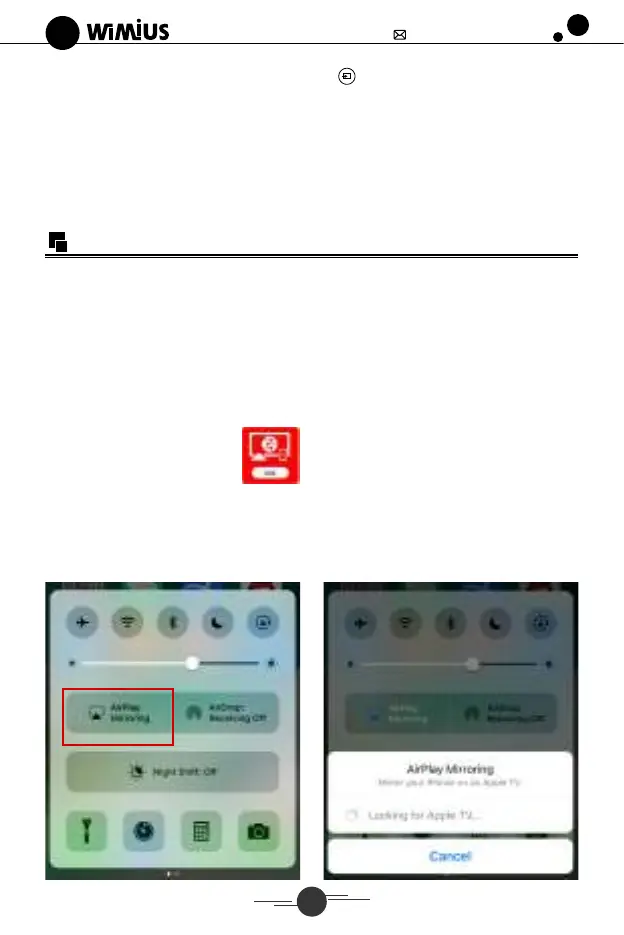 Loading...