«
¦®¯¯¯¯¯¯ ¦©¡
¦£¡¯¯¯
【】【】
«
®¯¯¯¯¯¯
«
«
O WiMjUS
Method 2: Setting with Home Wifi
support@wimius.com
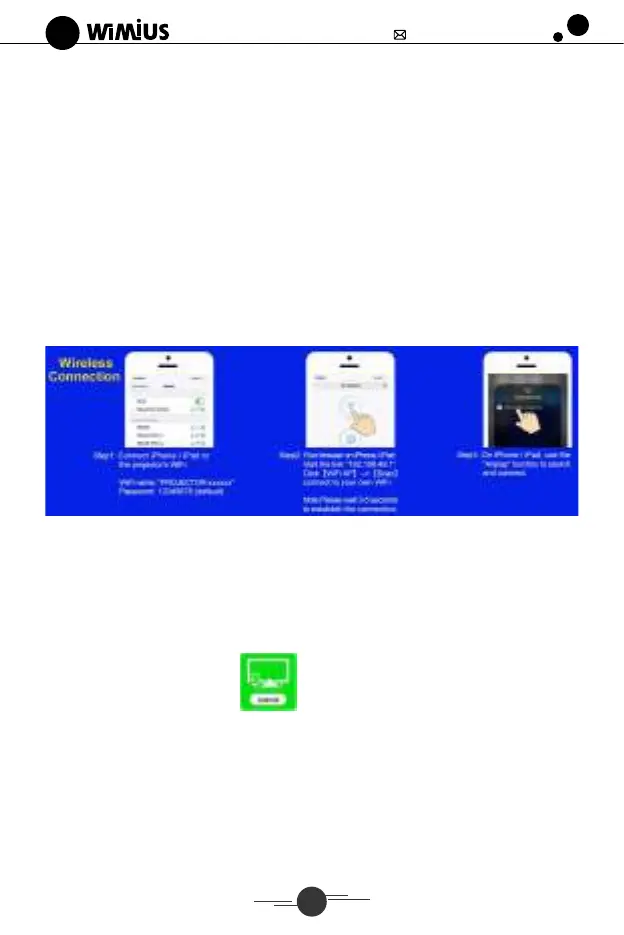
1. Turn on the projector, select "Screen Mirroring" of IOS as the input source. Connect
iPhone/iPad to K3 projector's Wi-Fi.
Wi-Fi name: PROJECTOR-XXXXXX (password: 12345678)
2. Visit the setting adresse of projector: 192.168.0.XXX (please put in the IP showed on
the screen) from a browser on your mobile device, click (WiFi API
(Scan)
select your router's Wi-Fi and enter the right password, then tap Connect to continue,
please wait 3-5 seconds to establish the connection.
3. Get back to the Wi- Fi setting of your iOS mobile device, then connect it to the same
router's Wi-Fi.
4. Swipe up the screen of your iOS mobile device and tap "Screen Mirroring" to search
for the projector, then select from the searching results to
connect.
For Android System
To activate this function, your android device must support Multi-Screen/
Wireless display. Name of "Multi-Screen" may vary depending on various
brands of Android devices.
Note: Before connecting, please confirm that your mobile personal hotspot is turned off.
1.Turn on the projector, select"
connection at first.
"as the input source on the projector for the
2. Turn on your home wifi, connect your Android,tablet to your own Wi-Fi.
--Wi-Fi is necessary for Android Device wireless connection.
3. Use the "Mufti-Screen" function to search and connect.
10


 To Next Page
 Loading...