ENEN
support@wimius.com
01 02 03 04 05 06 07 08 09 10 11 12 13 14 15 16 17 18
19 20 21 22 23 24 25 26 27 28 29 30 31 32 33 34 35 36
37 38 39 40 41 42 43 44 45 46 47 48 49 50 51 52 53 54
55 56 57 58 59 60 61 62 63 64 65 66 67 68 69 70 71 72
73 74 75 76 77 78 79 80 81 82 83 84 85 86 87 88 89 90
91 92 93 94 95 96 97 98 99 100 101 102 103 104 105 106 107 108
Method 1: Setting with cellular data
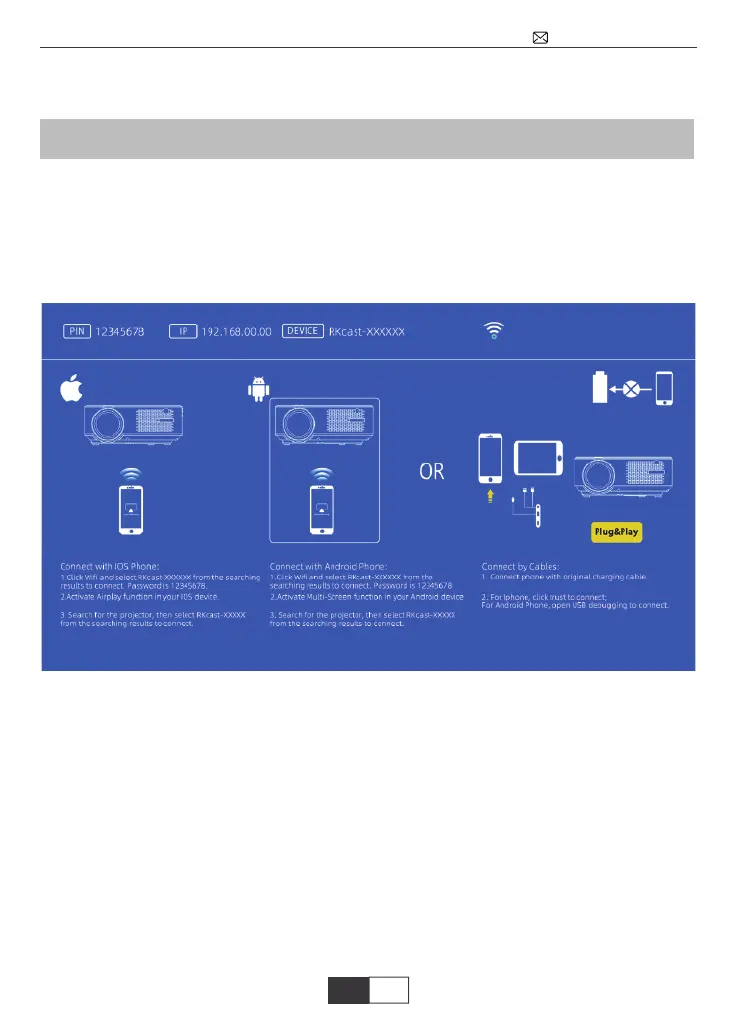
1.Turn on the projector, select “Screen Mirroring” as the Input Source, then choose Android
on the projector interface of Screen Mirroring for Android System.
Method 2: Setting with Home Wifi
2.Turn on the Wi-Fi Switch in your Android device.
3.Select RKcast-XXXXXX from the searching results to connect. Password is 12345678.
4.Activate Multi-Screen function in your Android device and then it will work.
1.Select RKcast-XXXXXX from the searching results to connect.
Wi-Fi of RKcast-XXXXX (password: 12345678)
2.Visit 192.168.XX.XX(please put in the IP showed on the screen) from a browser on your
mobile device, tap WiFi AP >Scan, select your router’s Wi-Fi and enter the right password,
then tap Connect to continue.
To activate this function, your android device must support Multi-Screen/Wireless display.
Names may differ from different devices.
5.Swipe up the screen of your iOS mobile device and tap “Screen Mirroring” to search for
the projector, then select RKcast-XXXXX from the searching results to connect.
For Android System


 To Next Page