EasyManua.ls Logo

Wimius P60 - Bluetooth Setting

Wimius P60
26 pages
Print Icon
To Next Page IconTo Next Page
To Previous Page IconTo Previous Page
Loading...
3
Support01@wimius.com
2.
Select
the
[
Settings
]
menu
on
your
Android
device
--
Select
the
[
Screen
mirroring
]
function
--
Select
your
Miracast
receiver
named
[WiMiUS
P60
Projector]
--
your
Android
device
screen
will
be
displayed
on
the
projection
screen
after
3
seconds.
3.
On
your
Android
device,
tap
[
Settings
]
-[
WLAN
Display
]
-Turn
[
Wi-Fi
]
ON,
Connect
your
home
WiFi.
Note:
1.
Different
brands
of
Android
phones
have
different
operations
for
select
Screen
Mirroring
Display,
please
refer
to
your
phone's
manual.
[
Multiscreen/Wireless
display/WLAN
display/Screen
mirroring/Wireless
projection/Smart
view
etc.
]
2.
Not
all
Android
phones
support
this
function.
Please
make
sure
it
is
supported
before
use.
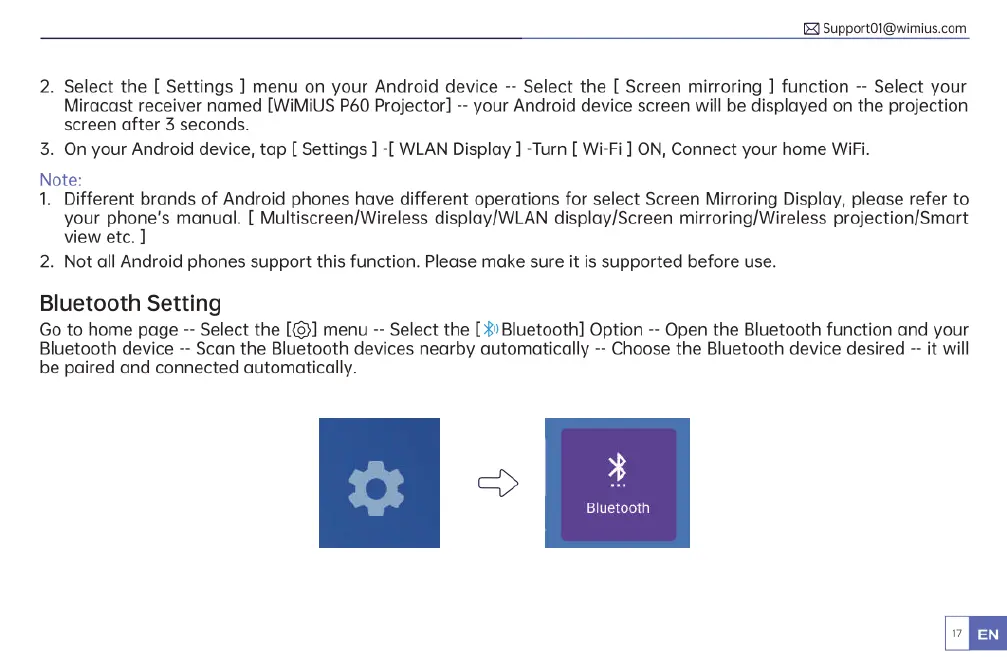
Bluetooth
Setting
Go
to
home
page
--
Select
the
[
menu
--
Select
the
[$Bluetooth]
Option
--
Open
the
Bluetooth
function
and
your
Bluetooth
device
--
Scan
the
Bluetooth
devices
nearby automatically
--
Choose
the
Bluetooth
device
desired
-
it
will
be
paired
and
connected
automatically.
3
Bluetooth

Related product manuals