17
11075-00 60706-211
FRONT PANEL CONFIGURATION
1
2
3
4
This configuration mode allows the operator limited customizing of the way the module
operates. Use the module’s navigation buttons to traverse the menu and make value
changes to the parameters.
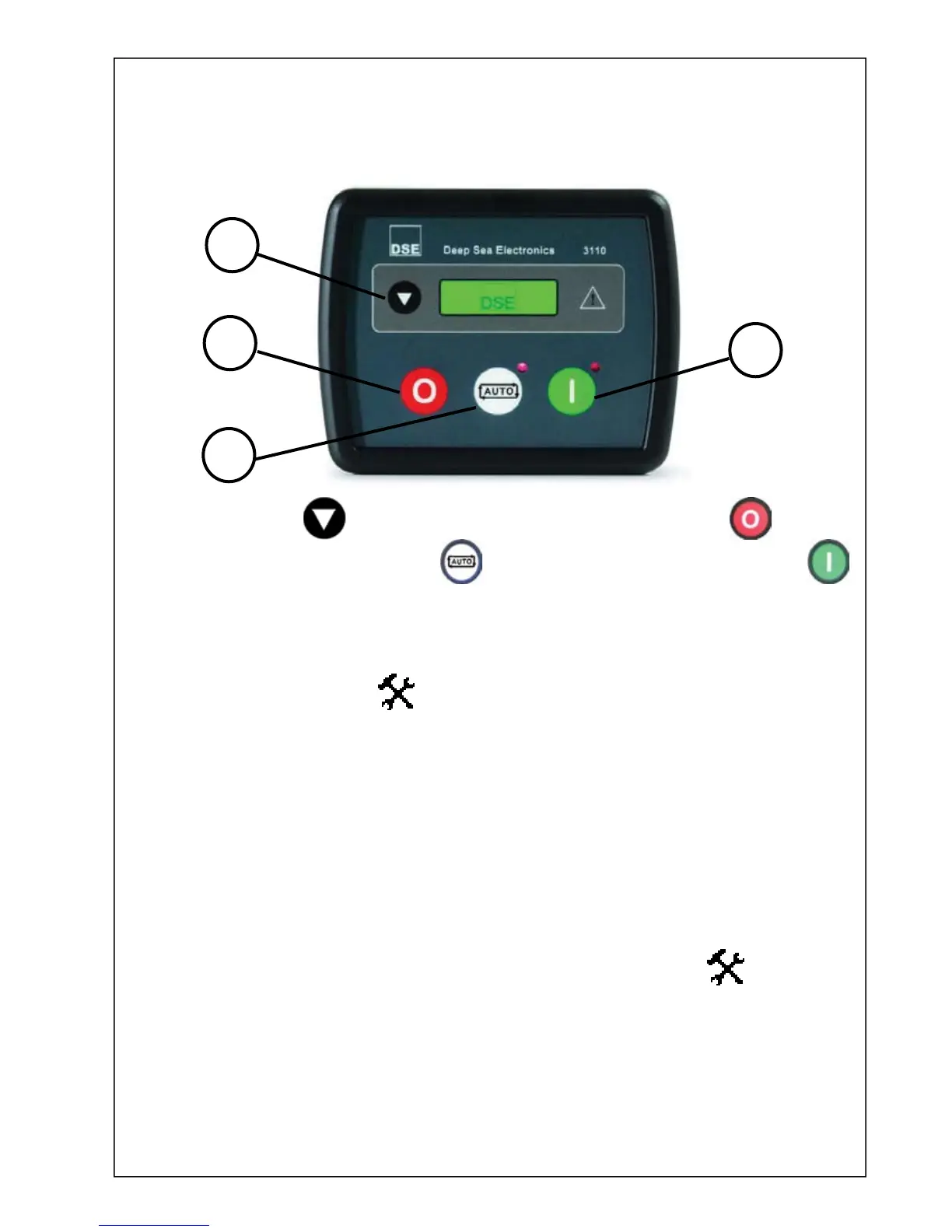
1. ACCEPT button. 2. NEXT PAGE button.
3. DECREASE VALUE / NEXT ITEM 4. INCREASE VALUE / NEXT ITEM
ACCESSING THE FRONT PANEL
Press 1 (accept) and 2 (next page) similtaneously (at the same time). This display
shows the configuration icon: The first parameter is also displayed.
EDITING A PARAMETER
Enter the editor as described above.
* Press 2 to select the required ‘page’ as detailed below.
* Press 4 to select the next parameter or 3 to select the previous parameter within the
current page.
* When viewing the parameter to be changed, press the 1 button. The value begins to
flash.
* Press 4 or 3 to adjust the value to the requested setting.
* Press 1 to save the current value. The value stops flashing.
* Press and hold the 1 button to exit the editor, the configuration icon is removed
from the display.
NOTE: Values representing pressure will be displayed in Bar. Values representing tem-
perature are displayed in degrees Celsius.
NOTE: When adjusting values in the front panel editor a press and hold of the increment
button will cover the full range of the item being adjusted (min to max) in under 20 sec-
onds.
NOTE: When the editor is visible, it is exited after 5 minutes of inactivity for security.
1. ACCEPT button. 2. NEXT PAGE button.


 To Next Page