How to Run a Channel Scan
Using the television remote, select “Menu” and then “Settings.”
Select “Channel Setup.”
Select “Antenna” or “Air,” depending on your TV. Make sure you are not on “Cable.”
Select “Channel Search” or “Channel Scan.” Keep in mind that steps to perform
a channel scan may vary. If the wording in your TV differs from the options shown,
refer to your TV user manual for help.
Running a channel scan is NOT the same as pressing Channel UP/
DOWN on your remote.
To receive maximum programming, you have to run a channel scan after setting
up the antenna. To keep your channel line-up up-to-date, it is a good idea to run a
channel scan monthly, anytime a channel is lost, and anytime you change locations.
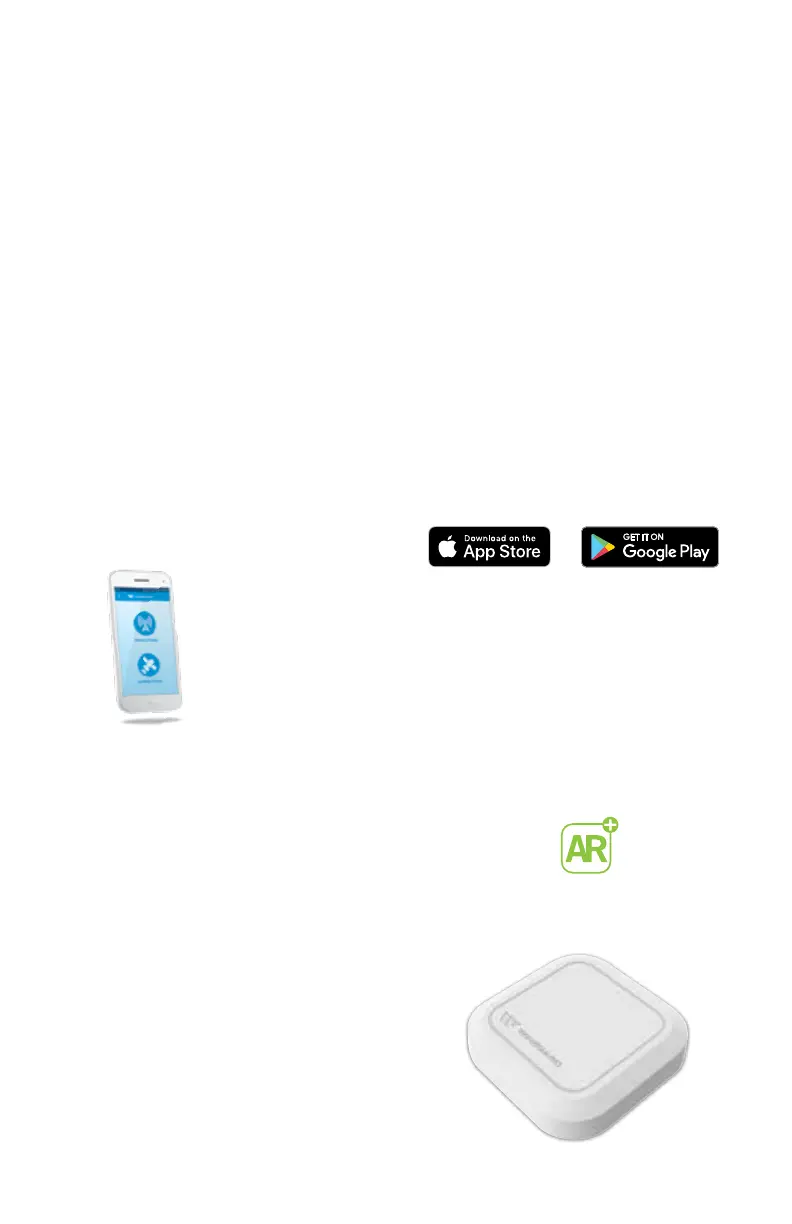
Winegard App TV Signal Finder with AR
FREE DOWNLOAD
Finding your favorite TV programming has never been easier! Using
your current location, the app searches for all available signals and
determines the correct antenna positioning.
Antenna Pointer – Use the top-down map view to locate all HDTV
towers closest to your address or GPS location. Eliminate signal
obstructions such as trees, hills, and buildings by switching to
the AR view. Simply point your phone to the horizon and rotate 360 degrees to
bring into view your desired TV tower and find where the local channels are in your
location. The number displayed above a tower indicates the number of channels
available. Tap the tower icon to see full channel details.
Avoid obstructions with the augmented reality (AR)* view.
*May not work on smartphones without sensors.
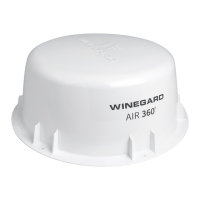
Winegard Gateway
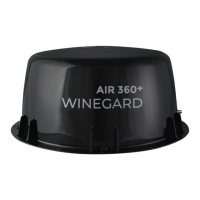
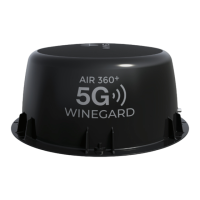
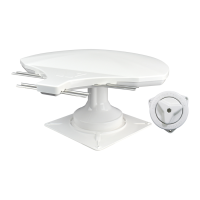
The Winegard Gateway is compatible with
the Winegard Air 360
+
ONLY. It is the
accompanying piece to take your Air 360
+
to the next level in Connectivity.
For more information please visit
www.winegard.com/gateway or visit
www.winegard.com/find-a-dealer to find
a dealer in your area.
GW-1000




 To Next Page