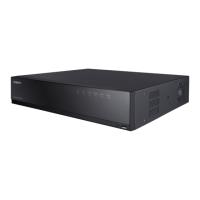
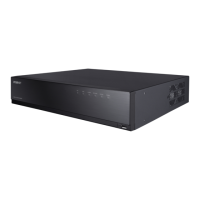
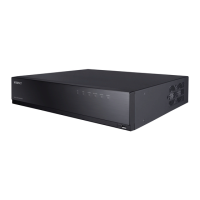
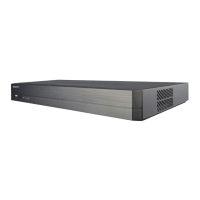
This document serves as a Quick Manual for the Wisenet 4/8/16 Channel DVR, covering models HRD-440, HRD-442, HRD-840, HRD-841, HRD-842, HRD-1641, and HRD-1642. It provides essential information for setting up, operating, and maintaining the device, ensuring optimal performance and user experience. The manual emphasizes safety precautions, package contents, model-specific variations, wiring diagrams, signal recognition, video quality adjustments, recording schedule configuration, backup procedures, network connection, port forwarding, DDNS setup, and web viewer access.
Function Description
The Wisenet DVR is a versatile digital video recorder designed to manage and record video feeds from multiple camera channels (4, 8, or 16 depending on the model). Its primary function is to provide comprehensive surveillance capabilities, allowing users to monitor, record, and review video footage. The DVR automatically recognizes camera signals, simplifying the initial setup process. It supports various video quality adjustments to optimize picture clarity based on cable distance and offers flexible recording options, including continuous and event-triggered recording. The device is equipped with network capabilities, enabling remote access and management through a web viewer. It also supports data backup to external USB devices, ensuring the preservation of critical footage.
Usage Features
The DVR is designed for ease of use, with intuitive menu navigation via a remote control or front panel buttons.
- Initial Setup and Safety: Before operation, users are advised to adhere to several safety guidelines: avoid outdoor use, prevent liquid spills on connections, protect the system from excessive shock or force, refrain from forcefully pulling the power plug, do not disassemble the product, ensure input/output ranges are not exceeded, use a certified power cord, and utilize a grounded power plug if applicable.
- Package Contents: The package typically includes the DVR main unit, a power cable, mouse, user manual/quick manual, network viewer software/user manual CD, HDD fixing screws (for models without pre-installed HDDs), bracket fixing screws, and a remote control with AAA batteries. Model-specific variations may include different terminal blocks, SATA cables, and adapters.
- Wiring Diagram: The manual provides a clear wiring diagram for connecting external devices such as video input, spot monitor, VGA output, network, AC power, audio input/output, HDMI, USB, and eSATA HDD. This ensures correct physical connections for all peripherals.
- Camera Signal Recognition: The DVR features automatic camera signal recognition. However, if an image is not displayed after installation, users are guided to manually check and set the signal type of the connected camera. To prevent high-speed signal crosstalk, it is recommended that the cable length between adjacent video channels be less than 300m (based on 75-5 coaxial cable). The manual also warns against connecting CVBS and 1080p signals to adjacent channels simultaneously due to potential video noise, suggesting alternative channel pairings.
- Video Quality Adjustment: To achieve better picture quality, the DVR allows users to adjust the EQ value, which is crucial when connecting different distance cables. This setting can be accessed through the Device > Camera > Screen Setup menu.
- Recording Schedule: Users can configure a detailed recording schedule through the Record > Recording Schedule menu. This allows for setting continuous, event-based, or both types of recording for each channel across different days of the week. The "Apply to All CH" function simplifies applying the same schedule to all channels.
- Event Record Duration: The DVR offers configurable pre-event and post-event recording durations, ensuring that footage before and after an event is captured. This feature is accessible via the Record > Event Record Duration menu, allowing users to specify how many seconds of footage are recorded before and after an event.
- Data Backup: The backup function, found in the Backup menu, allows users to save recorded data to external USB devices. Users can specify the start and end times for backup, select channels, and name the backup file. The manual notes that the "OK" button for backup will only be active if a compatible device is recognized.
- Network Connection: The DVR supports network connectivity, enabling remote access. Users need to check the "Default Gateway" from their PC's network properties and configure the connection mode (Static or DHCP) and transfer bandwidth through the Network > Connection Mode menu.
- Port Forwarding: For remote access, port forwarding needs to be configured on the router. The manual provides instructions based on a D-LINK DI-624 router, guiding users to enter the DVR's IP address and port in the router's "Virtual Server" settings.
- DDNS Setup: Dynamic DNS (DDNS) allows access to the DVR using a domain name instead of a fluctuating IP address. Users can configure DDNS settings (e.g., hanwha-security.com) through the Network > DDNS menu, using a virtual keyboard for input.
- Web Viewer Access: The DVR can be accessed remotely via a web browser by typing the DVR's IP address or URL. Initial access requires installing an ActiveX Control. Users must log in with the Admin ID and password (default "admin" for the first login, with a strong recommendation to change it immediately). The web viewer provides a comprehensive interface for monitoring and managing the DVR.
Maintenance Features
The manual implicitly suggests several maintenance practices through its instructions and warnings:
- Regular Password Changes: For security, it is strongly recommended to change the administrator password every three months to protect personal information and prevent data theft. This also applies to wireless network passwords if a router is used.
- Proper Cable Management: The recommendation for cable length between adjacent video channels (less than 300m) and avoiding specific channel pairings for mixed signals (CVBS and 1080p) helps prevent signal degradation and video noise, contributing to system stability and longevity.
- Firmware Updates: While not explicitly detailed as a maintenance feature, the presence of a "WebViewer DVR X.X.X.XXX Setup" implies that software updates may be available, which are crucial for security patches and feature enhancements.
- Data Backup: Regular data backup to external storage is a key maintenance practice, ensuring that critical footage is not lost due to hardware failure or other unforeseen events.
- Environmental Considerations: The "Before starting" section emphasizes avoiding outdoor use and protecting the device from shock, force, and liquids, which are fundamental for maintaining the DVR's physical integrity and operational lifespan.
- Compliance and Disposal: The manual includes sections on FCC compliance, RoHS compliance, and correct disposal of the product and batteries. These guidelines ensure environmentally responsible practices and adherence to regulatory standards, contributing to the overall lifecycle management of the device. Hanwha Techwin's commitment to eco-friendly products is highlighted by the Eco mark.
- Troubleshooting: The guidance on checking camera signal types if an image is not displayed serves as a basic troubleshooting step, empowering users to resolve common issues.
In summary, the Wisenet DVR is a robust surveillance solution with user-friendly features for setup, operation, and maintenance, designed to provide reliable video recording and remote monitoring capabilities while emphasizing safety and environmental responsibility.

 Need help?
 General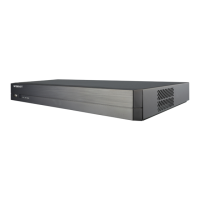

 To Next Page