WISYCOM s.r.l. - Via Spin, 156 - I-36060 Romano d’Ezzelino (VI) - Italy - MTP30-eng-b04.doc
Tel. (Ph.). +39 0424 382605 - Fax +39 0424 382733 - http:// www.wisycom.com
- e-mail: sales@wisycom.com
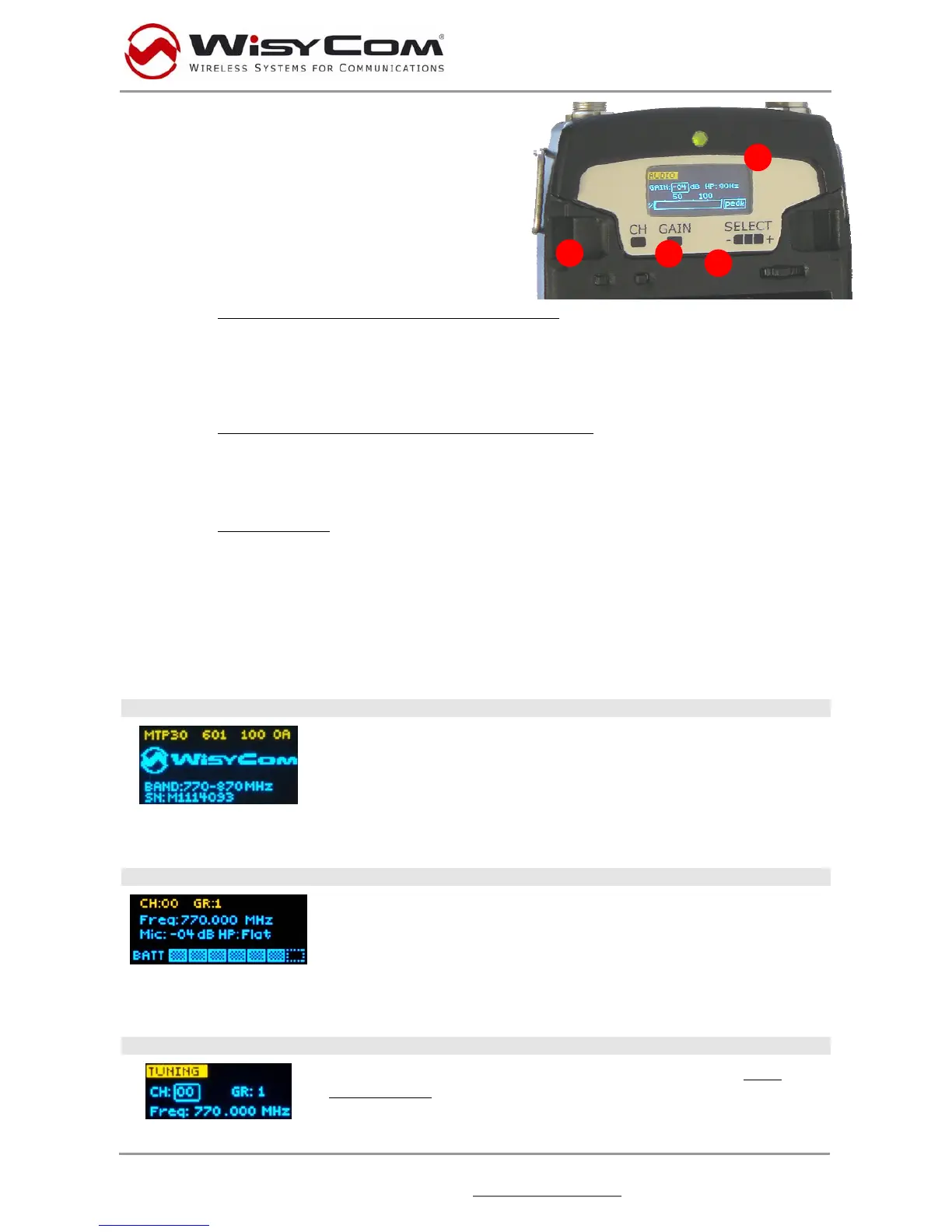
1.4 5BSETUP CONTROLS
Open transmitter Body to access the
“display and controls” area (fig. 3):
A) Graphics Display (OLED)
B) Channel selection button (ch)
C) MIC gain setup button (gain)
D) 3 position selector (- / click / +)
Fig. 3
1.4.1 7BULED POWER UP (OLED IS IN OFF CONDITION)
Pushing down selector (click), oled turns on. A first menu with serial NO and brand logo is
display, then <status> menu enters automatically.
Pushing and holding selector (click) > 2 sec, serial NO menu is displayed till (-/+) is selected.
1.4.2
8BUOLED POWER DOWN (OLED IS IN ON CONDITION)
Pushing and holding selector (click) > 2 sec, display is turned off.
Display turns off automatically after 15 sec, unless in <irda> menu or in <audio> menu (with
audio level < 5% from nominal).
1.4.3
9BUDISPLAY MENU
Setup menu are accessed in sequence:
Æ <status> Æ <tuning> Æ <audio> Æ <mic> Æ <rf power> Æ <other> Æ <irda> Æ <lock> Æ
Using <+/-> selector all menus can be accessed in sequence
Push <click> to enter edit mode:
<+/-> to setup field
Æ <click> again to confirm changes and exit.
Æ exit without confirmation if no button is pressed after a few seconds time out.
1.4.3.1 10B<start up> menu
This menu is displayed during power up for few seconds:
Keep selector pushed to hold this menu.
Main information are:
Æ Product name – software version
Æ Brand name
Æ Transmitter bandwith
Æ Serial No:
1.4.3.2 11B<status> menu
This is the first menu displayed after power up.
Major info are displayed:
- Current channel/group (i.e. CH:00 GR:1)
- Current frequency (i.e. 770.000 MHz)
- Mic gain (i.e. -04) and high pass filter (i.e. FLAT)
- RF active, top right label RF (if present RF is on)
1.4.3.3 12B<tuning> menu
This menu can be entered by scrolling selector or using
Uquick
channel setupU buttons (<ch>).
In this menu current channel/group and frequencies can be setup.
Use the selector to change values (<+/->) and <click> to
confirm.
A


 To Next Page
 Loading...