1 2
5
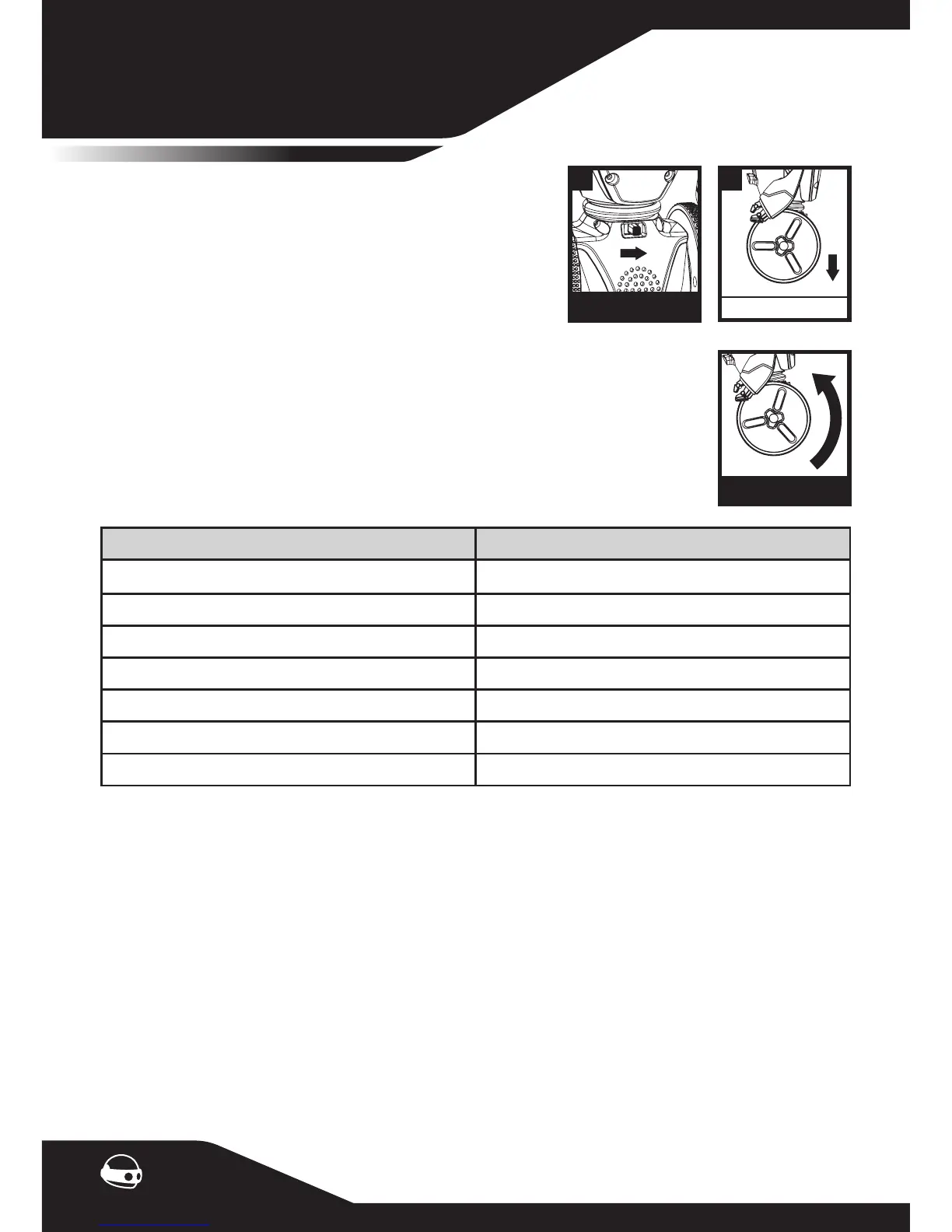
(1) With the batteries inserted, locate the power switch
on its back and activate MiP™ by toggling it to ON.
(2) Carefully place MiP™ upright on its wheels on a at
and smooth surface, away from edges and obstacles.
On successful balancing, you should feel traction in its
wheels. At this point, let go and MiP™ will stand on its
own with slight movements to correct its balance.
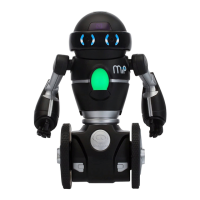
MiP™ has several di erent modes that can be activated. Along with its own
unique vocabulary, MiP™ will make a wide range of sounds to express itself
regarding its current action, mode, or input received. To access the di erent
modes, pick MiP™ up and turn its right or left wheel. The LED Mode Indicator
will change color to indicate its current mode. Note that these modes are in a
xed order, therefore, you can turn the wheel clockwise or counter-clockwise
to go up and down the list of modes.
GETTING STARTED
Mode LED Mode Indicator Color
MiP™ BLUE (Default)
Stack PINK
Cage WHITE
Tricks RED
Roam YELLOW
Dance TURQUOISE
Tracking ORANGE
Sound Detection
Various MiP™ actions can be performed by clapping, which will activate its sound detection.
For instance, to have MiP™ repeat a Trick Mode routine, you can clap twice.
Stop/Cancel
You can cancel any action MiP™ is currently performing by picking it up and tilting, then placing
MiP™ back down vertically. To reactivate the mode/action MiP™ was performing prior to the
Stop/Cancel command, clap twice.
Falling
Should MiP™ fall, it will make a sad sound. To get moving again, place it upright and it will start
balancing then wait for new commands, whilst in its previous mode.
Mode Selection
O - On











 To Next Page