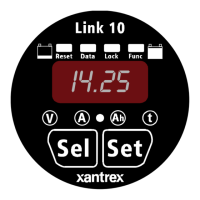
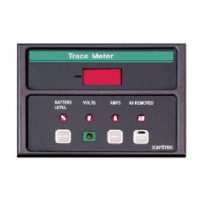
973-0026-01-01 Printed in Holland
Xantrex Battery Monitor Communication Interface Kit
Kit contents
1. Isolated XBM to RS232 interface box, including interface cable
2. 1.8m SD09M-SD09F serial cable
3. CD-Rom containing Xantrex Battery Monitor software for Windows 95/98/Me/2000/XP
4. This sheet
Using the kit
The interface box must be connected to the Xantrex Battery Monitor RJ12 expansion port as displayed below. If your battery monitoring
system contains an optional temperature sensor too, then this sensor must be connected to the TEMP. SENSOR input of the interface box.
The enclosed serial cable connects the RS232 input/output of the interface box to your PC’s communication port.
To reduce the total power consumption of your battery monitoring system, it is advisable to disconnect the interface box from your Xantrex
Battery Monitor when no communication is neccesary. This is accomplished by removing the Xantrex Battery Monitor interface cable from
the Xantrex Battery Monitor expansion port.
Installing the software
Please follow the steps below to ensure proper installation of the Xantrex Battery Monitor software on your computer system:
1. Exit all running Windows programs.
2. Insert the Xantrex Battery Monitor CD-Rom into your drive. The Autorun capability of Windows will start the setup process
automatically. If it does not, select [START] [RUN] and type : D:\setup.exe where D: is your CD-Rom drive.
3. Follow the step-by-step instructions on your screen to complete the software installation.
Getting started with the Xantrex Battery Monitor software
To start the Xantrex Battery Monitor software after installing, proceed with the following steps:
1. Click on the Windows [START] button.
2. Select [PROGRAMS] followed by [Xantrex Battery Monitor].
3. Choose the Xantrex Battery Monitor icon to launch the software.
If you need any further help with the Xantrex Battery Monitor software, please consult the online Help.
Technical specifications interface box
7HFKQLFDO6SHFLILFDWLRQVIXOOGXSOH[LVRODWHGLQWHUIDFHER[
Input voltage range +9...35 VDC
Input current range 16...25 mA
Isolation value 1500 Vrms for 1 sec.
Operating ambient temperature 0...50 °C
Dimensions (L×W×H) 3 3/8 × 2 9/16 × 1 1/16 in. / 86 × 66 × 27 mm
Battery Monitor
Isolated XBM to RS232˜
interface box
E501˜
I/O
TEMP.˜
SENSOR
RS232 I/O
Xantrex
Battery Monitor
Xantrex Battery Monitor
expansion port
Interface cable
Optional temperature sensor
To PC serial port
Complete Xantrex Battery Monitor communication setup
including temperature sensor

 Need help?
 General

 To Next Page