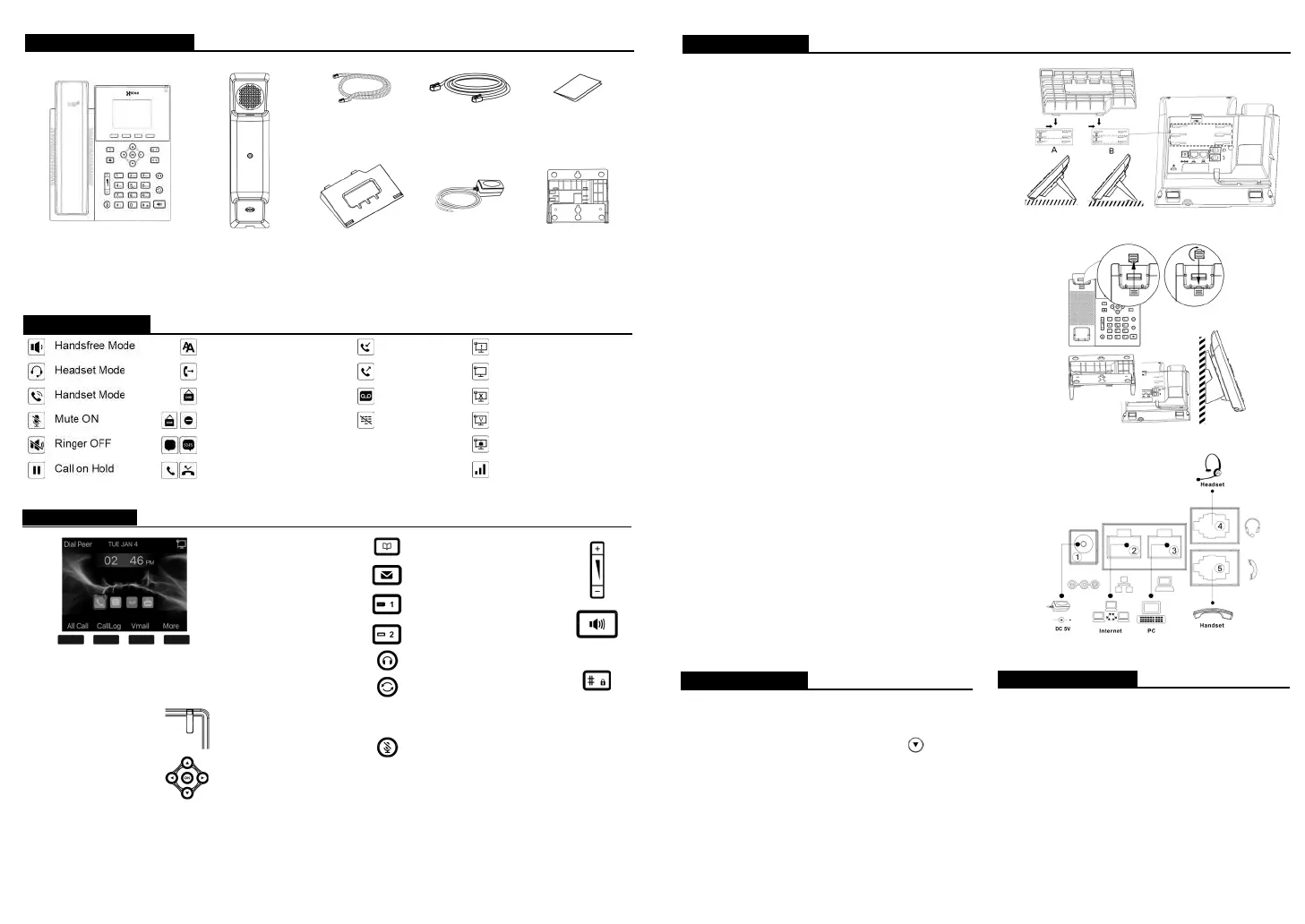
Handset Cord Ethernet Cord This Guide
IP5g Phone Handset Desk Stand Power Supply
Wall Mount
(Sold separately)
Desk Stand Installation
Determine the desired angle: Low (A) or High (B).
Use the illustration at the right to choose the correct pair of
slots and slide the Desk Stand – left-to-right into the slots for
the angle you want.
Wall Mount Installation
A Wall Mount kit (sold separately) is required.
1. Remove the handset retaining tab using your thumb to
push it up and out of its socket.
2. Spin the retaining tab so that the retaining hook is in an
upward position and slide the tab back into the socket.
3. Mount the Wall Mount kit to the wall where the phone is to
be located.
4. Slide the IP5g phone onto the Wall Mount from left to right
by mating the slots on the back of the phone (slot pairs A
or B as above).
Connections
1. Power Port: connect the power adapter.
2. Network Port: connect to the LAN (Local Area
Network)(Internet).
3. PC Port: This optional port can be used to connect your PC
to the same LAN.
4. Headset Port: Connect an optional headset to this port.
5. Handset Port: Connect the supplied handset to this port.
Handsfree Mode
Auto-Answer ON
Received Calls
No IP Address
Headset Mode
Call Forward
Dialed Calls
Internet Connected
Handset Mode
Do Not Disturb OFF (Blue)
New Voicemail
Internet Not Connected
Mute ON
Do Not Disturb ON (Red)
Keypad Locked
VLAN Active
Ringer OFF
New SMS
VPN Active
Call on Hold
Missed Call(s)
Voice Quality
Softkeys (under display) are
interactive with the displayed
functions. “More” displays
additional options.
Message Waiting
Indicator
Left, Right, Up &
Down Navigation
Keys
Shortcuts (must be idle):
Up - Call Log
Down – Phone Status info
Right – ICON access
Contacts key
Voice Messages
key
System Hold keys
(access at any
phone)
Headset key
Redial key
Mute key
When connected
on a call press to
Mute/Unmute
Note: pressing
Mute while idle
turns of the Ringer.
Volume key (up/dn)
Handsfree key
Activate/Deactivate
speakerphone
Hash/Lock key
Pressing the hash
sign key for 3 sec
or more will lock
your phone.
Several languages are available for the prompts on your
telephone display.
1. Press [Menu]. (Use [More] if it is not shown.)
2. Navigate to and select Basic.
3. Select “1” from the list.
4. Navigate to the desired language and press OK.
IP5g settings can be changed via a web browser.
Note: some settings can interrupt the phone
function!
1. Find the phone’s IP Address. Press the key.
The IPv4 IP Address will be listed there.
2. Login:
a. Open a web browser (MS Edge, Chrome, etc.)
b. Input the IP Address discovered into the
address bar (at the top of the browser) (search
bars cannot be used for this purpose.)
c. When prompted input the Username and
Password (admin/ admin).
3. Configure:
a. Navigate to the desired setting, make changes.
b. Save the changes.


 To Previous Page
 Loading...