;
Xbox
XBOX 360 WIRELESS HEADSET WITH BLUETOOTH
CASQUE SANS FIL BLUETOOTH XBOX 360
Printed in China
Xbox 360 Wireless Headset with BLUETOOTH
Thanks for choosing the Xbox 360
®
Wireless Headset
with BLUETOOTH
®
. The headset’s small size, wireless
design, and easy pairing with your Xbox 360 console
lets you conveniently chat with and send voice
messages to other gamers—both in game and out
of game. You can also use your headset to give voice
commands in games that support voice-command
functionality.
You can use your wireless headset in either Xbox or
BLUETOOTH mode. If you have a BLUETOOTH device
that supports calling, you can switch from Xbox to
BLUETOOTH mode to answer your incoming calls on
your headset.
To use your headset with your Xbox 360 console,
you need a free Xbox LIVE
®
membership. For more
information about Xbox LIVE, go to www.xbox.com.
The Xbox 360 Wireless Headset with BLUETOOTH is for use with the Xbox 360 video
game and entertainment system and BLUETOOTH enabled devices.
Your new headset gives you:
• FullrangeofXboxandBLUETOOTHfeatures.
• Operatingrangeofupto9meters(30feet).
• Upto8hoursofplayperfullbatterycharge.
• Audiblelow-powerindicators.
• Volume/mutecontrols.
• BatterygaugeaccessiblefromtheXboxGuide.
To enhance your experience with the wireless headset, try the Xbox 360 Wireless Controller.
Not intended for use in machinery, medical or industrial applications. This product is for
usewithNRTLListed(UL,CSA,ETL,etc.),and/orIEC/EN60950-1compliant(CEmarked)
Information Technology equipment.
No serviceable parts included. This device is rated as a commercial product for operation
at32ºF(+0ºC)to+122ºF(+50ºC).
WARNING
Before using this product, read this manual and the Xbox 360 console manual for
important safety and health information. Keep all manuals for future reference. For
replacementmanuals,gotowww.xbox.com/supportorcallXboxCustomerSupport
(see“IfYouNeedMoreHelp”).
The limited warranty covering this product is contained in the Xbox 360 console manual
andisavailableonlineatwww.xbox.com/support.
Electrical Safety
Aswithmanyotherelectricaldevices,failuretotakethefollowingprecautionscan
resultinseriousinjuryordeathfromreordamagetothewirelessheadset.
• Useonlytheheadsetchargingcablethatcamewithyourwirelessheadsetorthat
you received from an authorized repair center.
• Donotallowtheheadsetortheheadsetchargingcabletogetwet.
• Toavoiddamagingtheheadsetortheheadsetchargingcable,unplugyourheadset
charging cable during lightning storms or when unused for long periods of time.
• Theheadsetshouldnotbewornwhenconnectedtotheheadsetchargingcable.
• Topreventdamagetoyourheadset,avoidsittingorsteppingontheheadset,its
cable, or the cable connector.
Rechargeable Battery Safety
These precautions apply to all products that use rechargeable or disposable batteries.
Improperuseofbatteriesmayresultinbatteryuidleakage,overheating,or
explosion.Releasedbatteryuidiscorrosiveandmaybetoxic.Itcancauseskinand
eye burns, and is harmful if swallowed.
Charge only with the recharger provided with the product.
Hearing Loss
Extended exposure to high volumes when using a headset may result in temporary or
permanent hearing loss.
Choking Hazard
This device may contain small parts which may be a choking hazard to children under 3.
Keep small parts away from children.
Notice To Travelers
Before boarding any aircraft or packing a wireless device in luggage that will be
checked, remove the batteries from the wireless device or turn the wireless device off
(ifithasanon/offswitch).Wirelessdevicescantransmitradiofrequency(RF)energy,
much like a cellular telephone, whenever batteries are installed and the wireless device
isturnedon(ifithasanon/offswitch).
CHARGE YOUR HEADSET
Before you can set up and use your Xbox 360 Wireless Headset with
BLUETOOTH, you need to charge your headset.
To charge your wireless headset:
1 Connect one end of the headset charging cable to a
USBportonyourXbox360console.
2 Connect the other end to the headset’s power input.
3 Turn on your console.
Thelightsontheheadsetashgreenwhenchargingin
Xbox mode, blue when charging in BLUETOOTH mode,
and remain illuminated when charging is complete.
NOTES
• Typicalbatterychargetimeistwohours.
• Makesurethebatteryisfullydepletedbeforerecharging.
• Ifyourheadsetiswirelesslyconnectedtoaconsole,connectingittotheheadset
charging cable disconnects the wireless connection to the console.
• Theheadsetisn’tfunctionalwhenconnectedtotheheadsetchargingcable.
• Iftheheadsetisunusedforalongtime,itsbatterymayloseitscharge.Ifthis
happens, recharge the headset.
• Theheadsetmaybecomewarmwhilecharging.
SET UP AND USE YOUR HEADSET IN XBOX MODE
You can use your Wireless Headset in either Xbox mode or BLUETOOTH mode. This section
describes how to set up and use your headset in Xbox mode. For information about using your
wirelessheadsetinBLUETOOTHmode,seeSetUpandUseYourHeadsetinBLUETOOTHMode.
Connect Your Headset to Your Xbox 360 Console
Beforeyoucanuseyourheadsetwithyourconsole,youneedtowirelesslyconnect(pair)
theheadsettoyourconsole.Afterthetwoareconnected,yourheadsetautomatically
connects with your console whenever you turn on your headset in Xbox mode or switch
from BLUETOOTH to Xbox mode.
To wirelessly connect your headset to your console:
1 Turn your console on by pressing the power button.
2 On your headset, move the mode switch to Xbox, and then press
the power button.
3 Aftertheheadsetplaysthestartupsound,pressandholdthe
headset’s connect button for two seconds.
4 Within 20 seconds of pressing the headset’s connect button,
press the connect button on your console.
When the headset is connected with the console, the lights
ashgreenthreetimes.Theheadsetisassignedaspecic
quadrant on the console, represented by the illuminated
green light.
Ifacontrollerisassignedtoquadrant1,theheadsetisalso
assignedtoquadrant1.Ifanotherwirelessheadsetisalready
assignedtoquadrant1,yourheadsetisassignedtothenext
available quadrant.
5 If you want to associate the headset with a controller assigned
to a different quadrant, press the headset’s connect or power
button to advance to the quadrant you want.
Forexample,tochangeaheadsetassignedtoquadrant1to
quadrant 3, press the connect button twice.
If your headset fails to complete the connection process in
20seconds,thelightsresumeashingslowly.
NOTES
• Beforeyouusetheheadsetforthersttime,youneedtoconnecttoXboxLIVE.
Connecting to Xbox LIVE lets the console download the necessary software updates.
ForinformationaboutXboxLIVE,visitwww.xbox.com/live.
• Youcanconnectuptofourwirelessheadsetstoaconsoleatonetime.Each
connected headset is assigned to a quadrant.
• Beforeyoucanconnectawirelessheadset,atleastonequadrantmustbefree
(unlit).Todisconnectawirelesscontroller,pressandholdtheXboxGuidebuttonfor
three seconds, and then turn the controller off. To disconnect a wired controller,
unplug its cable from the console.
• Ifyouplantoconnectmultiplecontrollersandwirelessheadsets,connectawireless
headsetrst,alternatingbetweeneachheadsetanditsintendedcontroller.
• Acontrollerisnotrequiredfortheheadsettoworkwiththeconsole.Ifyou’renot
using a controller, the headset occupies its own quadrant.
• AnXbox360Headset(wired)takesprecedenceoverawirelessheadset.Awireless
headset can’t be associated with a controller that’s connected to a wired headset. To
use a wireless headset instead, disconnect the wired headset and then repeat the
wireless connection steps.
• Whenyouturnoffyourconsole,theheadsetdoesn’tturnoff.Turnofftheheadset
by pressing the power button for two seconds.
• Yourheadsetiswirelesslyconnectedtoonlyoneconsoleatatime.Youcanconnect
to a new console at any time, but your connection to the previously connected
console will be lost.
• TheXbox360WirelessHeadsetworksonlywithin9meters(30feet)oftheconsole.
Objects between the controller and the console can reduce this range.
Put On Your Headset
Before you use your wireless headset to play or chat, you need to install
the ear gel and make sure that your headset is comfortable. Three ear
gelsareincludedwithyourheadsettoensureacomfortablet.
Makesurethattheheadsetisturnedoffbeforeyouchangetheeargel.
To put on your headset:
1 Hold the headset in one hand with the speaker facing you.
2 With your other hand, hold the ear loop as shown, and then
snap the loop into place at the base of the speaker.
The ear loop is reversible, so you can wear the headset on your
left or right ear.
3 Selectaneargel,centeritoverthespeaker,andthengentlypushthegeluntilsnaps
into place.
The surface of the speaker is slightly recessed below the lip of the ear gel.
4 Fit the headset snugly over either ear such that the ear gel rests comfortably over your ear.
If the headset isn’t comfortable, take off the headset and switch ear gels.
5 When the headset is comfortable, take off the headset and turn it on.
6 Put the headset back on, adjust the volume, and start using your headset.
For the best microphone performance, make sure the headset is aimed as shown.
Using Your Headset
The following section assumes that you’ve already connected your wireless headset to your
console. If you want to use your headset in Xbox mode, make sure that you turn on your console.
• Toturnonyourheadset,pressthepowerbutton.
Theheadsetisassignedaspecicquadrantontheconsole,representedbythe
illuminated green light.
• Toturnoffyourheadset,pressandholdthepowerbutton.
• Toadjustthevolume,presstheVolumeUporVolumeDownbutton.
• Tomuteyourheadset,presstheMutebutton.Tounmuteyourheadset,presstheMute
button again.
You can mute your headset in Xbox mode only.
Low Battery Indicators
Your wireless headset has two low-battery charge indicators, one at 30 minutes of
operatingtimeremainingandoneatveminutesofoperatingtimeremaining.
At30minutes,thelightsashabouttwiceperminuteuntilveminutesremain.Atve
minutes,thelightsashcontinuouslyuntiltheheadsetshutsoff.
Switch Operating Modes
You can switch your headset’s operating mode after you turn it on. If you have a BLUETOOTH
device that supports calling, you can switch from Xbox to BLUETOOTH mode to answer your
incoming calls on your headset. You’ll need to pair your wireless headset with your BLUETOOTH
devicerst.
To switch operating modes:
1 On your headset, move the mode switch to the mode you want.
2
If you’re switching from Xbox to BLUETOOTH mode to answer an incoming
call, your headset answers the call automatically when it switches to
BLUETOOTH.
If you’re switching from BLUETOOTH back to Xbox mode, your headset
uses the same settings you had when you last left Xbox mode.
SET UP AND USE YOUR HEADSET IN BLUETOOTH MODE
Before you can use the wireless headset’s BLUETOOTH features, you need to wirelessly
connect(pair)theheadsetwithanotherBLUETOOTHenableddevice.Youcanpairyour
headset with up to eight BLUETOOTH enabled devices.
Pair Your Headset With Another BLUETOOTH Device
WhenyoupairyourheadsetwithaBLUETOOTHenableddevice,followthespecic
pairing instructions included with the BLUETOOTH device.
When you turn on your headset in BLUETOOTH mode or switch from Xbox to
BLUETOOTH mode, your headset automatically tries to connect to the last BLUETOOTH
device(s)towhichitwasconnected.YourheadsetsupportsBLUETOOTHMultipoint
technology. This means that your headset can simultaneously connect to two
BLUETOOTH devices.
To pair your wireless headset with a BLUETOOTH device:
1 Turn on the BLUETOOTH device that you want to pair with your wireless headset.
2 On your headset, move the mode switch to BLUETOOTH and then press the power
button.
3 Press the Connect button on your headset for two seconds.
ThelightsashbluewhentheheadsetisinBLUETOOTHdiscoverymode.
4 FollowthespecicpairinginstructionsincludedwithyourBLUETOOTHenableddevice.
If your device requires a security PIN number to pair with your wireless headset, use
“0000”(fourzeros)asthesecurityPIN.
Whenyourheadsetpairssuccessfully,thelightsashbluethreetimes.
TopairyourheadsetwithanotherBLUETOOTHenableddevice,repeatsteps1-4.
Using Your Wireless Headset in BLUETOOTH Mode
IfyouhaveaBLUETOOTHdevicethatsupportsvoicecalling,youcanusetheAction
button to make, answer, or reject calls. You’ll need to pair your wireless headset with your
BLUETOOTHdevicerst.
Whenyoureceiveanincomingcall,yourheadset’slightsashblueuntilyouansweror
reject the call. The headset also plays the incoming call sound.
To make a voice call:
1 PressandholdtheActionbuttonfortwoseconds.
2 Use the BLUETOOTH voice commands to make your call. For information on using
BLUETOOTH voice commands, refer to your BLUETOOTH device instructions.
To answer an incoming call:
1 PressandreleasetheActionbutton.
To answer an incoming call when the headset is in Xbox mode:
1 SwitchtoBLUETOOTHmodeandthecallwillbeansweredautomatically.
To end a call:
1 PressandreleasetheActionbutton.
To reject an incoming call:
1 PressandholdtheActionbuttonfortwoseconds.
If you receive a second incoming call during an active call:
1 PresstheActionbuttontoanswerthesecondcallandputtherstcallonhold.This
feature must be supported by your BLUETOOTH device and mobile operator.
While a call is on hold:
1 PressandreleasetheActionbuttontohanguptheactivecall.
2 PressandholdtheActionbuttonfortwosecondstoswapcalls.
CARING FOR YOUR HEADSET
To prevent damage to your product, store it in a dry location where it will not be crushed
byheavieritems.Donotleavetheproductoritsaccessoriesinplaceswheretheycould
causepeopletosliportrip.Donotsitorsteponit.
Use in accordance with these instructions:
• Donotusenearanyheatsources.
• Onlyuseattachments/accessoriesspeciedbyMicrosoft.
• Cleanonlywithadrycloth.Usingcleaningsolutionsmaydamageyourheadset.
• Donotallowthisproducttobecomewet.
•
Toreducetheriskofreorshock,donotexposethisproducttorainorothertypesofmoisture.
TROUBLESHOOTING
If you encounter problems, try the possible solutions provided below.
Wireless Headset Doesn’t Work
To turn on the wireless headset, press the headset’s power button. To connect the wireless
headset to your console, press the connect button on the console, and then press and
hold the connect button on the headset. You must press the connect buttons within
20 seconds of each other. If you’ve done this and the headset doesn’t work:
• MakesureyourconsoleisconnectedtoXboxLIVE.Thersttimeyouusetheheadset,you
mustconnecttoXboxLIVE.ForinformationaboutXboxLIVE,visitwww.xbox.com/live.
• Movetheheadsetclosertotheconsole.
• Makesurethebatteryisfreshlycharged.
• Keeptheconsoleandheadsetatleastthreefeetawayfromlargemetalobjectssuchas
lecabinetsandrefrigerators.
• Metallicdecorationsorstickersontheconsoleorheadsetcaninterferewithwireless
headset performance. Remove decorations and try connecting again.
• Makesurethefrontoftheconsoleispositionedinthedirectionoftheheadsetand
away from nearby walls.
• Ifyouhavefourwirelesscontrollersconnectedtoyourconsole,youwillneedto
disconnect one of them in order to connect a wireless headset.
Todisconnectawirelesscontroller,pressandholdtheXboxGuidebuttonforthreeseconds,
and then turn it off. To disconnect a wired controller, unplug its cable from the console.
• Cordlessphones(2.4-GHz),wirelessLANs,wirelessvideotransmitters,microwave
ovens,andsomemobile/cellphonescaninterferewiththeoperationoftheheadset.
Turn these off or unplug them and try connecting again.
• Ifnothingelseworks,youcanresettheheadsetbyusingthechargingcableto
connect the headset to your console.
Earpiece Emits No Sound
Makesuretheheadsetiswirelesslyconnectedtoyourconsole.Tryadjustingthevolume
using the volume controls on the headset.
Others Can’t Hear You: Xbox Mode
Makesuretheheadsetiswirelesslyconnectedtoyourconsoleandthatyourheadsetisn’tmuted.
Makesurethatvoiceisn’tmutedintheXboxGuide(gotoPersonalSettings,Voice).Check
your game manual to determine whether you need to push a button while speaking.
Others Can’t Hear You: BLUETOOTH Mode
MakesuretheheadsetmodeswitchissettoBLUETOOTH.
Makesurethatthemicrophoneispointedforward.
Chat Doesn’t Work
Makesuretheheadsetiswirelesslyconnectedtoyourconsoleandthatitisn’tmuted
(brieypressthemutebuttontoeithermuteorunmutetheheadset).
Makesureyourconsole’sFamilySettingsforXboxLIVEallowcommunicationwithothergamers.
Battery Doesn’t Charge
If the headset charging cable is connected to the headset and the battery fails to charge,
theheadset’srsttwolightswillashinsequence(1,1and2;1,1and2;andsoon)to
signal an error condition.
If this occurs, the headset may be too hot or too cold. Leave the headset connected to
the power adapter long enough for its temperature to settle, at which point the battery
should charge normally.
If the error condition persists and the headset appears to be at room temperature, call
XboxCustomerSupport(see“IfYouNeedMoreHelp”).
IF YOU NEED MORE HELP
Foranswerstocommonquestions,troubleshootingsteps,andXboxCustomerSupport
contactinformation,visitwww.xbox.com/support.
DonottakeyourXbox360consoleoritsaccessoriestoyourretailerforrepair.Pleasevisit
www.xbox.com/supportfortroubleshootingandserviceinformation.
Do Not Attempt Repairs
Donotattempttotakeapart,service,ormodifytheXbox360console,powersupply,
oritsaccessoriesinanyway.Doingsocouldpresenttheriskofseriousinjuryordeath
fromelectricshockorre,anditwillvoidyourwarranty.
Disposal of Waste Batteries and Electrical & Electronic Equipment
Battery chemistry: Lithium polymer
Battery removal instructions: Professional technician removal is required due to
riskofcorrosiveuidleakage,overheating,reorexplosion.Pryopenthedevice
to reveal the battery. Cut the lead wires and carefully remove the battery. Note
thatremovalofthebatterybyanyoneotherthanaprofessionalqualiedtechnicianwill
void the product warranty. This symbol on the product or its batteries or its packaging
means that this product and any batteries it contains must not be disposed of with your
household waste. Instead, it is your responsibility to hand this over to an applicable
collection point for the recycling of batteries and electrical and electronic equipment.
This separate collection and recycling will help to conserve natural resources and prevent
potential negative consequences for human health and the environment due to the
possible presence of hazardous substances in batteries and electrical and electronic
equipment, which could be caused by inappropriate disposal. For more information
about where to drop off your batteries and electrical and electronic waste, please contact
yourlocalcity/municipalityofce,yourhouseholdwastedisposalservice,ortheshop
where you purchased this product. Contact weee@microsoft.com for additional
information on WEEE and waste batteries.
ThisproductisforusewithNRTL-listed(UL,CSA,ETL,etc.)and/orIEC/EN60950
compliant(CEmarked)InformationTechnologyequipment.
Statement of Compliance with EU Directives
Hereby,MicrosoftCorporationdeclaresthatthisproductisincompliancewiththe
essentialrequirementsandotherrelevantprovisionsofDirectives,2006/95/EC,
2004/108/ECand1999/5/EC.
ThetechnicaldocumentationasrequiredbytheConformityAssessmentprocedureis
kept at the following address:
Company: MicrosoftIrelandOperationsLtd.
Address: TheAtriumBuilding3
CarmenhallRoad,SandyfordIndustrialEstate,DUBLIN18
Country: Ireland
Telephonenumber: +35312953826
Faxnumber: +35317064110
Internet: http://www.microsoft.com/ireland/
Caution
Exposure to radio frequency radiation
TocomplywithRFexposurerequirements,thefollowingoperatingcongurations
mustbesatised:theantennahasbeeninstalledbythemanufacturerandnochanges
can be made. The wireless devices must not be co-located or operating in conjunction
with any other antenna or transmitter. Except for headset and handheld devices,
wireless devices must be at least 20 cm between the antenna of the wireless device
and all persons.
COPYRIGHT
Information in this document, including URL and other Internet Web site references, is subject to change without
notice. Complying with all applicable copyright laws is the responsibility of the user. Without limiting the rights
under copyright, no part of this document may be reproduced, stored in or introduced into a retrieval system, or
transmittedinanyformorbyanymeans(electronic,mechanical,photocopying,recording,orotherwise),orfor
anypurpose,withouttheexpresswrittenpermissionofMicrosoftCorporation.
Microsoftmayhavepatents,patentapplications,trademarks,copyrights,orotherintellectualpropertyrights
covering subject matter in this document. Except as expressly provided in any written license agreement from
Microsoft,thefurnishingofthisdocumentdoesnotgiveyouanylicensetothesepatents,trademarks,copyrights,
or other intellectual property.
©2011MicrosoftCorporation.Allrightsreserved.
Microsoft,Xbox,Xbox360,XboxLIVE,theXboxlogos,andtheXboxLIVElogoaretrademarksoftheMicrosoft
group of companies.
The BLUETOOTH
®
wordmarkandlogosareownedbytheBLUETOOTHSIG,Inc.andanyuseofsuchmarksby
MicrosoftCorporationisunderlicense.
POWER
CONNECT
POWER INPUT
ACTION/MUTE
(ON BACK)
XBOX (GREEN)/
BLUETOOTH (BLUE) MODE
BLUETOOTH
$&7,2108(7


 To Next Page
 Need help?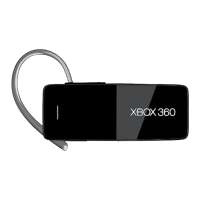

 General