5
SET IT UP
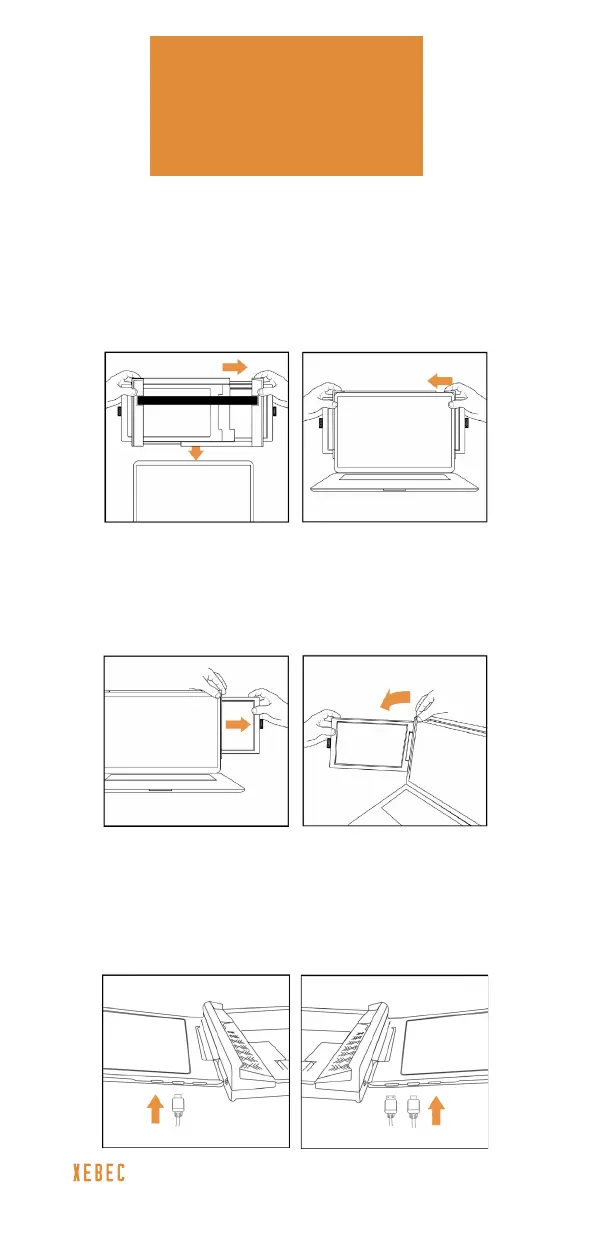
1. PUT IT ON
Place your thumbs on either side of the bracket
(as shown) and expand to the width of your laptop’s
screen. Place the bracket over the back of the screen
and slowly release, allowing the bracket to hug the
edges and sit on top of the laptop screen.
2. SLIDE IT OUT
Grab the tab and slide out the screen from the
bracket. Repeat on the other side, then tilt the
screens to your desired viewing angle.
3. PLUG IT IN
Using the necessary cables (identied on the
previous page), plug one end into the Tri-Screen 2
and the other into your laptop. See “Inputs and
Buttons” on page 3 for an input diagram.



 To Next Page