EasyManua.ls Logo

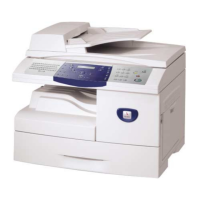
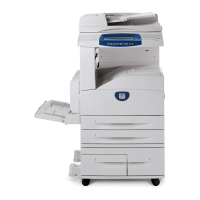
Xerox CopyCentre C123 - Service Manual

Xerox CopyCentre C123
22 pages
Print Icon
To Next Page IconTo Next Page
Loading...
CopyCentre
®
C123/C128
WorkCen
M123/M128
123/128
Service
Manual
copy print scan fax
email

Other manuals for Xerox CopyCentre C123

Questions and Answers

  • J
    James WheelerSep 8, 2025
    How to fix paper stacking issues in Xerox All in One Printer?
    • A
      Anne TaylorSep 8, 2025
      If paper delivered to an output tray is not properly stacked up on your Xerox All in One Printer, try flipping over the paper stack in the paper tray, or rotate it head to toe.
  • A
    Andrew BerryAug 25, 2025
    What to do if Xerox All in One Printer document feeder not working?
    • R
      reneewalkerAug 25, 2025
      If the document is not feeding through the document feeder on your Xerox All in One Printer, make sure that the document feeder is not overloaded. It can hold a maximum of 50 sheets. Also, check that the document is fully inserted into the document feeder.
  • R
    Roy HughesAug 25, 2025
    What to do if Xerox All in One Printer cannot store document due to full memory?
    • H
      Heather NelsonAug 26, 2025
      If you cannot store a document for secure polling on your Xerox All in One Printer due to full memory, cancel the operation and try again later when additional memory is available.
  • J
    Julie MclaughlinSep 18, 2025
    What to do if my Xerox All in One Printer is producing ghosting?
    • G
      Gerald MarshallSep 18, 2025
      If your Xerox All in One Printer is producing ghosting: * Check the quality of the documents. * If transparencies are used, select [Transparency] in [Paper Type]. The machine automatically adjusts the quality for transparencies. * Feed the document SEF. * Replace the drum cartridge.
  • M
    Mr. Timothy DeanSep 8, 2025
    How to prevent paper curling in Xerox All in One Printer?
    • D
      Danielle DanielsSep 8, 2025
      To prevent paper curling in your Xerox All in One Printer, ensure that the paper is loaded correctly. Load paper in Trays 1, 2, 3, and 4 with the seam side up. Load paper in the Tandem Tray Module and bypass tray with the seam side down. Load custom media in the bypass tray.
  • T
    Tyler GarciaSep 12, 2025
    What to do if my Xerox All in One Printer does not accept documents into memory?
    • E
      eproctorSep 13, 2025
      If your Xerox All in One Printer does not accept documents into memory: * Check with the Key Operator about available memory. * If the memory is almost full, print and delete unnecessary files.
  • O
    ohowardSep 3, 2025
    Why is the Finisher/Stapler option missing on my Xerox All in One Printer?
    • C
      christophergarciaSep 3, 2025
      If the Finisher/Stapler option is not displayed on your Xerox All in One Printer, check that the cables from the finisher are securely connected to the machine. Also, ensure that the Finisher is correctly positioned. The machine automatically configures itself when additional options are attached.
  • K
    Kenneth DouglasSep 3, 2025
    How to prevent deformed transparencies with Xerox All in One Printer?
    • B
      brittany51Sep 4, 2025
      To prevent deformed transparencies when using your Xerox All in One Printer, ensure that [Transparency] is selected in [Paper Type]. This setting allows the machine to automatically adjust for different media types, as transparencies tolerate less heat than paper.
  • R
    Rick WileySep 23, 2025
    What to do if my Xerox All in One Printer paper curls?
    • M
      Michael MorenoSep 23, 2025
      If the paper curls when using your Xerox All in One Printer: * Check that the paper is loaded correctly. Load paper in Trays 1, 2, 3 and 4 seam side up. * Load paper in the Tandem Tray Module and bypass tray seam side down. * Load custom media in the bypass tray.
  • C
    Carla SaundersAug 29, 2025
    How to adjust print darkness on Xerox All in One Printer?
    • L
      Lisa BishopAug 29, 2025
      If the output from your Xerox All in One Printer is too light or too dark, try loading fresh paper and check the quality of the original document. You can also select the Lighten/Darken option on the touch screen. Run off more prints to see if the copy quality improves. If the issue persists, consider replacing the drum cartridge.

Summary

Introduction

About this Manual

Details the structure and content of the service manual.

Organization

Outlines the overall structure and arrangement of the manual's sections.

How to Use this Documentation

Provides guidance on navigating and utilizing the manual effectively.

Symbology and Nomenclature

Explains symbols, abbreviations, and technical terms used in the manual.

Translated Warnings

Lists safety warnings translated into multiple languages for user comprehension.

Service Call Procedures

Initial Actions

Steps to take at the beginning of a service call.

Call Flow

Describes the sequence of events during a service call.

Detailed Maintenance Activities (HFSI)

In-depth procedures for specific maintenance tasks.

Cleaning Procedures

Instructions for cleaning various components of the machine.

Final Actions

Steps to complete after service work is finished.

Status Indicator RAPS

002-xxx HDD RAPs

Rapid Action Procedures for HDD-related errors.

003-xxx IPS-ESS Communication RAPs

Procedures for IPS-ESS communication errors.

005-xxx DADF RAPs

Rapid Action Procedures for DADF errors.

Image Quality

Image Quality RAPs

Procedures for diagnosing and resolving image quality issues.

Image Defect Samples

Visual examples and descriptions of common image defects.

Repairs

1. Drives

Procedures for repairing or replacing drive components.

2. Paper Transportation

Instructions for servicing paper path and transport mechanisms.

3. ROS

Repair procedures related to the ROS (Raster Output Scanner) system.

4. Xerographics;Development

Maintenance and repair for xerographic and developer units.

Parts Lists

1. Drives

Lists part numbers for drive assemblies and components.

2. Paper Transportation

Identifies parts for the paper feed and transport systems.

9. Electrical Components

Lists electrical parts, boards, and assemblies.

General Procedures and Information

How to use UI Diagnostics

Guide on using the User Interface for diagnostics.

Diagnostics (NVM Read;Write)

Procedures for reading and writing NVM (Non-Volatile Memory).

Diagnostics (Others)

Various diagnostic procedures not covered elsewhere.

General Procedures

Common procedures applicable across various operations.

Wiring Data

Plug;Jack Locations

Identifies the physical locations of plugs and jacks on the machine.

Wirenets

Details wiring diagrams and connections for various systems.

BSDS

Block Service Diagram information.

Accessories

8.1 Fax Kit

Information and installation for the Fax Kit accessory.

8.2 Foreign Interface

Details for foreign interface options or accessories.

Xerox CopyCentre C123 Specifications

General IconGeneral
BrandXerox
ModelCopyCentre C123
CategoryAll in One Printer
LanguageEnglish

Related product manuals