07
search for “Mi Home/Xiaomi Home” in the
app store to download and install it.
2. Open the home page of the Mi Home/Xiaomi
Home app, tap "+" at the top right corner of
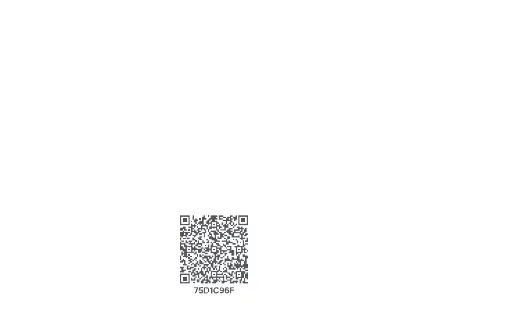
the page, and then scan the QR code on the
camera.
3. Select a network access method and add the
camera according to on-screen instructions.
Once the camera is successfully connected,
the indicator will remain blue.
* The app is referred to as Xiaomi Home app in
Europe (except for Russia). The name of the
app displayed on your device should be taken
as the default.
Notes:
• Please add and connect the camera in the Mi
Home/Xiaomi Home app first, and then
install the camera.
• This product only supports connection to 2.4
GHz Wi-Fi networks, 5 GHz Wi-Fi networks are
Indicator Status
Awaiting connection: Blinking orange
Connecting: Blinking blue
Connected successfully: Keeping blue Charging:
Breathing orange
Fully Charged: Indicator off
Connecting with the Mi Home/
Xiaomi Home App
This product works with the Mi Home/Xiaomi
Home app*. Use the Mi Home/Xiaomi Home app
to control your device, and to interact with other
smart home devices.
1. Scan the QR code to
download and install the
app. You will be directed to
the connection setup page if
the app is installed already.
Or


 To Next Page