9
Connecting with the Mi Home/Xiaomi Home App
This product works with the Mi Home/Xiaomi Home app*. Control your
device with Mi Home/Xiaomi Home app.
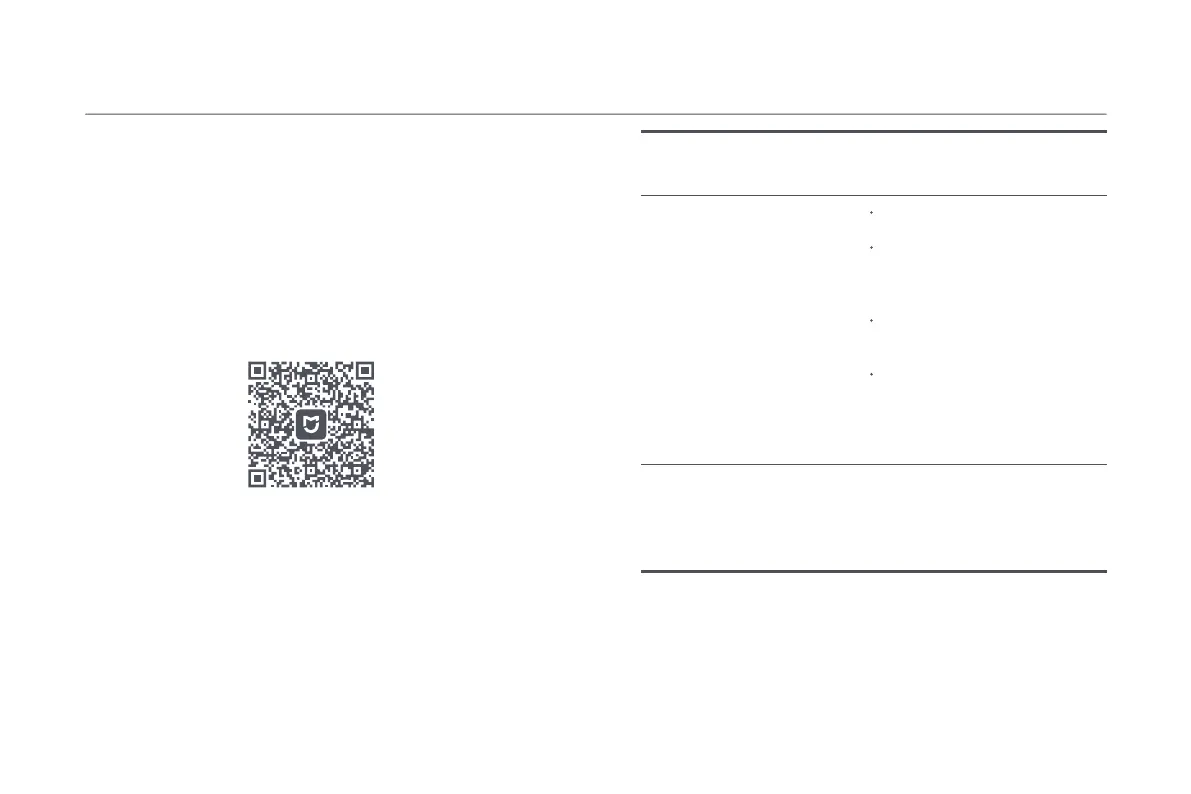
Scan the QR code to download and install the app. You will be directed to
the connection setup page if the app is installed already. Or search for "Mi
Home/Xiaomi Home" in the app store to download and install it.
Open the Mi Home/Xiaomi Home app, tap "+" on the upper right, and then
follow the instructions to add your device.
* The app is referred to as Xiaomi Home app in Europe (except for Russia).
The name of the app displayed on your device should be taken as the
default.
Notes:
• The version of the app might have been updated, please follow the instructions based
on the current app version.
• If the robot vacuum's QR code cannot be scanned, you can search for its name to add it.
• When connecting the robot vacuum to the Mi Home/Xiaomi Home app using an iOS
device, follow the instructions in the app to connect to the robot vacuum's hotspot
"xiaomi-vacuum-c101eu_mibtxxxx".
Common Issues Possible Causes and
Solutions
Make sure the robot vacuum is
within the Wi-Fi coverage with a
strong signal, then reset the Wi-Fi
of the robot vacuum and
reconnect to the network.
The robot vacuum cannot
connect to Wi-Fi.
Check whether the Wi-Fi password
is correct.
The robot vacuum does not
support the 5 GHz network
frequency band. Please use a 2.4
GHz network.
The Wi-Fi signal is weak. Make sure
the robot vacuum is within the Wi-Fi
coverage with a strong signal.
There is something wrong with the
Wi-Fi connection. Reset the Wi-Fi
and download the latest version of
the Mi Home/Xiaomi Home app,
then try reconnecting.
An iOS device could not
successfully connect to a hotspot
“xiaomi-vacuum-c101eu_mibtxxxx”
of the robot vacuum.
967C7125




 To Next Page