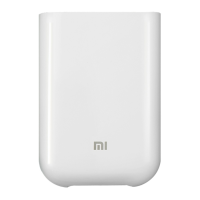
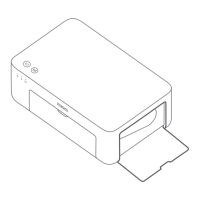
The Xiaomi Instant Photo Printer 1S Set is a compact and versatile photo printer designed for instant printing of photos from various devices. It offers both wireless and direct connection options, making it convenient for users to print from smartphones, tablets, and PCs.
Function Description:
The Xiaomi Instant Photo Printer 1S is primarily designed to print high-quality photos instantly. It supports two common photo paper sizes: 3-inch sticky-backed photo paper and 6-inch photo paper. The printer utilizes dye-sublimation printing technology, which ensures vibrant and durable prints. It can be connected to devices via Wi-Fi for wireless printing or through a direct connection function, eliminating the need for a router. The printer is controlled and configured primarily through the Mi Home/Xiaomi Home app, which allows users to manage network settings, print photos, and troubleshoot issues.
Important Technical Specifications:
- Model: ZPDYJ03HT
- Item Dimensions: 194 × 124.6 × 83.6 mm
- Net Weight: Approx. 1.2 kg (including photo printer, 3" paper holder, power adapter, paper tray, ribbon, 3" sticky-backed photo paper × 10, 6" photo paper × 10, photo album)
- Input: 24 V ⎓ 1.6 A
- Wireless Connectivity: Wi-Fi IEEE 802.11 b/g/n 2.4 GHz
- Operating Temperature: 10°C to 35°C
- Operation Frequency: 2400-2483.5 MHz
- Maximum Output Power: 20 dBm
- Printing Technology: Dye-sublimation
- Supported Paper Sizes: 3-inch sticky-backed photo paper, 6-inch photo paper
- App Compatibility: Mi Home/Xiaomi Home app (also referred to as Xiaomi Home app in Europe, except for Russia)
- PC Compatibility: Windows 7, 8/8.1, 10
- Mobile OS Compatibility: Apple devices (AirPrint), Android devices (via Mopria Print Service app)
Usage Features:
Product Overview:
The printer features a Heat Dissipation Vent, Rear Paper Output Slot, Direct Connection Button, Power Button/Indicator, Wi-Fi Indicator, Error Indicator, Direct Connection Indicator, Paper Tray Opening, Ribbon Compartment, and Power Port. A Product Label is also present, likely containing serial number and other identification details.
Accessory List:
The set includes the photo printer, a Photo Album (50 pages), 6" Photo Paper × 10, 3" Sticky-backed Photo Paper × 10, a 3" Paper Holder (pre-installed in the paper tray), a Ribbon (up to 20 prints), a Paper Tray, a Paper Tray Cover, and a Power Adapter.
Installation:
- Ribbon Installation: Open the ribbon compartment, insert a new ribbon ensuring it is secured, and then close the compartment. To remove the ribbon, lift the red lever above it.
- Loading 3" Sticky-backed Photo Paper: Pull the paper tray holder open, rotate the holder vertically until it snaps to the paper tray bottom. Open the paper tray cover, ensuring the 3" paper holder is in the paper tray. Load the 3" sticky-backed photo paper into the slot of the 3" paper holder with the glossy side facing up. Close the paper tray cover. Note: Do not load more than 10 sheets of 3" sticky-backed photo paper to prevent feeding issues.
- Loading 6" Photo Paper: Pull the paper tray holder open, rotate the holder vertically until it snaps to the paper tray bottom. Open the paper tray cover. Remove any 3" sticky-backed photo paper and the 3" paper holder if present. Load the 6" photo paper into the paper tray with the glossy side facing up. Close the paper tray cover. Note: Do not load more than 20 sheets of 6" photo paper. Avoid touching the area within the cutting lines of the photo paper.
- Installing the Paper Tray: Pull the paper tray holder open, rotate the holder vertically until it snaps to the paper tray bottom (180° rotation). Open the paper tray opening and insert the paper tray into the printer. Caution: The rollers of the paper feed port are moving parts; keep body parts away from them.
How to Use:
- Placing the Printer: Ensure there is more than 10 cm of space behind the printer as the paper moves back and forth several times during printing.
- Storing the Printer: It is recommended to store the paper tray on top of the printer when not in use to save space.
- Turning On: Plug the power cord into the power port and press the power button. The printer is on when the power indicator is on, and the Wi-Fi indicator blinks orange, indicating it is waiting to be connected.
- Connecting with Mi Home/Xiaomi Home App: Scan the QR code provided in the manual to download and install the app, or search for "Mi Home/Xiaomi Home" in the app store. Open the app, tap "+" in the upper right corner, and follow the prompts to add the device. The app is essential for configuring network settings for the printer. If the QR code fails, search for the printer's name.
- Printing via Mi Home/Xiaomi Home App: Ensure both the device and printer are connected to the same Wi-Fi network and within Wi-Fi coverage. Follow in-app instructions to print.
- Printing via AirPrint for Apple Devices: Ensure the Apple device and printer are on the same Wi-Fi network or direct connection is enabled. Open the file to print, find the print option in the share menu, select "Xiaomi Instant Photo Printer 1S [XXXX]", set parameters, and print.
- Printing via Android Devices: Ensure the Android device and printer are on the same Wi-Fi network or direct connection is enabled. Select a photo from the album. If the print function is not accessible, download the Mopria Print Service app from mopria.org/print-from-android. Note: Android does not support printing 3" photos.
- Wireless Printing via PC: Ensure the PC and printer are on the same Wi-Fi network or direct connection is enabled.
- Windows 7: Control panel > Hardware and sound > Devices and printers > Add a printer > Add a network, wireless or Bluetooth printer, then select "Xiaomi Instant Photo Printer 1S [XXXX] - Wi-Fi".
- Windows 8/8.1: Control panel > Hardware and sound > Devices and printers > Add a printer, then select "Xiaomi Instant Photo Printer 1S [XXXX] - Wi-Fi".
- Windows 10: Settings > Devices > Printers and scanners > Add a printer or scanner, then select "Xiaomi Instant Photo Printer 1S [XXXX] - Wi-Fi".
- Driver Installation: Ensure Windows is updated. If automatic installation fails, download the driver from http://i01.appmifile.com/webfile/globalweb/drivers/Xiaomi_Photo_Printer_1S.zip.
Direct Connection Settings and Printing (without a router):
- Enabling Direct Connection: Press and hold the direct connection button for 3 seconds until the indicator blinks orange.
- Connecting to Wi-Fi (Device): Enable the device's wireless network, select "Xiaomi Photo Printer 1S [XXXX]". Enter the printer's hotspot password (found on the barcode label at the bottom of the printer). The direct connection indicator will turn blue upon successful connection. Note: The printer's hotspot is for printing only and does not provide Internet access. Android devices connected to the printer's hotspot may lose mobile network functionality.
- Printing (Mobile): Open the album, select photos, tap Print, and choose "Xiaomi Instant Photo Printer 1S [XXXX]".
- Downloading & Installing Driver (Windows): Download the driver from http://i01.appmifile.com/webfile/globalweb/drivers/Xiaomi_Photo_Printer_1S.zip.
- Enabling Direct Connection (Windows): Press and hold the direct connection button for 3 seconds until the indicator blinks orange.
- Connecting to Wi-Fi (Windows): Enable the PC's wireless network, select "Xiaomi Photo Printer 1S [XXXX]". Enter the printer's hotspot password. The direct connection indicator will turn blue upon successful connection.
- Adding a Printer (Windows): Follow the same steps as for wireless printing via PC.
- Printing (Windows): Open the photo file with image editing software, click Print, and select "Xiaomi Instant Photo Printer 1S [XXXX]".
Indicator Descriptions:
- Power Button:
- Press: Turn on/off.
- Press and hold for 6 seconds: Reset the network.
- Continuously press 6 times: Restore factory settings.
- Power Indicator:
- Off: Turned off.
- On: Turned on/Standby.
- Blinking rapidly: Printing/Updating the firmware.
- Blinking slowly: In sleep mode.
- Wi-Fi Indicator:
- Blinking orange: Awaiting connection.
- Blinking blue: Connecting.
- Blue: Connected successfully.
- Orange: Couldn't connect. (If orange, check if Wi-Fi can access the Internet normally).
- Direct Connection Indicator:
- Off: Direct connection function disabled.
- Blinking orange: Awaiting connection.
- Blue: Successfully connected to the printer.
- Blinking blue: Device is awaiting direct connection when another device is already connected.
- Error Indicator:
- Off: Printer is working normally.
- Blinking orange: Printer error (follow app instructions to solve).
Maintenance Features:
- Cautions:
- Operating Temperature: Recommended 10°C to 35°C; high ambient temperatures may affect print quality.
- Consumables: Use only genuine ribbon or photo paper to ensure print quality.
- Paper Placement: Place photo paper flat with the glossy side facing up in the paper tray during printing.
- Print Head: The dye-sublimation print head gets hot during printing and remains hot for a while after. Avoid touching it to prevent burns.
- Paper Handling: Do not pull out paper forcefully during printing; it moves back and forth several times and ejects automatically. Forcing it can damage the printer.
- Long-term Storage: When not in use for extended periods, remove the paper tray, close the paper tray opening, paper tray holder, and paper tray cover to prevent dust, which could negatively affect future print quality.
- Print Quality: Avoid touching the glossy side of photo paper or the plastic film of the ribbon to prevent fingerprints from affecting print quality.
- Separation Distance: Maintain at least 20 cm separation between the antenna and the user's body during normal use.
- Troubleshooting:
- If the network is successfully reset, all indicators will remain on for 1 second.
- Printing and firmware updates will not be interrupted by pressing or holding the power button.
- It is recommended to turn off and restart the printer when an error occurs; the printer will attempt automatic repair.
- The direct connection function cannot be enabled during turning off or firmware updating.
- If the Wi-Fi indicator remains orange, first check if the Wi-Fi can access the Internet normally.
- For printer errors indicated by a blinking orange error indicator, follow instructions in the app.
Regulatory Compliance:
- CE Declaration: Hannto Technology Co., Ltd. declares that the radio equipment type ZPDYJ03HT complies with Directive 2014/53/EU. The full text of the EU declaration of conformity is available at http://www.mi.com/global/service/support/declaration.html.
- WEEE Information: Products bearing the WEEE symbol should not be mixed with unsorted household waste. Dispose of waste electrical and electronic equipment at designated collection points.
- Bluetooth®: The Bluetooth® word mark and logos are registered trademarks owned by Bluetooth SIG, Inc., used under license by Xiaomi Inc.
Warranty Notice:
Xiaomi provides consumer warranty benefits in addition to national consumer law. The duration and conditions are subject to local laws. For details, refer to https://www.mi.com/en/service/warranty/. After-sales services are limited to the country/region of original purchase. Normal wear and tear, force majeure, abuse, or user negligence are not warranted. Contact Xiaomi's authorized service network, distributors, or the vendor for service. Warranties do not apply in Hong Kong and Taiwan. Products not duly imported, manufactured by Xiaomi, or acquired from official sellers are not covered. Users may benefit from warranties from non-official retailers; contact the retailer directly.
Additional Notes:
- Only 2.4 GHz Wi-Fi networks are supported.
- The Mi Home/Xiaomi Home app is the only way to configure network settings.
- If the printer is not connected to the network or the connection is disconnected, it will automatically turn off after ten minutes.
- The version of the app might be updated; follow current app instructions.
- Illustrations in the manual are for reference; actual product and functions may vary.
- For a detailed e-manual, visit www.mi.com/global/service/userguide.

 Need help?

 To Next Page
 General