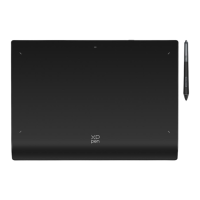
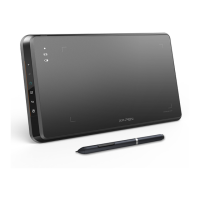
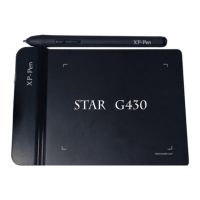
This document provides a "Wireless Pairing Guidance Diagram for Pen Tablet" from XP-PEN, detailing the steps required to establish a wireless connection between an XP-PEN pen tablet and a computer. The guide focuses on the pairing process using a wireless receiver and a USB cable, illustrating both successful and failed pairing scenarios.
Function Description:
The primary function of this guidance is to instruct users on how to wirelessly pair an XP-PEN pen tablet with a computer. This enables the pen tablet to function without a direct wired connection, offering greater flexibility and freedom of movement for the user. The pairing process involves connecting the tablet and a wireless receiver to the computer, initiating the pairing sequence, and then managing the connections to ensure a stable wireless link. The pen tablet itself is an input device commonly used for digital art, graphic design, and other applications requiring precise cursor control and pressure sensitivity. The wireless capability enhances its usability by reducing cable clutter and allowing the user to work from a comfortable distance.
Usage Features:
The guide outlines a clear, step-by-step process for wireless pairing, making it accessible for users to set up their pen tablet.
- Step 1: Initial Connection: The first step involves opening the wireless pairing tool (presumably software provided by XP-PEN) and then physically connecting both the pen tablet and the wireless receiver to the computer via USB. This initial wired connection is crucial for the system to recognize both devices and prepare for the wireless pairing. The diagrams show a laptop as the computer, with the tablet connected via a USB cable and the wireless receiver plugged into another USB port.
- Step 2: Initiating Pairing: Once both devices are connected, the user is instructed to click a "blue arrow" within the pairing tool. This action initiates the wireless pairing process, which is indicated to take approximately 2 seconds. This suggests an automated or semi-automated pairing mechanism within the XP-PEN software.
- Step 3: Post-Pairing Management (Successful Pairing): If the pairing is successful, the guide provides specific instructions for managing the connections to transition to wireless operation. This involves:
- Unplugging the USB cable from the pen tablet.
- Unplugging the wireless receiver from the computer.
- Replugging the wireless receiver into the computer.
- Restarting the pen tablet.
These steps are critical to ensure that the tablet now communicates wirelessly through the receiver rather than relying on the initial wired connection. The diagrams illustrate a successful pairing with a green checkmark, showing the tablet disconnected from the USB cable but the wireless receiver reconnected to the computer.
- Troubleshooting (Failed Pairing): The guide also addresses a scenario where pairing might fail. A red "X" symbol is used to indicate a failed pairing attempt. While the document doesn't explicitly detail troubleshooting steps for a failed pairing beyond showing the failure, the implication is that the user would need to re-attempt the process or consult further support. The visual representation of both success and failure helps users understand the outcome of their pairing attempts.
The visual nature of the guide, with clear diagrams for each step, enhances its usability. The diagrams show the laptop, the pen tablet, the USB cable, and the wireless receiver in various connection states, making it easy for users to follow along. The use of arrows indicates the flow of the process and the direction of connections.
Important Technical Specifications (Inferred):
While the document does not list explicit technical specifications, several aspects can be inferred:
- Wireless Technology: The presence of a "wireless receiver" strongly suggests the use of a proprietary 2.4 GHz wireless technology, which is common for such devices due to its reliability and low latency. Bluetooth is another possibility, but a dedicated receiver often points to a specific wireless protocol optimized for pen tablets.
- USB Connectivity: Both the pen tablet and the wireless receiver utilize USB for initial connection and power. This implies standard USB-A ports on the computer and likely a USB-C or Micro-USB port on the tablet for charging and wired connection.
- Driver/Software Requirement: The mention of "open the wireless pairing tool" indicates that specific XP-PEN driver software or a utility application must be installed on the computer for the pairing process to function. This software manages the connection, recognizes the devices, and facilitates the wireless link.
- Power Source: The pen tablet is implicitly battery-powered for wireless operation, as it needs to function without a constant wired connection after pairing. The USB cable would also serve as a charging cable.
Maintenance Features:
The document primarily focuses on the initial setup and pairing process, so it does not explicitly detail maintenance features. However, some general maintenance aspects can be inferred for a wireless pen tablet:
- Battery Management: For a wireless device, regular charging of the pen tablet's internal battery would be a key maintenance aspect. The USB cable used for initial connection would also serve this purpose.
- Driver Updates: Keeping the XP-PEN drivers and pairing software updated is crucial for optimal performance, compatibility, and potentially for resolving any connectivity issues.
- Receiver Care: The wireless receiver, being a small USB dongle, would require careful handling to prevent loss or damage.
- Cleaning: Like any electronic device, the pen tablet itself would benefit from periodic cleaning to remove dust and debris from its surface and buttons.
In summary, this guidance provides a straightforward, visually supported method for users to enable the wireless functionality of their XP-PEN pen tablet, enhancing its portability and ease of use for creative and professional tasks.

 Need help?

 To Next Page
 General