Need help?
Do you have a question about the XP-PEN Deco mini7 and is the answer not in the manual?
Guides on downloading from XP-Pen website and installing the driver file, including Mojave authorization.
Customize pen barrel button functions and adjust pen pressure sensitivity.
Customizes digital tablet express keys, designed for US English keyboards and Photoshop shortcuts.
Allows programming custom keystrokes for shortcut keys via a "Definition" or "Select Program" option.
Customize stylus buttons, configuration, and work area orientation for Mac.
Adjust pen output/pressure and select coordinate mode on Mac.
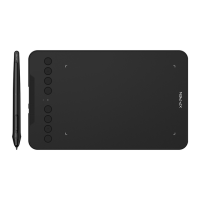
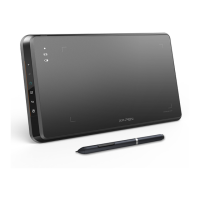
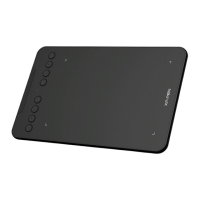
The XP-PEN Deco mini7 is a digital tablet designed for creative professionals and enthusiasts, offering a versatile platform for drawing, sketching, and graphic design. Its primary function is to provide a natural and intuitive input method for digital art, mimicking the feel of traditional pen and paper.
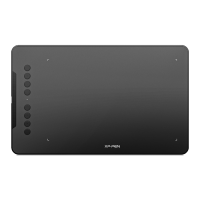
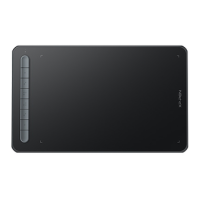
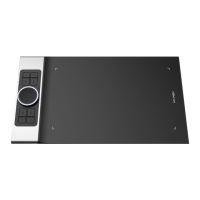
The Deco mini7 serves as an input device that translates pen movements and pressure into digital data, allowing users to create and manipulate digital content on a computer. It connects to a computer via a wired USB connection or wirelessly, offering flexibility in workspace setup. The tablet features an active area where the digital stylus interacts, and a series of Express Keys that can be customized for various shortcuts, enhancing workflow efficiency. The digital stylus itself is a key component, designed to be pressure-sensitive, which means it can detect varying levels of force applied by the user. This pressure sensitivity allows for dynamic line weight, opacity, and other artistic effects, providing a more expressive and natural drawing experience. The tablet's driver software, compatible with both Windows and Mac operating systems, is essential for its proper functioning, enabling customization of pen functions, pressure sensitivity, and Express Key assignments.
The Deco mini7 offers several features that enhance its usability and adaptability to different user preferences and workflows.
Pen Function Settings: Users can customize the functions of the digital stylus's barrel buttons. This allows for quick access to frequently used tools or commands, such as switching between pen and eraser, or executing custom keystrokes. The ability to program these buttons streamlines the creative process, reducing the need to constantly switch between the tablet and keyboard.
Click Sensitivity & Current Pen Pressure: The tablet allows for fine-tuning of pen pressure sensitivity. Users can adjust the "Output" to be "Soft" or "Hard," influencing how the tablet responds to different pressure levels. A "Current Pen Pressure" display provides real-time feedback, allowing users to test and refine their preferred pressure settings. This customization is crucial for achieving desired artistic effects and accommodating individual drawing styles.
Mouse Mode: The Deco mini7 supports two primary mouse modes:
Current Screen (Display Mapping): The tablet can be configured for use with single or multiple monitors. Users can choose to limit the tablet's input to a specific monitor or map it across all displays. The "Custom Display Mapping" feature allows for precise adjustment of the tablet's on-screen work area by defining top-left and bottom-right coordinates. This ensures that the tablet's active area aligns perfectly with the desired portion of the screen.
Work Area Orientation: The Deco mini7 can be rotated to accommodate different orientations (0°, 90°, 180°, and 270°). This feature is particularly useful for left-handed users or for specific ergonomic setups, allowing the tablet to be physically rotated while maintaining correct cursor mapping. For instance, a left-handed user might set the orientation to 180° and rotate the tablet accordingly.
Max Active Area: Users can set the tablet's work area to its maximum possible size, utilizing the entire active surface for drawing.
Display Ratio: This feature allows the tablet's on-screen working area to be adjusted to match the monitor's resolution, ensuring accurate proportions and preventing distortion of strokes.
Import & Export Profiles: The tablet's driver software allows users to save and load their customized barrel button and shortcut key settings as profiles. This is highly beneficial for users who work with multiple applications, as they can create distinct profiles for each, or for sharing settings with other users. It also serves as a backup for personalized configurations.
Windows Ink Support: The Deco mini7 supports Windows Ink, a feature that enhances pen input capabilities within Windows and compatible applications. This can be toggled on or off based on user preference and application compatibility.
Express Keys Setting: The tablet features a set of Express Keys that can be customized to perform various functions. By default, these keys are mapped to standard Photoshop keyboard shortcuts, but they can be reconfigured for other software. Users can disable the Express Keys entirely or hide hints that pop up on the screen when an Express Key is pressed. The ability to set different shortcut keys for different software applications further enhances workflow customization, allowing for context-specific shortcuts.
While the manual doesn't detail extensive physical maintenance, it emphasizes driver-related maintenance and troubleshooting, which are crucial for the digital tablet's performance.
Driver Installation and Uninstallation: The manual provides clear instructions for downloading, installing, and uninstalling the driver on both Windows and Mac. It stresses the importance of temporarily disabling anti-virus software during installation and uninstalling any existing digital tablet software to prevent conflicts. For reinstallation, it advises rebooting the computer after uninstalling the driver to ensure a clean slate.
Troubleshooting: The FAQ section addresses common issues such as the stylus not controlling the cursor. It guides users through a process of uninstalling and reinstalling the driver, and testing the hardware on a different computer to determine if the problem is software or hardware related. This systematic approach to troubleshooting helps users diagnose and resolve issues efficiently.
Software Updates: Although not explicitly stated as a maintenance feature, the instruction to download the "latest version of the driver" from the official website implies that XP-PEN regularly releases updates. Keeping the driver updated is a key maintenance practice to ensure compatibility with new operating system versions, improve performance, and fix bugs.
General Safety Precautions: The manual includes important safety precautions that indirectly contribute to the longevity and proper functioning of the device. These include avoiding unstable surfaces, keeping the product away from water and metallic objects, and not disassembling the device. Adhering to these guidelines helps prevent physical damage and malfunction, reducing the need for repairs or replacements. The warning against using alcohol or harsh solvents for cleaning also falls under maintenance, as it prevents damage to the tablet's surface and components.
 General
| Active Area | 7 x 4.37 inches |
|---|---|
| Pressure Sensitivity | 8192 levels |
| Resolution | 5080 LPI |
| Connectivity | USB |
| Reading Height | 10 mm |
| Compatibility | Windows, macOS, Android |
| Pen | Battery-free stylus |
| Express Keys | 8 customizable buttons |
| Tilt | ±60 degrees |

 To Next Page