
 Need help?
Do you have a question about the XP-PEN Deco Pro Series and is the answer not in the manual?
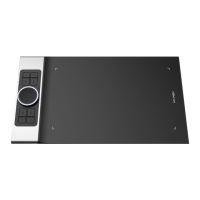
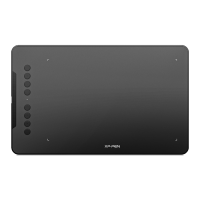
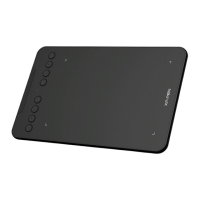
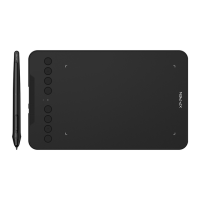
Details the physical components and features of the drawing tablet.
Lists all accessories and items included in the product package.
Instructions on how to connect the drawing tablet using a wired USB connection.
Details how to connect the drawing tablet wirelessly via Bluetooth.
Explains how to switch the drawing tablet connection between two Bluetooth devices.
Lists operating systems compatible with the wired connection of the drawing tablet.
Lists operating systems compatible with the Bluetooth connection of the drawing tablet.
Lists operating systems compatible with the wired connection of the wireless remote.
Lists operating systems compatible with the Bluetooth connection of the wireless remote.
Guide on how to download and install the necessary driver for the device.
Explains driver function and provides troubleshooting for connection issues.
Configures work area, pen settings, and application-specific functions for the tablet.
Customizes application and roller functions, shortcut keys, and configurations for the remote.
Options to disable shortcut keys, messages, pressure, or tilt effects.
Allows importing or exporting driver settings and configurations.
Provides tools for diagnosing issues and giving feedback to the manufacturer.
Steps to uninstall the driver on Windows operating systems.
Steps to uninstall the driver on macOS operating systems.
Steps to uninstall the driver on Linux operating systems using commands.
Troubleshooting steps for when the computer fails to recognize the device.
Solutions for stylus not working or pen pressure not being detected.
Troubleshooting steps for paired device connection failures and line latency.
The XPPen Deco Pro (Gen 2) Drawing Tablet is a versatile input device designed for digital artists and creative professionals, offering a range of features for both drawing and general computer interaction. It supports both wired and wireless connections, providing flexibility in how it integrates into a user's workflow.
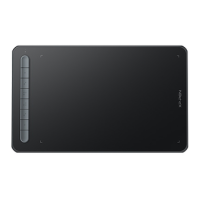
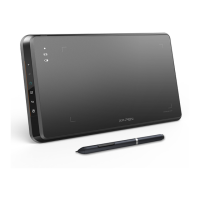
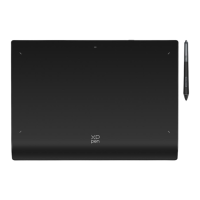
The core function of the Deco Pro (Gen 2) is to provide a natural and precise drawing experience. It features a large active area where users can draw and interact using a pressure-sensitive stylus. The tablet is equipped with a Power Key for turning the device on/off and initiating Bluetooth pairing. An Indicator 1 light provides visual feedback on the tablet's status, including Bluetooth connection, pairing mode, battery level (low battery, charging, fully charged), and a purple status indicating simultaneous red and blue indicators. Indicator 2 shows whether the stylus is within the active area. The tablet's active area is the primary surface for drawing and pen input.
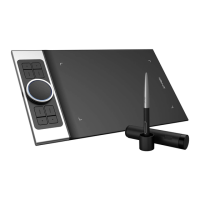
In addition to the main drawing tablet, the Deco Pro (Gen 2) includes a Wireless Shortcut Remote. This remote is designed to enhance efficiency by providing customizable shortcut keys and a roller. The remote features a Power Slide Switch and an Indicator light that shows Bluetooth connection status (flashing slowly for waiting, flashing quickly for pairing, always on for successfully paired, and off for fully charged). It also indicates battery status (flashing for low battery, always on for charging, and off for fully charged). A purple light on the remote signifies both red and blue indicators are on simultaneously. The remote has a Roller and a Roller Switch Key, which can be long-pressed to enter Bluetooth pairing. A USB-C Port is available for wired connection. The Shortcut Key Group consists of 4 customizable groups, each with 10 keys, totaling 40 shortcut keys. These groups can be disabled if not needed, and Group One is enabled by default, with K1 serving as a toggle key to switch between groups.
The Deco Pro (Gen 2) offers various connection methods to suit different setups. For wired connection, the drawing tablet can be connected to a computer using either a USB-C to USB-C cable or a USB-C to USB-A cable. The Wireless Shortcut Remote also supports wired connection via USB-C to USB-C or USB-C to USB-A cables.
For Android users, the tablet can be connected to an Android phone or tablet using a USB-C to USB-C cable. When connecting to Android devices, it's crucial to disable the auto-rotate function and keep the screen in portrait mode, as the drawing tablet is currently designed for normal use only in portrait orientation on Android devices.
Wireless connectivity is a key feature. The drawing tablet supports direct Bluetooth connection. To initiate this, the user presses and holds the power switch for 3 seconds to turn it on (Indicator 1 flashes blue), then long-presses for 6 seconds to enter Bluetooth pairing mode (Indicator 1 flashes blue quickly). On the computer, Bluetooth needs to be turned on, and the device named "Deco Pro ***" can be selected for pairing. Once paired, Indicator 1 remains blue. The tablet can be shut down by long-pressing the power switch for 3 seconds, turning Indicator 1 off.
The Wireless Shortcut Remote also supports direct Bluetooth connection. Users slide its power switch (blue indicator flashes slowly), then long-press the K11 shortcut key for 6 seconds to enter Bluetooth pairing (blue indicator flashes quickly). On the computer, the device named "Shortcut Remote" can be found and paired. The blue indicator will stay on for 30 seconds after pairing, then turn off. The remote can be turned off by sliding its power switch again.
For users preferring a dongle connection, the Wireless Shortcut Remote can be connected via a Bluetooth receiver plugged into the computer. The indicator light will be blue, turning off after 30 seconds. If re-pairing the Bluetooth receiver is necessary, a wireless pairing tool can be downloaded from the XPPen website.
The drawing tablet also features Bluetooth Device Switching, allowing it to connect to two different Bluetooth devices. By toggling the Bluetooth switching button to position 1 or 2 and long-pressing the power button for 6 seconds, the tablet can be paired with Device 1 or Device 2, respectively. Toggling the button then switches the Bluetooth connection between the two paired devices.
The device is compatible with a wide range of operating systems. For wired connection, it supports Windows 7 (or later), macOS 10.10 (or later), Android 10.0 (or later), Chrome OS 88 (or later), Harmony OS, and Linux. For Bluetooth connection, it supports Windows 10 (or later) and macOS 10.10 (or later). The Wireless Shortcut Remote, for wired or dongle connection, supports Windows 7 (or later), macOS 10.10 (or later), and Linux. For Bluetooth connection, it supports Windows 10 (or later) and macOS X 10.10 (or later).
Before use, the driver must be installed. Users should download the appropriate driver from the XPPen website. Important notes for installation include turning off antivirus and graphics software, uninstalling other drawing tablet drivers, and restarting the computer after installation. The driver runs automatically after installation; if not, it can be manually launched. The driver interface displays the device image and name if successfully connected. The driver allows connection of up to 3 devices simultaneously, with settings customized for each device.
Device settings are extensive. The "Work Area" allows users to define the mapping between the tablet's active area and the screen display area. In "Screen" mode, users can set the mapping to the current monitor's display area. If multiple monitors are in duplicate mode, the tablet's work area maps to all monitors. In extend mode, users can select a specific monitor for mapping. Options include "Set full screen" or "Customize screen area" (by dragging, using the cursor, or entering coordinates). The "Identify" function helps identify connected monitors. In "Drawing Tablet" mode, users can set the work area of the device itself, choosing "Full area" or "Customize active area" with similar customization methods. The "Proportion" setting scales the device's work area proportionately to the display area, maintaining aspect ratio. The "Rotation" setting allows rotating the device's orientation (0°, 90°, 180°, 270° clockwise), including a "Left-handed mode" (180° rotation). The "Application" feature allows setting pen key functions for specific applications.
"Pen Settings" enable customization of the stylus. When the stylus is within the work area, it is recognized by the driver. Users can customize pen key functions by selecting "Customize" in the drop-down menu. Options include "Keyboard" shortcuts (up to 20 groups, supporting combination keys like Alt+A or Ctrl+C, Ctrl+V), "Mouse Control" (setting key combinations for mouse actions like Shift + Left Click), "Other" functions (Precision mode to limit work area for detailed drawings, Pen/Eraser toggle, Switch monitor, Key group switching, Set preview), and "Run Application" to launch specific programs. "Customized name" allows renaming key settings. "Pressure settings" let users adjust pen pressure sensitivity via a curve or slider, with a test area for current pressure. "Mouse mode" allows the cursor to stay where it's left when the pen is out of the work area, with adjustable speed. "Windows Ink" (for Windows only) supports handwriting functions in compatible software.
The Wireless Shortcut Remote's "Application" settings allow customizing its functions for specific applications, similar to the drawing tablet. The "Roller" can be switched between different functions using its middle key. "Customize" allows defining clockwise and counterclockwise functions for the roller using keyboard keys or combinations. "Import/Save" functions allow saving and importing configurations, which are valid for wired connections and the same operating system. "Shortcut keys" on the remote offer four groups, with the first group being default and customizable. "Key group switching" (default K1) allows switching between enabled groups. "Set preview" displays the functions of the active key group.
The driver includes "Driver Settings" for general maintenance and troubleshooting. "Disable shortcut keys" turns off all key functions on the device. "Disable message" prevents key press messages from appearing on screen. "Disable pressure" turns off pen pressure sensitivity. "Disable tilt" disables the stylus's tilt effect. "Import & Export config" allows users to save and load their settings, useful for backup or transferring configurations (valid for the same operating system). A "Diagnostic tool" is provided for troubleshooting. A "Feedback" option allows users to submit questions or suggestions.
For driver uninstallation, specific steps are provided for Windows (Start -> Settings -> Apps -> Apps & Features -> Pentablet -> Unload), Mac (Go -> Apps -> XP-PenPenTabletPro -> UninstallPenTablet), and Linux (using terminal commands like sudo dpkg -r XPPenLinux or sudo rpm -e XPPenLinux, or executing uninstall.sh for Tag.gz files).
A "FAQs" section addresses common issues. For device recognition problems, users are advised to check the USB port. For stylus malfunction, ensure the original stylus is used and the driver is correctly installed. If drawing software lacks pen pressure, users should check software compatibility, download the latest driver, disable antivirus/graphics software before installation, and uninstall other drawing drivers. For line latency, users should check computer configuration against software requirements and optimize settings. If a paired device fails to connect, users are instructed to delete the Bluetooth connection from the operating system and re-pair the device.
 General
| Pen Pressure Sensitivity | 8192 levels |
|---|---|
| Pen Technology | Battery-Free Electromagnetic Resonance |
| Resolution | 5080 LPI |
| Connectivity | USB-C |
| Accuracy | ±0.01 inch |
| Reading Height | 10 mm |
| Active Area | 11 x 6 inches (Medium), 9 x 5 inches (Small) |
| Tilt Recognition | ±60 degrees |
| Express Keys | 8 |
| Compatibility | Windows 7/8/10, Mac OS X 10.10 and above, Android 6.0 and above |
| Report Rate | 200 RPS |


 To Next Page