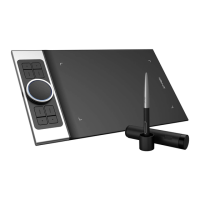
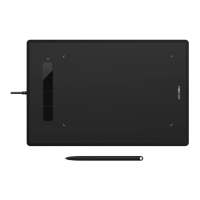
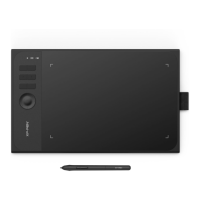
The XP-PEN Deco mini4, Deco mini7, and Deco mini7W are graphics tablets designed for digital art and design. This user manual provides comprehensive information on their setup, usage, and maintenance.
Function Description
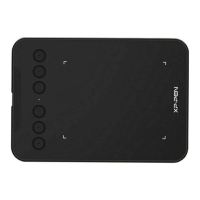
These graphics tablets allow users to create digital art, illustrations, and designs using a digital stylus on an active area. The stylus acts as a high-precision input device, enabling control over a cursor on a computer display. The tablets feature customizable Express Keys for efficient workflow and support both wired and wireless connections (for the Deco mini7W).
Important Technical Specifications
The tablets are compatible with Windows 10, 8, or 7, and Mac OS X 10.10 or above.
The Deco mini4, Deco mini7, and Deco mini7W models are covered.
The driver software version is 2.1.7 (2020-05-18).
Usage Features
Connection:
- Wired Connection: Connect the graphics tablet to your computer via the USB port.
- Wireless Connection (Deco mini7W only):
- Plug the wireless receiver into the computer.
- Press and hold the power key on the tablet for 3 seconds to turn it on. It will automatically connect, allowing stylus control of the cursor.
- Press and hold the power key for 3 seconds to turn it off.
Indicators (Wireless Mode):
- White Indicator:
- Flashing: Stylus is in the sensing area but not touching the tablet.
- Always On: Stylus is in contact with the sensing area.
- Off: Stylus is outside the sensing area.
- Blue Indicator (Wireless+Power):
- Flashing: Tablet is waiting for pairing and wireless connection.
- Always On: Tablet is successfully paired and connected.
- Red Indicator (Wireless+Power):
- Flashing: Battery power is low (10%).
- Always On: Battery is being charged.
- Off: Battery is fully charged.
Driver Installation:
- Download the latest driver from the official XP-Pen website (https://www.xp-pen.com/).
- Temporarily disable anti-virus software.
- Unzip the driver file and open the folder.
- For Windows: Run the ".exe" file.
- For Mac: Run the ".dmg" file and drag the "PenTablet" folder to the "Applications" folder.
- For macOS Mojave (10.14) and above, click the "Mojave Authorization" button for setup and reboot.
- After installation, connect the tablet and verify cursor control with the stylus.
- Open the driver interface to set and test stylus pressure.
- Note: Uninstall any existing graphics tablet software before installing the XP-Pen driver to avoid conflicts.
Driver Settings UI (Windows):
- Accessing Settings: Double-click the driver icon in the system tray or on the desktop.
- Pen Function Settings: Customize the functions of the stylus's barrel buttons. Use the "Function Key" option for custom keystrokes.
- Click Sensitivity & Current Pen Pressure: Adjust the pen pressure "Output" to "Press," "Soft," or "Hard." The "Current Pen Pressure" display allows testing of pressure levels.
- Mouse Mode:
- Absolute (Pen) Mode: Standard graphics tablet mode where each point on the tablet's work area corresponds to an absolute point on the computer display.
- Relative (Mouse) Mode: The tablet's work area does not correspond to absolute points, and the pen functions as a standard mouse. Cursor speed can only be adjusted in this mode.
- Current Screen: Configure the tablet for single or dual monitors. Input can be limited to a particular monitor.
- Custom Display Mapping: Adjust the dimensions of the tablet's on-screen work area by clicking the top-left and bottom-right points.
- 0°, 90°, 180°, & 270° Angles: Set the tablet to operate at these angles. The physical tablet must also be rotated accordingly.
- Set Work Area: Customize the tablet's work area using the stylus.
- Display Ratio: Adjust the tablet's work area to match the monitor's resolution.
- Max Active Area: Set the tablet's work area to its maximum.
- Import & Export Profiles: Save and load barrel button and shortcut key settings. Click "OK" to save and exit.
- Windows Ink: Toggle support for Windows Ink and compatible applications.
- Express Keys Setting:
- Shortcut keys are designed for US English keyboards; other languages may not function correctly.
- Default mappings are for Photoshop shortcuts, but keys can be customized for other software.
- Disable Express Keys: Disables all express key functions.
- Hide Hints: Prevents messages from popping up when an express key is pressed.
- Customizing Keys: Edit functions, program custom keystrokes, and set different shortcut keys for different software by clicking the "+" button to select a program.
Driver Settings UI (Mac):
- Accessing Settings: Open Finder > Applications > PenTabletSetting.
- Pen Tab:
- Customize stylus barrel button functions.
- Click "Default Button Setting" to revert to manufacturer settings.
- Configuration Setting:
- Disable Pen Pressure: Disables the pen pressure function.
- Disable Key Function: Disables all express key functions.
- Disable Display Message: Prevents messages from popping up when an express key is pressed.
- Work Area Orientation: Configure the tablet for 0°, 90°, 180°, and 270° angles. Remember to rotate the physical tablet.
- Output: Adjust pen pressure sensitivity ("Output," "Press," "Soft," "Hard") and test current pressure levels.
- Coordinate Mode:
- Absolute (Pen) Mode: Standard graphics tablet mode.
- Relative (Mouse) Mode: Pen functions as a standard mouse. Cursor speed is adjustable only in this mode.
- Import & Export Profiles: Save and load barrel button and shortcut key settings.
- Monitor Tab: Configure the tablet for single or dual monitors, or use only a portion of the display.
- Graphics Tablet Area:
- Full Area: Automatically selects the largest possible working area.
- Screen Ratio: Adjusts the tablet's work area to match the monitor's resolution.
- Express Keys Tab:
- Each express key has a default function.
- Customize functions and program custom keystrokes using the "Reset Customer Defined" option.
- Set different shortcut keys for different software by clicking the "+" button to select a program.
- About Tab: Displays the current driver software version.
Driver Uninstall:
- Windows: Go to Start menu > Settings > Apps & features, find "Pentablet," and click "Uninstall."
- Mac: Open Finder > Application > Pen Tablet, and click "Uninstall Pen Tablet."
- Note: Reboot the computer after uninstalling the driver, especially before reinstalling.
Maintenance Features
Safety Precautions:
- Avoid Control Systems: Do not use in systems requiring high safety/reliability, as it may cause malfunction.
- Power Off in Restricted Areas: Turn off the tablet in aircraft or other areas where electronic device use is prohibited. Unplug the USB connector.
- Keep Away from Children: Small accessories are choking hazards.
- Stable Surfaces: Do not place on unstable, tilted, or vibrating surfaces to prevent falls and damage.
- Avoid Heavy Objects: Do not place heavy objects on the tablet or step on it.
- Temperature Extremes: Do not store below 5°C or above 40°C, or in areas with excessive temperature fluctuations.
- No Disassembly: Do not disassemble or modify the product to avoid heat, fire, electric shock, injury, and voiding the warranty.
- No Alcohol for Cleaning: Never use alcohol, thinner, benzene, or other mineral solvents, as they may discolor or damage the product.
- Avoid Water Exposure: Keep the tablet away from water and all liquids.
- Avoid Metallic/Magnetic Objects: Placing these objects on the tablet during operation may cause malfunction or permanent damage.
- Protect the Pen: Do not strike the pen against hard objects. Avoid gripping too tightly or applying excessive pressure to the Express Key button and pen. Keep the pen away from high dust, contaminants, or particulate matter.
Troubleshooting (FAQ):
- Stylus Not Controlling Cursor:
- Uninstall the driver. If the uninstaller fails, run the installer again to uninstall. Reboot, connect the tablet, and test the stylus.
- If the cursor responds, the hardware is functional. Reinstall the latest driver from www.xp-pen.com.
- Driver Installation Success: The driver icon should be visible in the system tray (Windows OS), and pen input/pressure sensitivity should work in the "Pressure Test" tab.
- Software vs. Hardware Problem: Connect and install the tablet on a different computer. If it works, the issue is software-related. Ensure all previous graphics tablet drivers are uninstalled before reinstalling the XP-Pen driver.
Support:
- Web: www.xp-pen.com
- Email: service@xp-pen.com

 Need help?
 General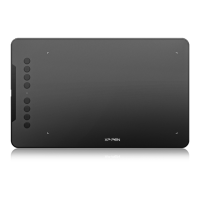



 To Next Page