Thank you for purchasing the XP-
Pen
English, Russian, Japanese, German, Korean, Chinese, Italian, Spanish, French
apologize if your preferre
d language is not supported
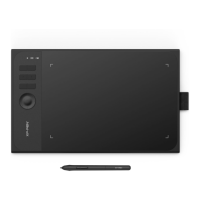
Overview
1. Power key(
2. USB port
3.
Status shown by the white indicator:
a. Flashing: The digital stylus
is in the sensing area, but it does not touch the tablet
b. Always On: The digital
c. Off: The digital stylus
is outside the sensing area
4. Express key
5. Wireless+Power indicator(
Status shown by the blue indicator:
a.
Flashing: The tablet is waiting for pairing a
b.
Always On: The tablet is successfully paired and connected
Status shown by the red indicator:
a.
Flashing: The battery power is low (10%)
b.
Always on: The battery is being charged
c.
Off: The battery is fully charged
6. Active area
The graph
1. Wired connection of the
Connect the graphics tablet
to your computer, and make sure you can use the digital
control the cursor.
4
graphics tablet
. Our product user manual currently supports
English, Russian, Japanese, German, Korean, Chinese, Italian, Spanish, French
d language is not supported
.
Image 1-1
)
Status shown by the white indicator:
is in the sensing area, but it does not touch the tablet
stylus is in
contact with the sensing area
is outside the sensing area
)
Status shown by the blue indicator:
Flashing: The tablet is waiting for pairing a
nd wireless connection
Always On: The tablet is successfully paired and connected
Status shown by the red indicator:
Flashing: The battery power is low (10%)
Always on: The battery is being charged
Off: The battery is fully charged
tablet
to your computer, and make sure you can use the digital
. Our product user manual currently supports
English, Russian, Japanese, German, Korean, Chinese, Italian, Spanish, French
, and Polish. We
is in the sensing area, but it does not touch the tablet
to your computer, and make sure you can use the digital
stylus to




 To Next Page