1.2. Configuration Setting:
Disable pen pressure: When the “Disable pen pressure” function is enabled, you can disable the pen
pressure function.
Disable Key Function: When you enable it, all of the express keys function will be disabled.
Disable Display Message: When you enable it and press any express key, the message will not popup
on the bottom of your screen.
Image 3-17: Configuration Setting
1.3. Work Area Orientation:
0, 90, 180 & 270:
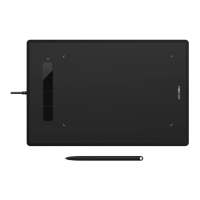
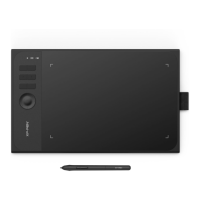
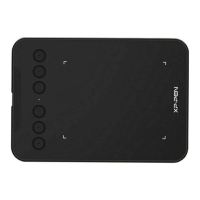
The G960, Q1S & Q1M can also be configured for 0, 90, 180 & 270 angles.
Be sure to rotate the actual physical tablet as well.
Left hand is 180 angles.
Image 3-18: Work Area Orientation
1.4. Output:
You can adjust pen pressure to “Output” 、 “Press” or “Soft” 、 “Hard” sensitivity on here.
It shows the current pressure level being exerted on your tablet and can be used to test pen pressure.
Image 3-19: Output





 To Next Page