
 Need help?
Do you have a question about the XTIOT XT-6400 and is the answer not in the manual?
Configure how the scanner transfers data, including Bluetooth and 2.4g modes.
Restore factory default settings by scanning a specific barcode.
Switch between different wireless communication protocols like 2.4g and Bluetooth HID.
Configure characters appended to scanned data, such as carriage returns or line breaks.
This document outlines the setup and operational procedures for a two-dimensional wireless scan code gun, referred to as a scanner. It details how to configure the device for data transfer, switch communication modes, and manage ending character settings. The manual is designed to guide users through the initial setup and ongoing use of the scanner, ensuring proper functionality and connectivity.
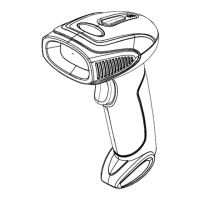
The two-dimensional wireless scan code gun is designed for efficient data capture by scanning various barcodes. Its primary function is to read and transmit barcode data wirelessly to a connected host device. The scanner supports different wireless communication modes, including Bluetooth HID, Bluetooth SPP, Bluetooth BLE, and 2.4G mode, offering flexibility in connecting to a wide range of devices such as Android, iOS mobile phones, and Windows PCs.
The device is capable of reading two-dimensional barcodes, which typically store more information than traditional one-dimensional barcodes, making it suitable for applications requiring complex data capture. The wireless nature of the scanner enhances mobility and convenience, allowing users to scan items without being tethered by cables.
A key feature of the scanner is its ability to add various ending characters to the scanned data, such as carriage returns, line breaks, or tabs. This functionality is crucial for ensuring that the scanned data is correctly formatted and processed by the receiving application, whether it's for inventory management, point-of-sale systems, or other data entry tasks. Users can select the desired ending character to match the requirements of their specific software.
The scanner also includes a reset function, which allows users to restore the device to its factory default settings. This is particularly useful if the scanner's functionality is disrupted due to accidental scanning of incorrect setting codes, ensuring that the device can always be returned to a known working state.
The scanner offers multiple methods for establishing a connection with host devices, catering to different user preferences and technical environments.
Bluetooth HID Mode: This mode is designed for seamless integration with Android, iOS mobile phones, and Bluetooth-enabled PCs.
2.4G Mode: This mode is compatible with Windows operating systems (XP, Win7, Win8, Win10) that support 2.4G scanning functions.
Communication Mode Switching: The scanner allows for easy switching between different communication modes by scanning specific barcodes:
Ending Add Settings: The scanner provides options to append various ending characters to the scanned data, which is crucial for data formatting in different applications.
These features ensure that the scanner can be adapted to various operational environments and data processing requirements, making it a versatile tool for barcode data capture.
The scanner incorporates a crucial maintenance feature: the ability to reset to factory default settings.
Reset Function: If the scanner's functionality is impaired due to accidental scanning of incorrect function setting codes, users can restore the device to its original factory settings. This is achieved by scanning a specific barcode ("%%SpecCode93") labeled "reset". This action reverts all configurations to their default state, resolving potential operational issues and ensuring the scanner works as intended. This feature is vital for troubleshooting and maintaining the scanner's reliability over its lifespan, preventing prolonged downtime caused by misconfigurations.
The manual also includes "Enter setting mode" ("%%EnterSet") and "Exit setup mode" ("%%ExitSet") barcodes, which are essential for navigating and confirming configuration changes. These modes ensure that settings are applied correctly and that the device returns to its operational state after adjustments.
 General
| Power Supply | 5V DC ± 5% |
|---|---|
| Interface | USB, RS232 |
| Operating Temperature | 0°C to 45°C |
| Storage Temperature | -20°C to 60°C |
| Humidity | 5% to 95% (non-condensing) |

 To Next Page