WHAT TO DO IF YOU CAN’T ADD YOUR XY FIND IT
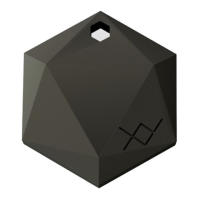
XY2
• If the app indicates there are no unclaimed beacons during the syncing process, make
sure Location is on and set to its highest accuracy mode. iOS allows you to have
Location on in general, but it could be disabled for a particular app. To confirm
Location is on for the XY app, please go to the XY app’s main menu by tapping the
icon at the top-left corner of the My Items screen, then tap “device settings”. Once
confirmed, log out of the app, restart Bluetooth and log back in to try again.
• If the issue persists, place your XY Find It by your device, then go to the main menu,
then tap “nearby”. This page will display any beacons that the app can pick up. If this
page is blank, please open your XY Find It to ensure there’s no piece of the battery
tab left underneath the battery. This video shows you how to open your XY Find It.
Reinsert the battery with the “+” side up and check if now you can see a signal.
• If you see a signal, but the beacon appears as “claimed”, please take a screenshot of
the nearby page and send it to us along with your purchase receipt via the feedback
form in the app’s main menu or via email at contact@xyfindit.com and we can help
you reset your XY Find It.
• If the nearby page is still blank, please try a new battery. XY beacons use CR2032
batteries. If the battery that came with your new XY Find It is faulty, we’d be happy to
send you a new one.
• If a new battery still doesn’t fix the issue, please submit a feedback form with the
details of the issue, any troubleshooting already performed and we’d be happy to
assist you until the issue is fully resolved and you can register your XY Find It.
XY3
• If the app indicates there are no unclaimed beacons or the syncing process
doesn’t start even though you did hear your beacon beep when you pressed the
button, please make sure Location is enabled for the app and set to its highest
accuracy mode, then log out of the app, restart Bluetooth and log back in to try
again. When you log back in, press the button on your XY Find It again and
follow the prompts in the app to complete the registration.
• If the syncing process still can’t start and/or your XY Find It didn’t beep when
you pressed the button, press and hold the button on your XY3 again to make
sure it hasn’t gone back to sleep mode. If it beeps but still can’t sync, please go
to the app’s main menu, then tap “nearby” to see the current status.
• If your XY3 appears as “claimed”, please take a screenshot of this page and
send it to us along with a copy of the purchase receipt via the feedback form in
the app or via email at contact@xyfindit.com and we can help you reset your it.
• If the nearby page is blank and/or your XY3 doesn’t beep when you press and
hold the button on it, please open it to make sure the battery is installed
properly. This video shows you how to open your XY Find It. Reinsert the battery
with the “+” side up and check if now you can see a signal and it beeps. If
there’s still no signal or it doesn’t beep, please try a new battery. XY beacons
use CR2032 batteries. If the battery of your new XY3 was faulty, we’d be
happy to send you a new one.
• If the issue persists, please submit a feedback form with the details of the issue,
any troubleshooting already performed and we’d be happy to assist you until
the issue is fully resolved and you can register your XY3.
Copyright © 2016 XY – The Findables Company
Page 5


 To Next Page
 Loading...