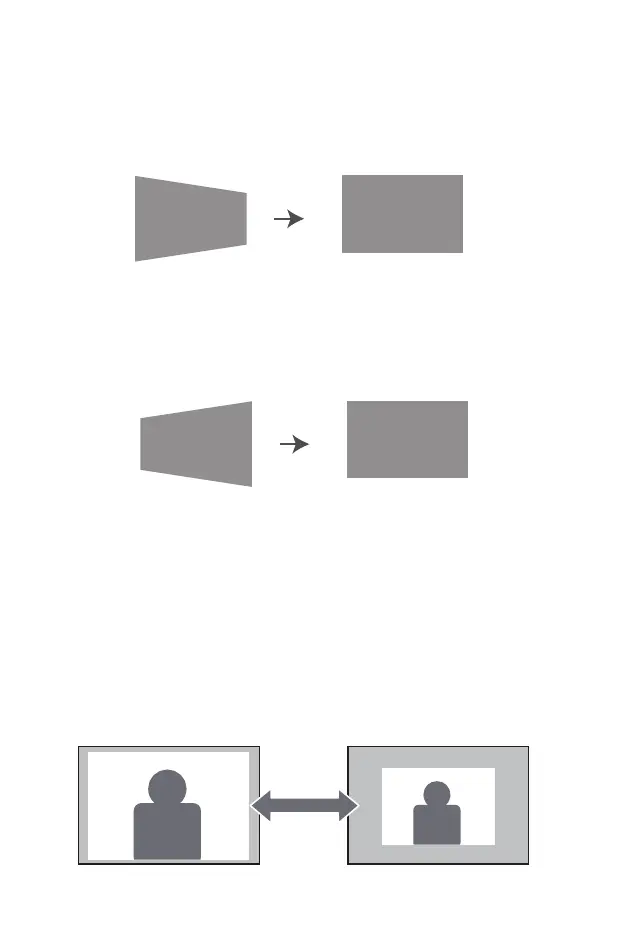
If the projection image is tilted horizontally, as shown in (5), press the "M"
key on the remote control, select "Keystone adjustment", then press the
"OK" button and set the horizon value to "+" ", Reach the projection
effect (6).
1.2 "Horizon". Range: -50 ~ +50
<X_Zoom / Y_Zoom>
If the projection image is tilted horizontally, as shown in (7), press the "M"
button on the remote control, select "Keystone adjustment", press the
"OK" button and set the horizon value to "-", Reach the projection
effect (8).
When playing back an image or video, if you want to change the size of
the projected image or video, you can use the remote control to select
the next option and adjust the projection size:
1) Click "X_ZOOM" to adjust the horizontal size of the projection.
2) Click "Y_ZOOM" to adjust the vertical of the projection.
You can reduce the original height and width provided by the video
source up to 50%.
(5) (6)
(7) (8)
01 02 03 04 05 06 07
08 09 10
11 12 13 14 15 16 17
18 19 20 21 22 23 24 25 26 27
28 29 30 31 32 33 34 35 36 37
38 39 40 41 42 43 44 45 46 47
48 49 50 51 52
53
54 55 56 57
58 59 60 61 62 63 64 65 66 67
68 69 70 71 72 73 74 75 76
77 78 79 80 81 82 83 84 85 86
87 88


 To Next Page